Okta User Provisioning (SCIM)
Last updated: August 12, 2026
Okta's SCIM (System for Cross-domain Identity Management) integration allows you to automate user provisioning and deactivation for ModernLoop. With SCIM, you can easily manage user roles and attributes, ensuring streamlined operations and enhanced security.
This article provides a step-by-step guide to enabling SCIM provisioning with ModernLoop's Okta integration.
Pricing
SCIM provisioning is an optional, paid add-on service. If you are interested in using SCIM with ModernLoop, contact your Account Executive or Customer Success Manager for more details.
Supported Feature: SCIM
The Okta/ModernLoop SCIM integration provides the following capabilities:
Create users
Update user attributes
Deactivate users
Note: Okta cannot update user attributes for Admin users due to an API limitation.
Required Attributes
To enable SCIM, the following attributes are mandatory:
Attribute Name | Value |
|
|
|
|
|
|
SCIM Attribute Mapping
ModernLoop maps SCIM attributes passed by your identity provider (e.g., Okta) to the ModernLoop SCIMUser object. Below is a breakdown of attributes and how they are mapped:
SCIM Attribute | Description |
| Directly mapped to the |
| Directly mapped to the |
| User's last name (e.g., “Jensen” in “Barbara Jane Jensen”). |
| User's first name (e.g., “Barbara” in “Barbara Jane Jensen”). |
| Mapped directly to the SCIM |
| Mapped to the |
| User's locale (e.g., |
| Indicates if the user is active or inactive ( |
| A custom property used to map ModernLoop roles. Supports the following roles:
|
Steps to Enable SCIM
Navigate to the Provisioning tab in Okta.
Select Configure API Integration.
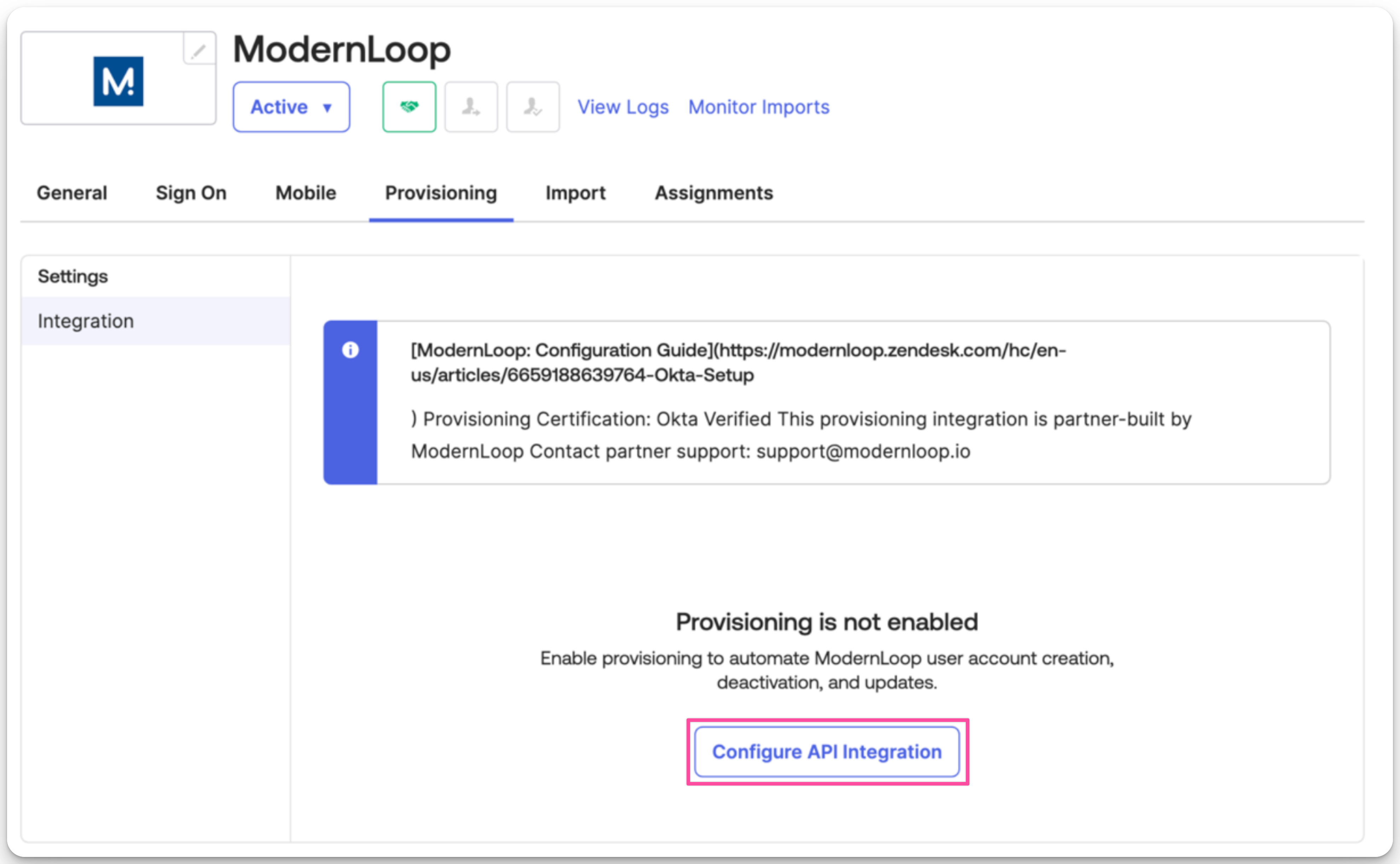
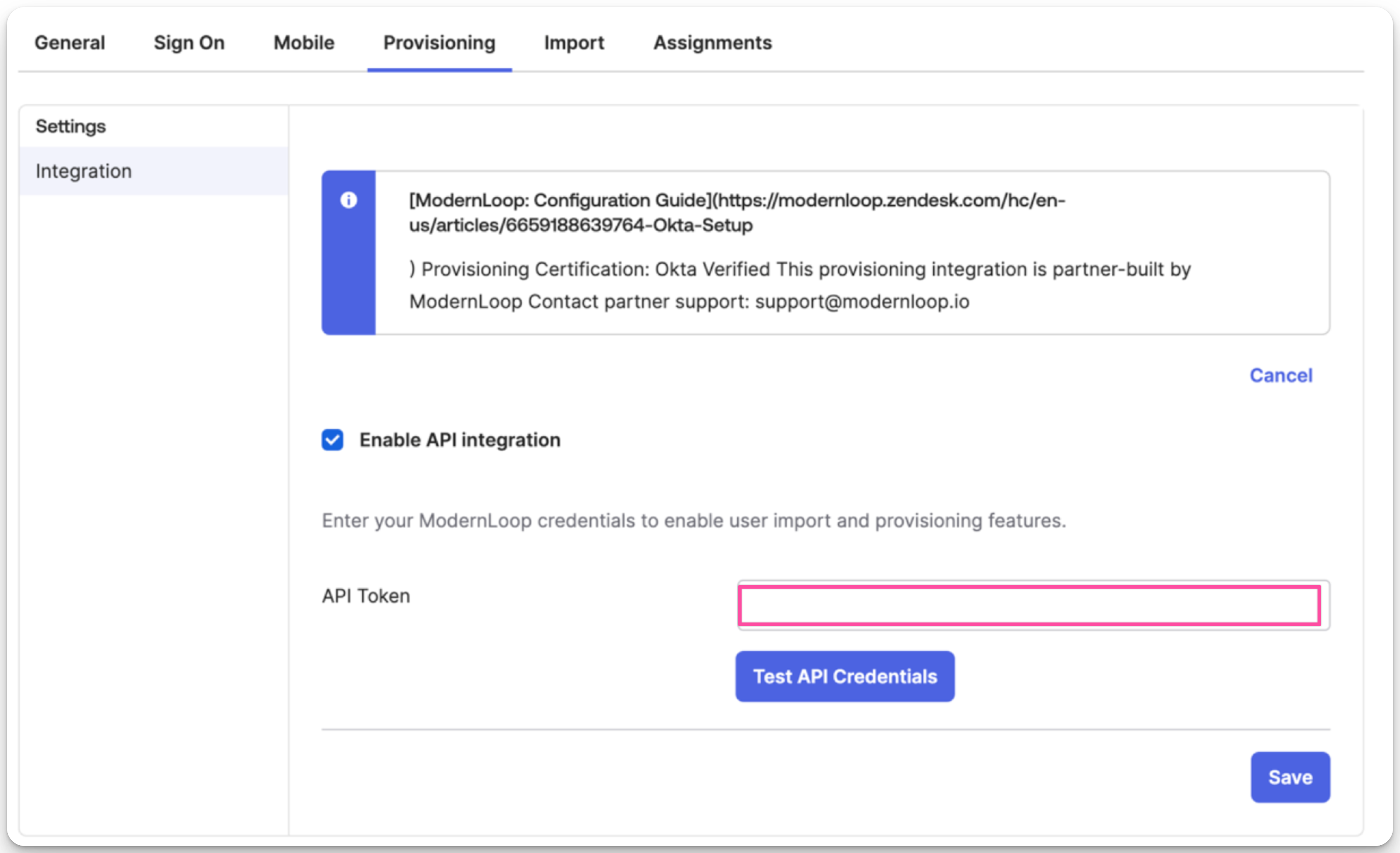
Enter the SCIM API Token provided by ModernLoop (Organization settings → Secrets → SCIM token) in the API Token field.
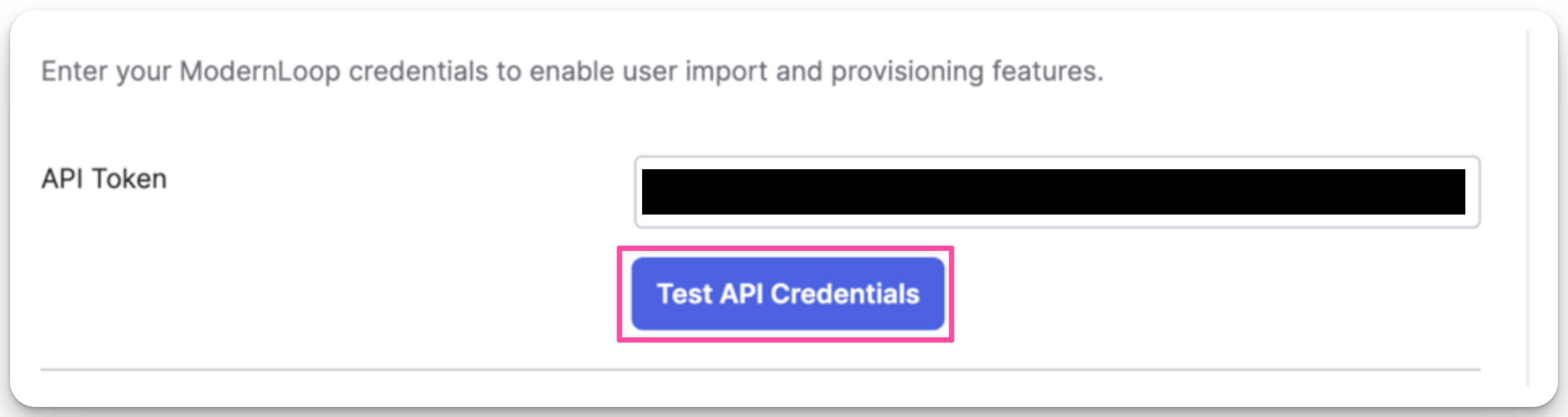
Click Test API Credentials to verify the integration.
Click Save.
Finalize the setup by testing the connector configuration and saving your changes. This process will enable user provisioning on ModernLoop via Okta.
Managing ModernLoop User Roles
After users are provisioned via SCIM, their roles can also be changed directly within ModernLoop without needing to update Okta settings. When SCIM is managing user roles, you can control whether in‑platform role editing is enabled by navigating to Organization Settings → Members, where you’ll find a setting to enable or disable role editing within ModernLoop.
When this setting is enabled, administrators can adjust any user’s role directly from the Members page, providing a quick way to correct role assignments or update access levels without going through the SCIM provisioning process again. When disabled, roles must be managed through Okta instead.
This self‑service option is particularly useful when users are initially provisioned with the wrong role or when role changes are needed quickly without waiting for SCIM synchronization.
ModernLoop supports three user access roles: OWNER, ADMIN, SCHEDULER, and INTERVIEWER.
OWNER: Grants full administrative access to ModernLoop.
ADMIN: Grants full administrative access to ModernLoop.
Use Owner for the person who owns your ModernLoop account or vendor relationship — and for team members who manage security-sensitive settings like integrations, API access, and membership.
Upcoming change — effective September 1, 2026
Starting September 1, 2026, Admins will no longer be able to manage:
Organization members (invites, role changes, removals)
Integrations
API keys
OAuth connections
Other organization permission and security settings
These capabilities will be limited to Owners.
Admins will retain access to all organization/company-level settings— they just won't be able to change who has access to your organization or how it's connected to external systems.
SCHEDULER: Provides limited access for scheduling-related tasks.
INTERVIEWER: Grants access to the Interviewer Portal.
Note: If no role is specified, the default role will be set to INTERVIEWER.
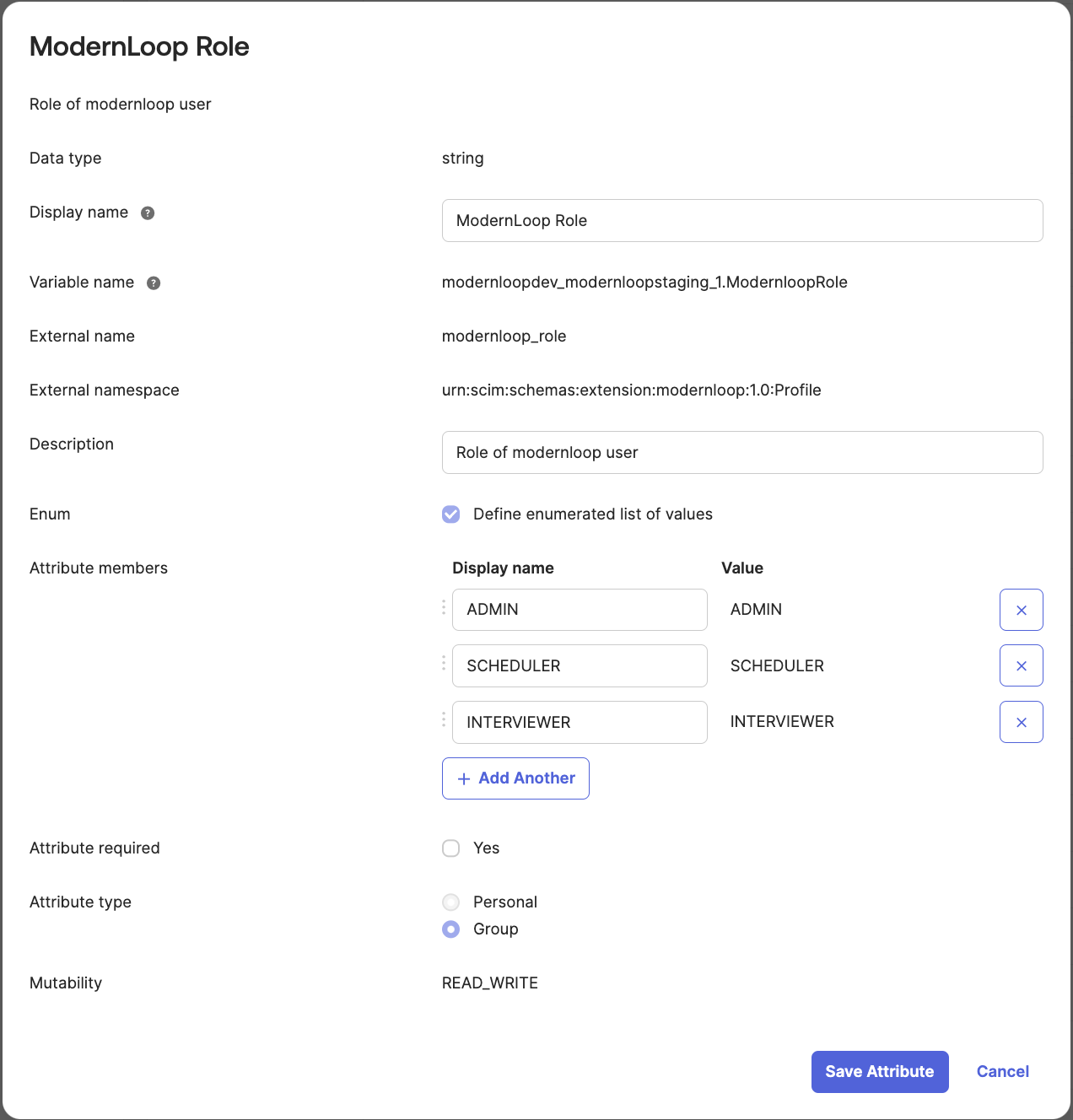
To control roles via Okta, add the custom attribute modernloopRole with the following configuration:
External name:
modernloopRoleormodernloop_role
External namespace:
urn:scim:schemas:extension:modernloop:1.0:Profile
Attribute values:
OWNERfor team members who manage security-sensitive settings like integrations, API access, and membership.ADMINfor admins
SCHEDULERfor schedulers
INTERVIEWERfor interviewers
If you would like to control Role at the Group level this is how you would set it up in Okta:
Troubleshooting
SCIM not working: Verify that the SCIM API Token provided by your CSM or Account Executive is correctly entered in Okta.
You cannot delete the default attribute and immediately create a new one with the same name. This will result in the following error:
“You cannot add the attribute with the variable name ‘modernloopRole’ because the deletion process for an attribute with the same variable name is incomplete. Wait until the data cleanup process finishes and then try again.”
If this occurs, you must wait for the cleanup process to complete.
If you need to recreate the attribute please set these values:
Data type
string
Display name
ModernLoop Role
Variable name
modernloopRole(or whatever you want)External name
modernloopRoleExternal namespace
urn:ietf:params:scim:schemas:extension:2.0:User
(Note we’ve been getting reports of this failing, we recommend leaving namespace blank for the time being.)Enum
Checked
Attribute Members
Owner → OWNER
Admin → ADMIN
Scheduler → SCHEDULER
Interviewer → INTERVIEWERAttribute type
Personal OR Group*
* This depends on you and how you want to assign this role
For further assistance, contact ModernLoop support at support@modernloop.io.
Next Steps
Test the SCIM configuration by provisioning a test user.
Verify attributes are correctly mapped in ModernLoop.
Deactivate a user to confirm proper deprovisioning.
If you would like to complete a SCIM property sync, follow the instructions outlined in📄 Okta SCIM Property Sync