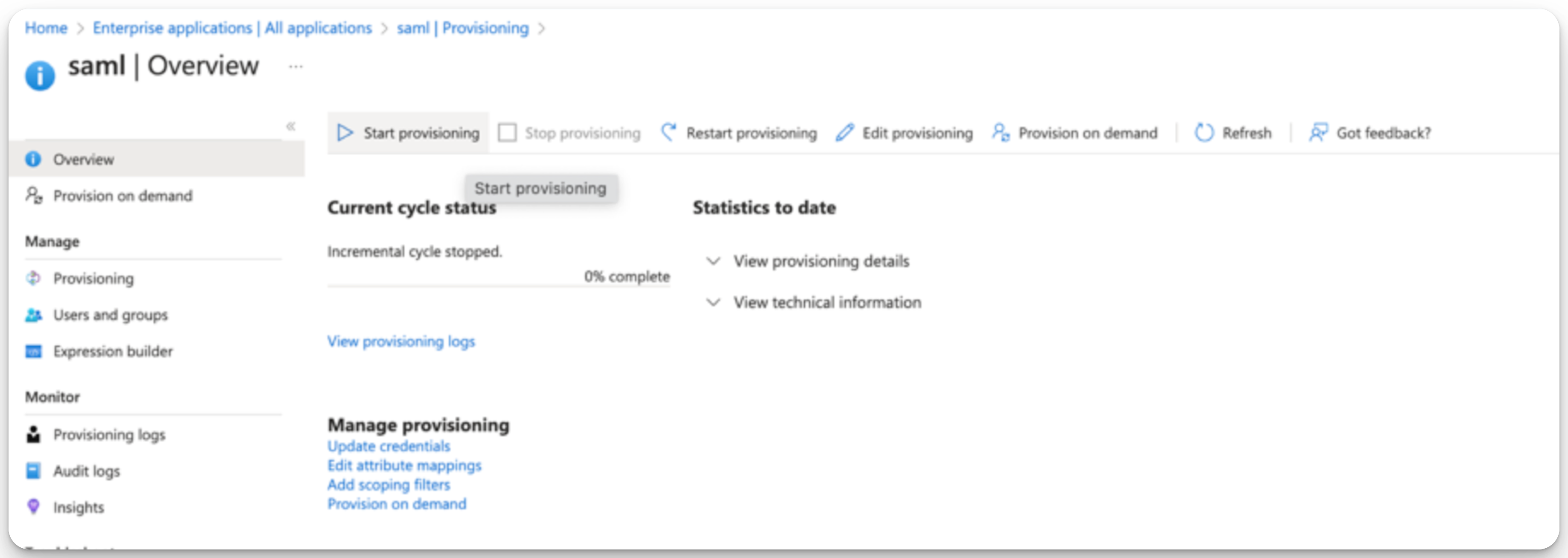
Microsoft Entra ID User Provisioning (SCIM)
Last updated: February 9, 2026
Microsoft Entra ID (formerly Azure AD) is an identity provider that supports Single Sign-On (SSO) and SCIM provisioning. If your company has added SSO to its ModernLoop plan, you can manage login access to ModernLoop and maintain consistent security across your organization through Microsoft Entra ID.
By enabling SCIM (System for Cross-domain Identity Management), you can proactively remove users from ModernLoop when they are deleted in your directory, ensuring secure and efficient user management.
For instructions on setting up SSO for Microsoft Entra ID, see📄 Microsoft Entra ID Single Sign-on (SAML)
Enabling SCIM
Log in to the Azure Portal as an administrator.
Navigate to the previously created Enterprise Application for ModernLoop.
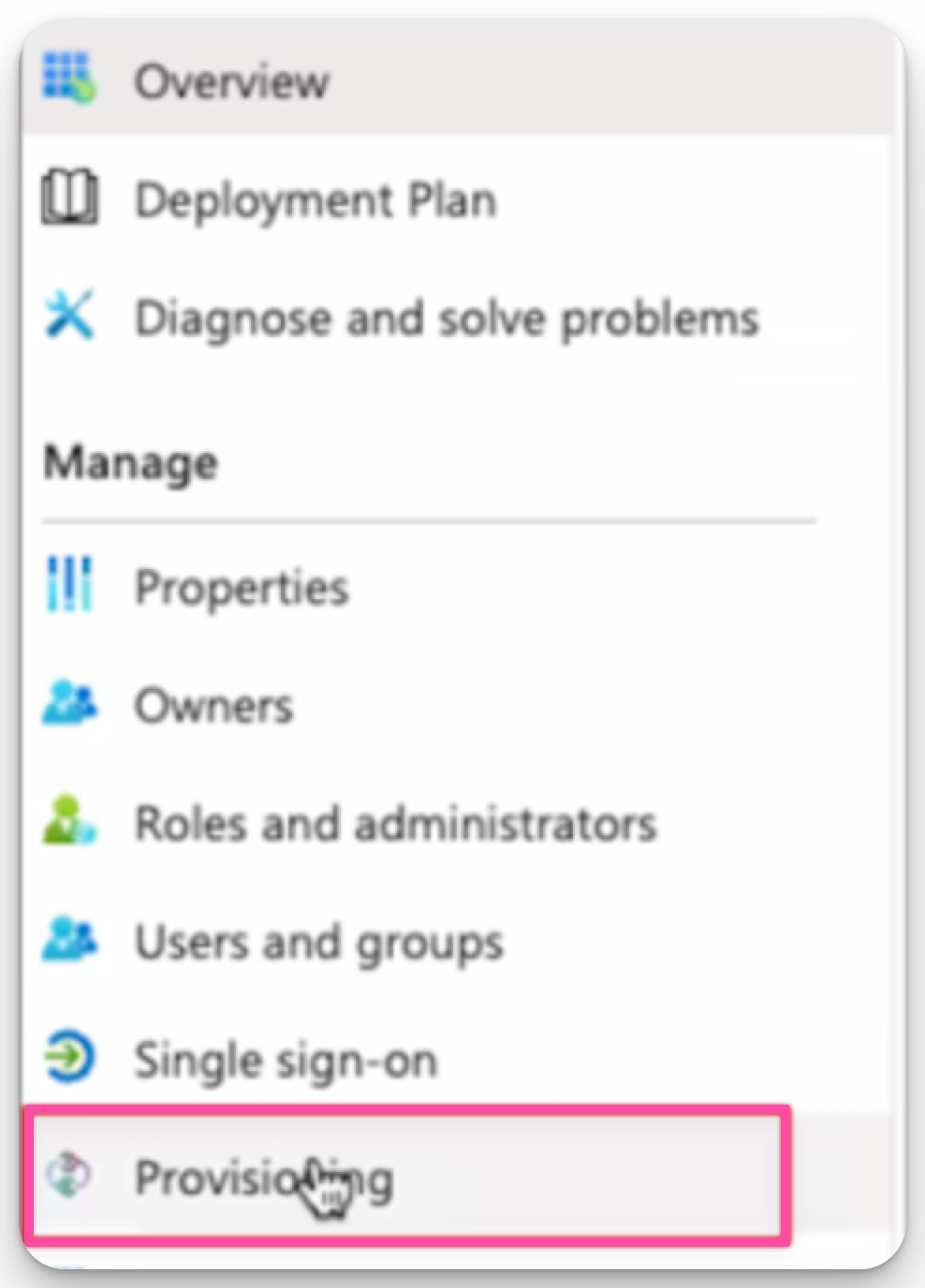
Open the Provisioning tab within the application settings.
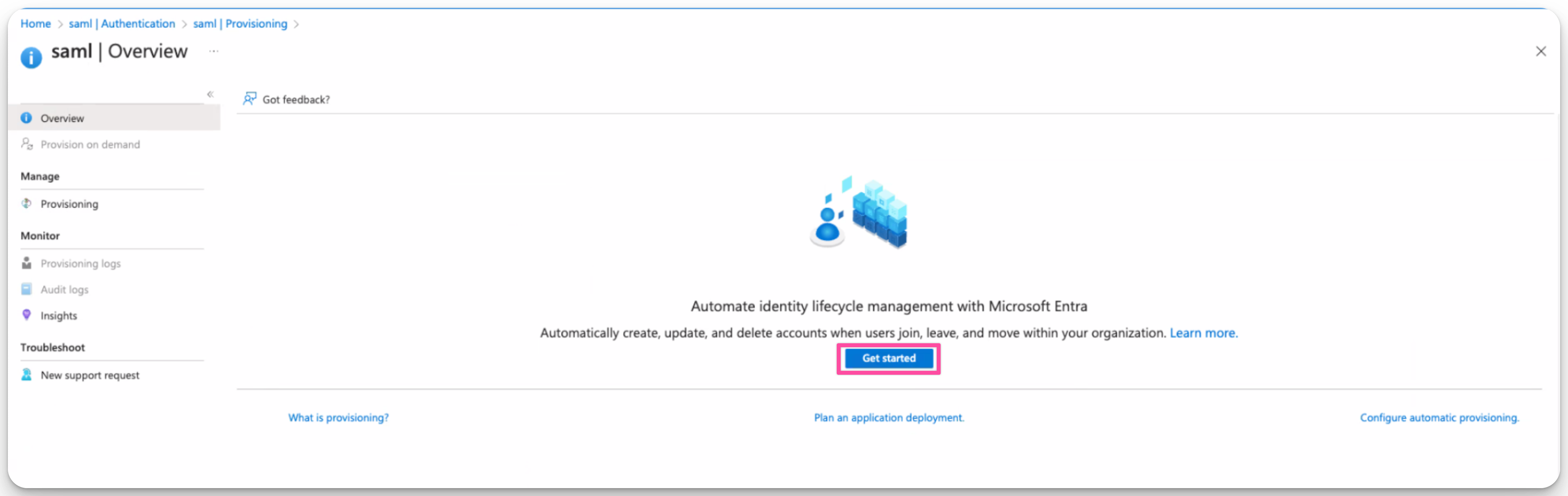
Click Get Started.
In the Provisioning Mode field, select Automatic.
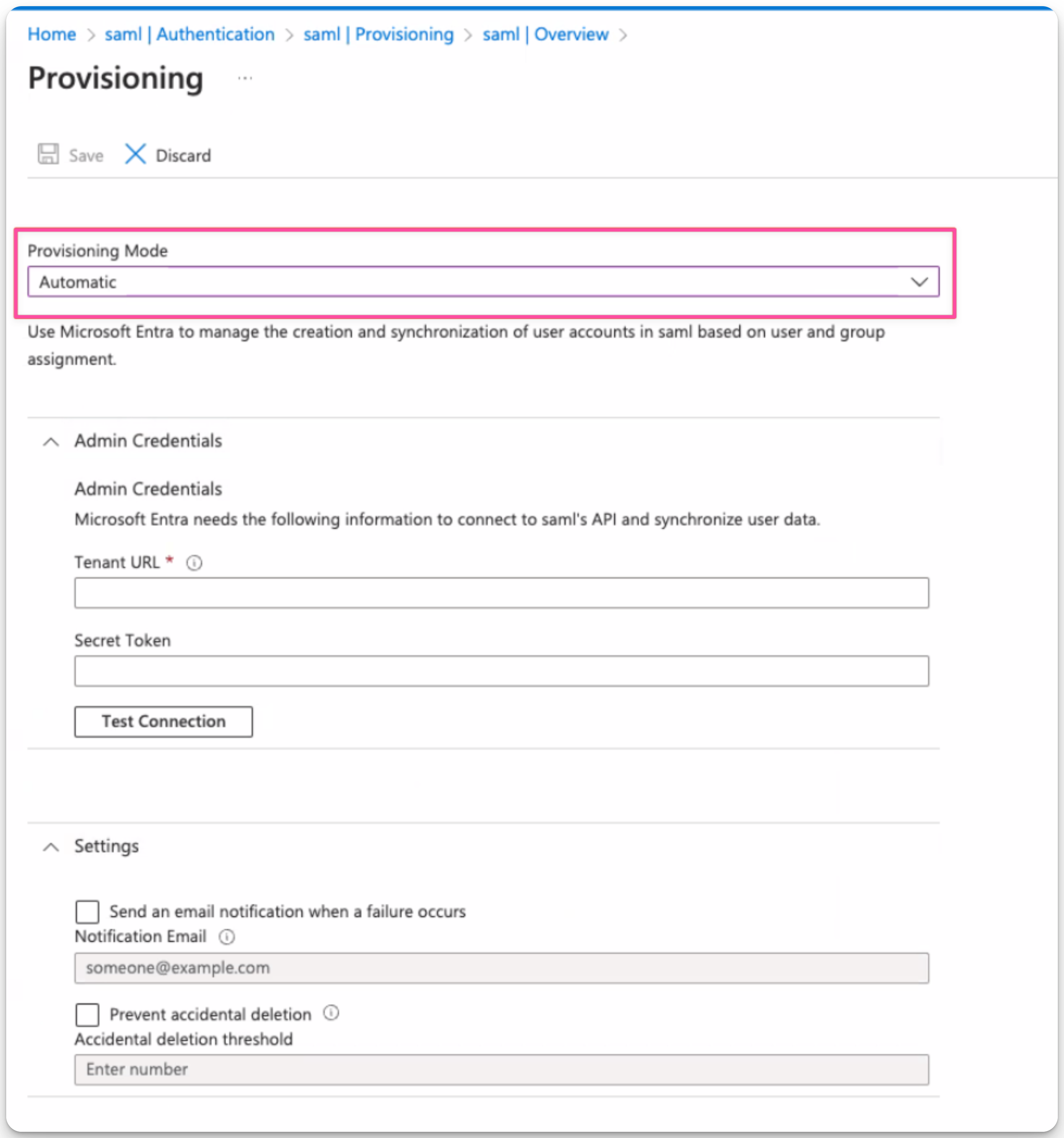
Enter the following values:
Tenant URL:
https://mloop.prod.modernloop.io/org/scim/v2
Secret Token: Use the token provided by ModernLoop (Organization settings → Secrets → SCIM token)
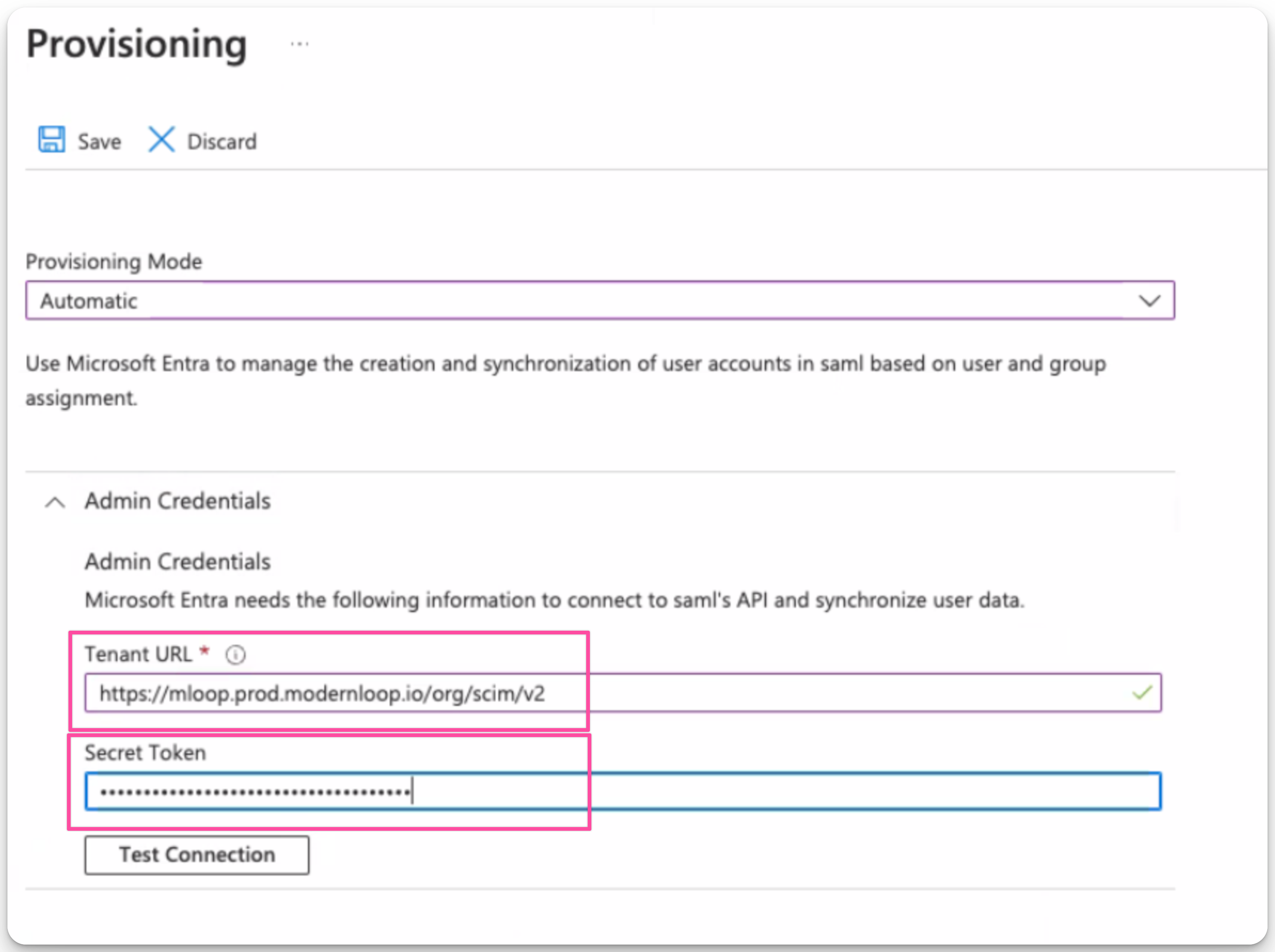
Click Save to enable SCIM provisioning.
Manage ModernLoop Role Assignment Using SCIM (Using Microsoft Entra ID)
When SCIM role management is enabled, user roles must be managed through Microsoft Entra ID and cannot be edited directly in ModernLoop. To allow manual role editing within the platform, navigate to Organization settings → Members and adjust the role management setting.
This toggle allows organizations to choose between:
SCIM-managed roles: All role assignments handled through Microsoft Entra ID
Platform-managed roles: Direct role editing available within ModernLoop
Navigate to App Registrations and select the SAML application created for ModernLoop.
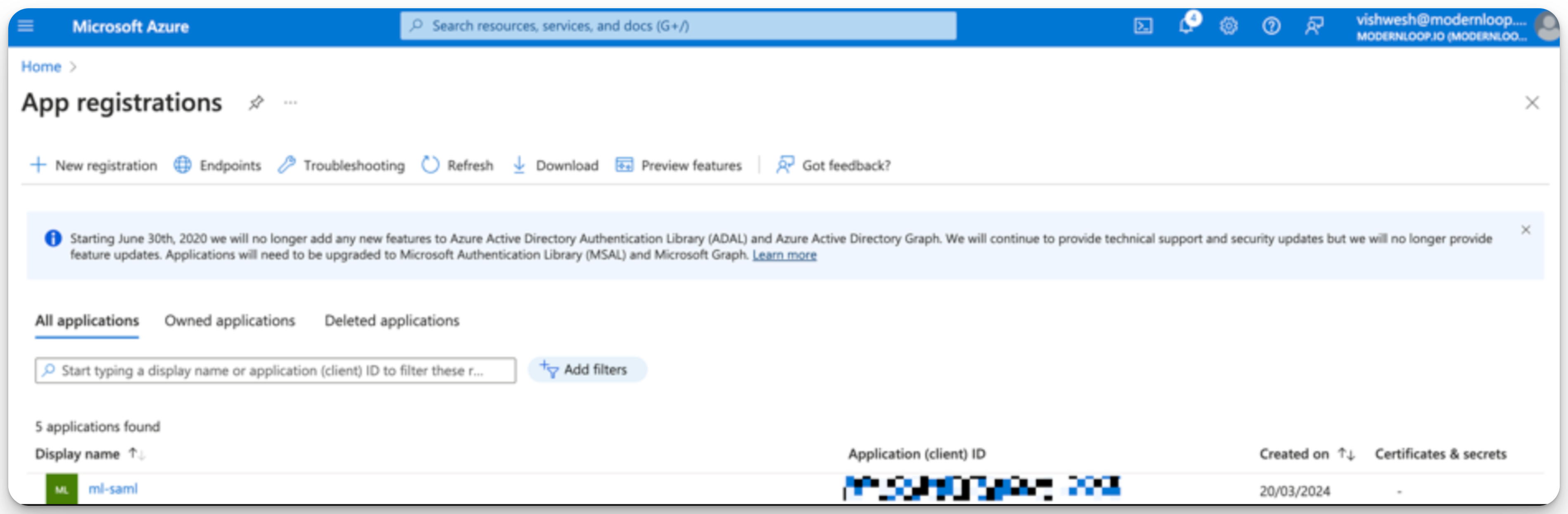
Open the App Roles section.
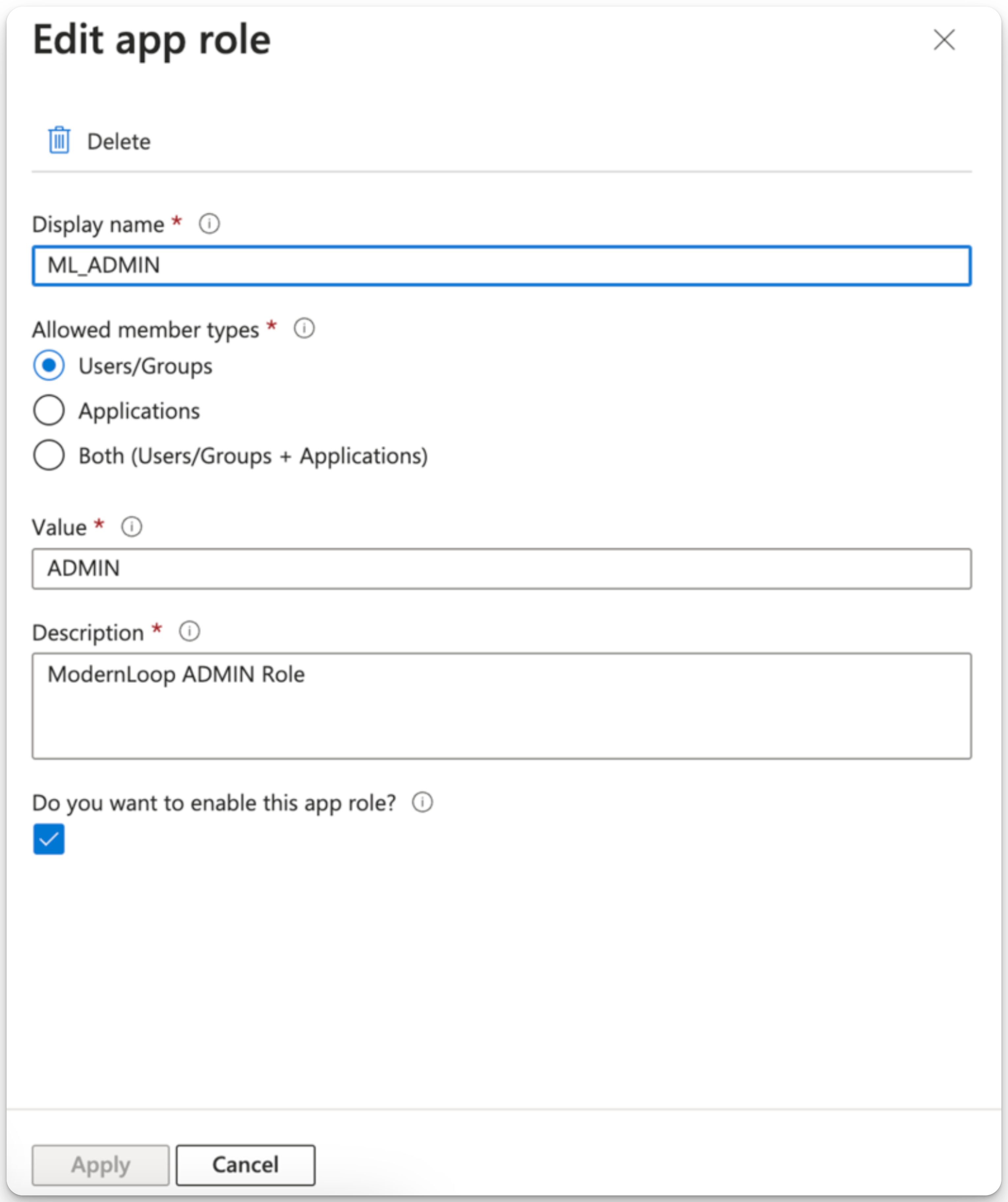
Create a new app role:
Name:
ML_ADMIN
Allowed Member Types:
Users/Groups
Value:
ADMIN
Description: Add a description for the role.
Click Apply to save.
Repeat this process to create additional roles such as
SCHEDULERandINTERVIEWER.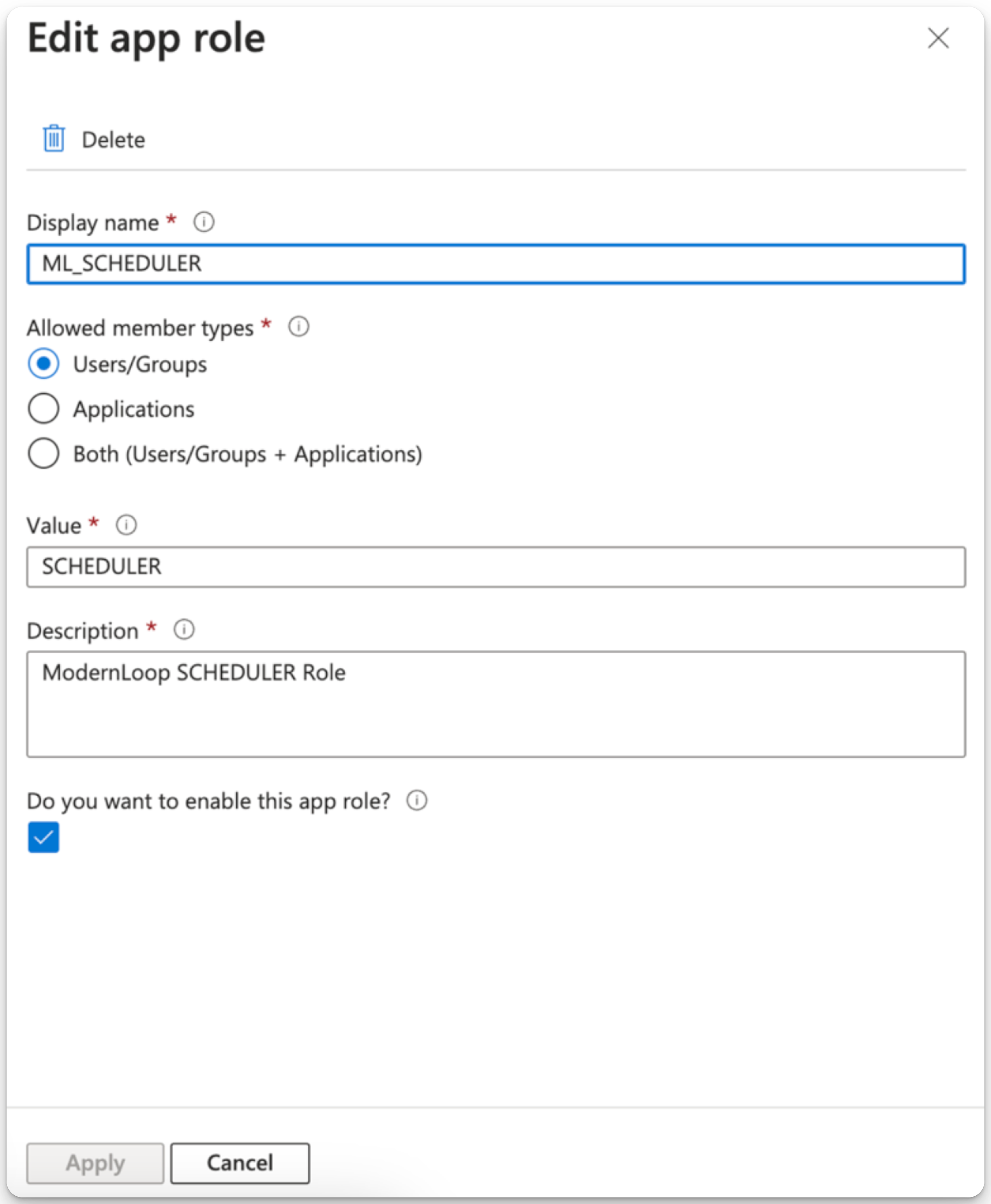
SCIM Interviewer Attributes
The following properties, if provided by Microsoft Entra ID, will be mapped directly to the ModernLoop SCIMUser object and stored in the ModernLoop database.
Attribute | Description |
userName | Maps to the |
name | Maps to the |
familyName | The user's last name (e.g., "Jensen" in "Ms. Barbara Jane Jensen, III"). |
givenName | The user's first name (e.g., "Barbara" in "Ms. Barbara Jane Jensen, III"). |
emails | Maps to the |
displayName | Maps to the |
locale | Maps to the |
active | Denotes if the user is active ( |
modernloopRole | A custom property mapping ModernLoop roles ( |
Create a Custom Attribute
You must enable the creation of custom attributes for the SAML Application on Azure AD / Entra ID.
Open the SAML Enterprise App in Azure.
Navigate to the Provisioning section.
Click Edit Attribute Mappings.
Test the connection by entering the correct Tenant URL and Secret Token, then click Test Connection.
Expand the Mappings section and select Provision Microsoft Entra ID Users.
Scroll to the bottom and select Show Advanced Options.
Click Edit Attribute List for Custom SSO App.
If unavailable, use the Azure AD portal with schema full enabled.
Add a custom attribute:
Name:
modernloopRole
Data Type:
String.
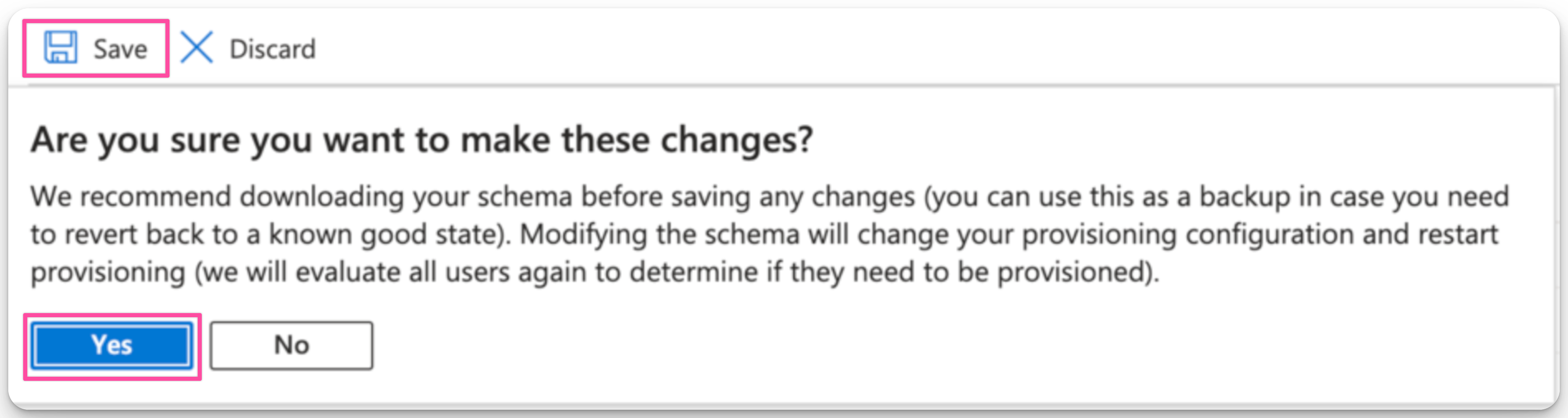
Save the configuration and click Save, then Yes.
Map Custom Attributes to App Roles Using Expression Language
Navigate to Enterprise SAML Application → Provisioning.
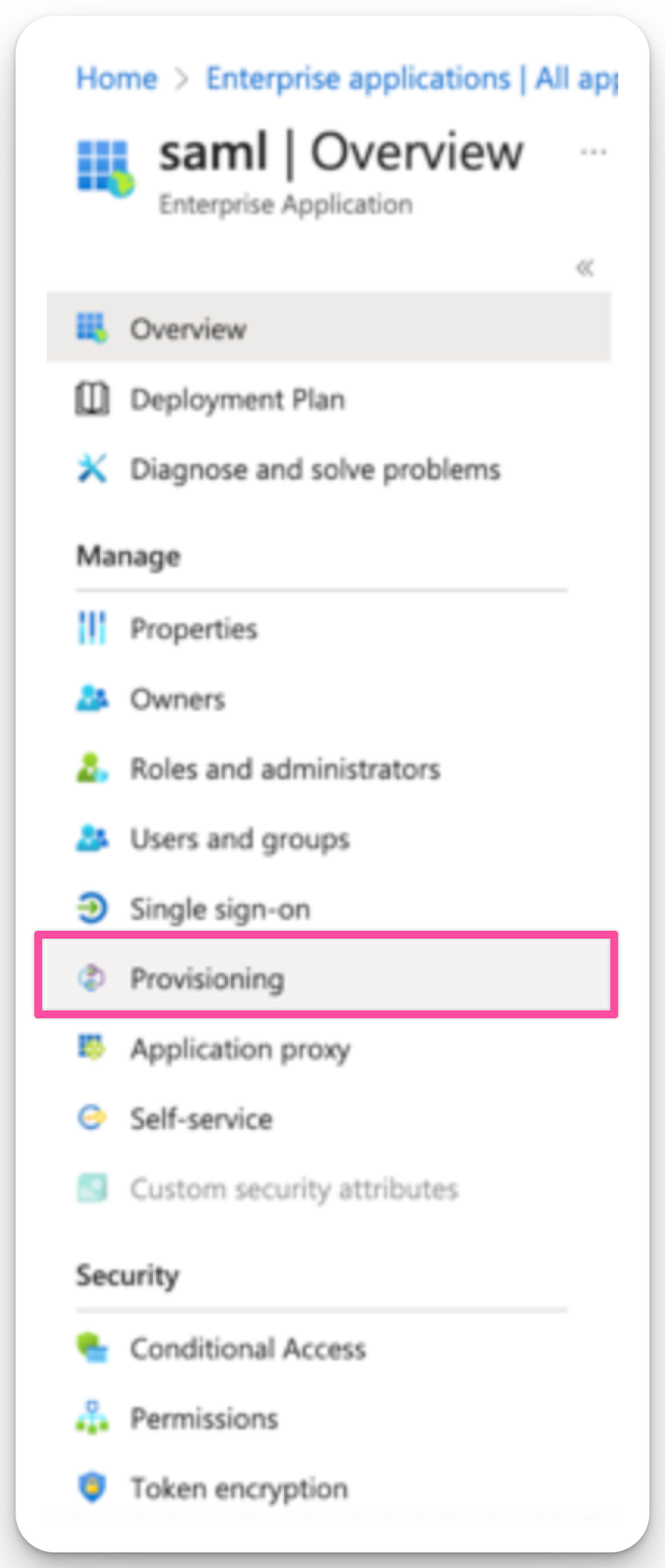
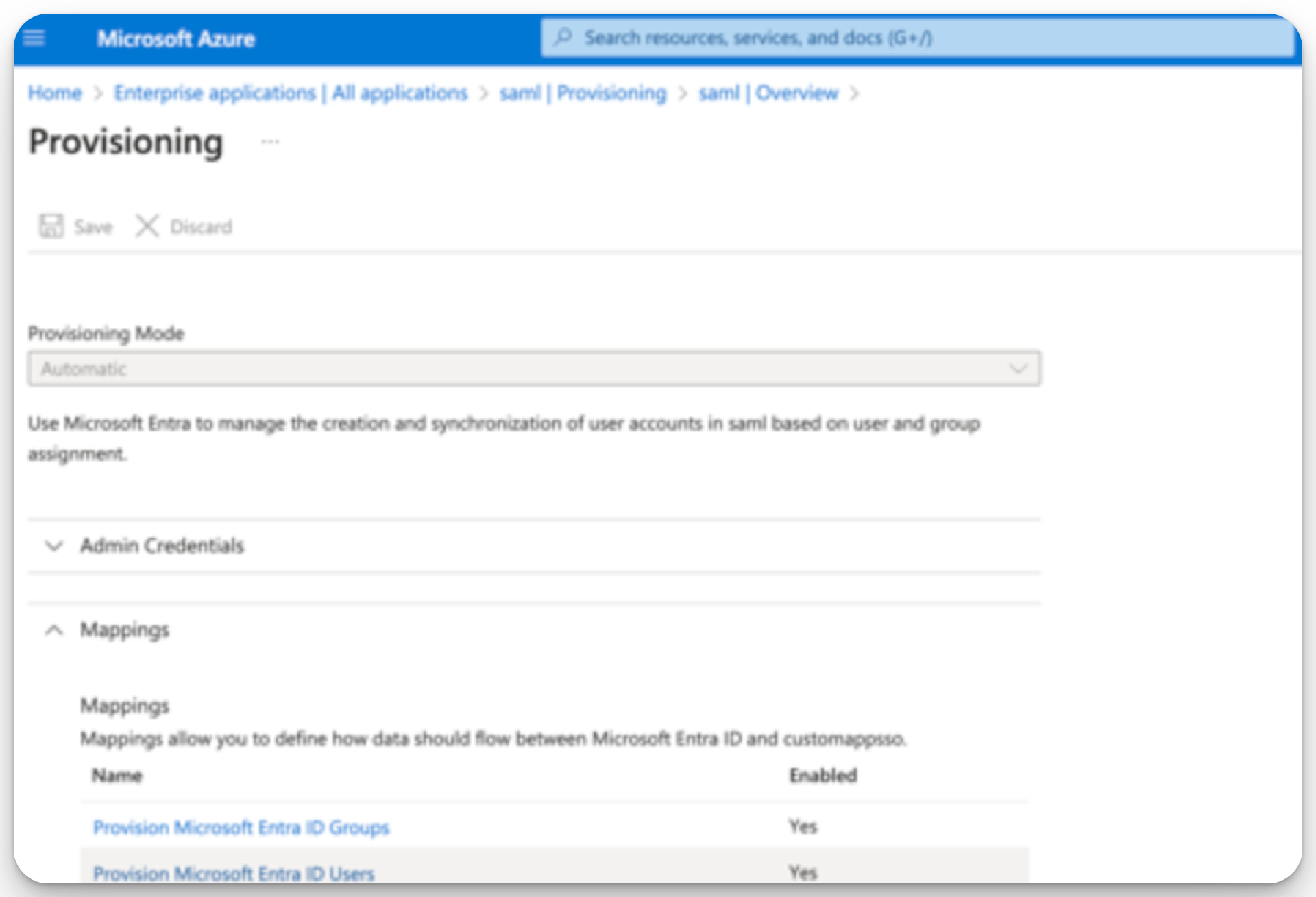
Click Edit Attribute Mapping.
Expand the Mappings section and click Provision Microsoft Entra ID Users.
Add a new mapping for the ModernLoop Role Parameter:
Mapping Type:
Expression
Expression:
Switch(SingleAppRoleAssignment([appRoleAssignments]), "", "ML_ADMIN", "ADMIN", "ML_SCHEDULER", "SCHEDULER", "ML_INTERVIEWER", "INTERVIEWER")
Default Value:
INTERVIEWER
Target:
modernloopRole
Click OK to save.
Set Up Security Groups for Member Role Settings
Navigate to AD Groups.
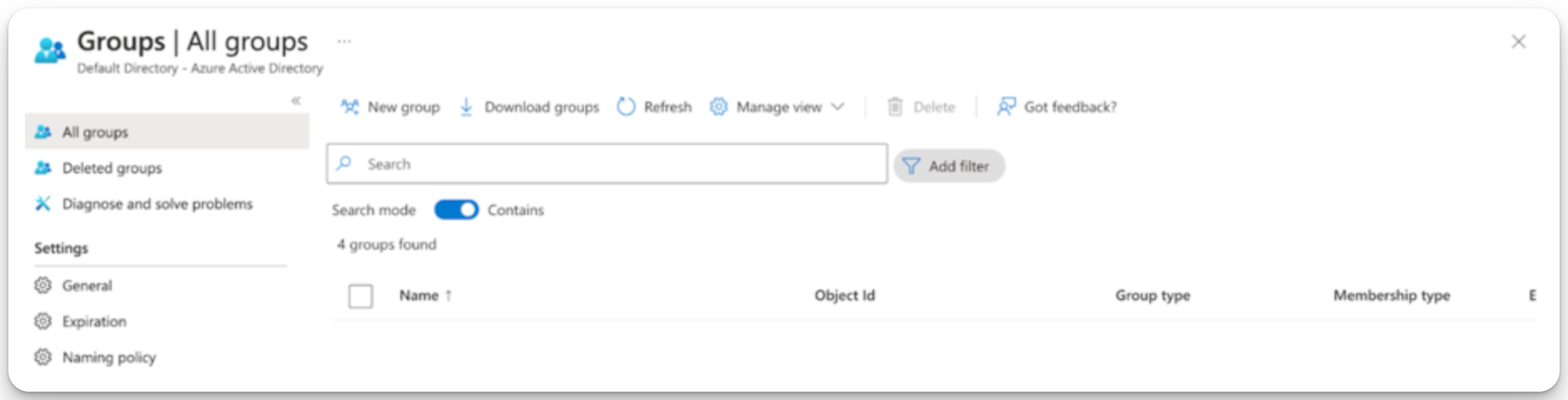
Create a new group (e.g.,
ModernLoop Admins) and click Create to save the group.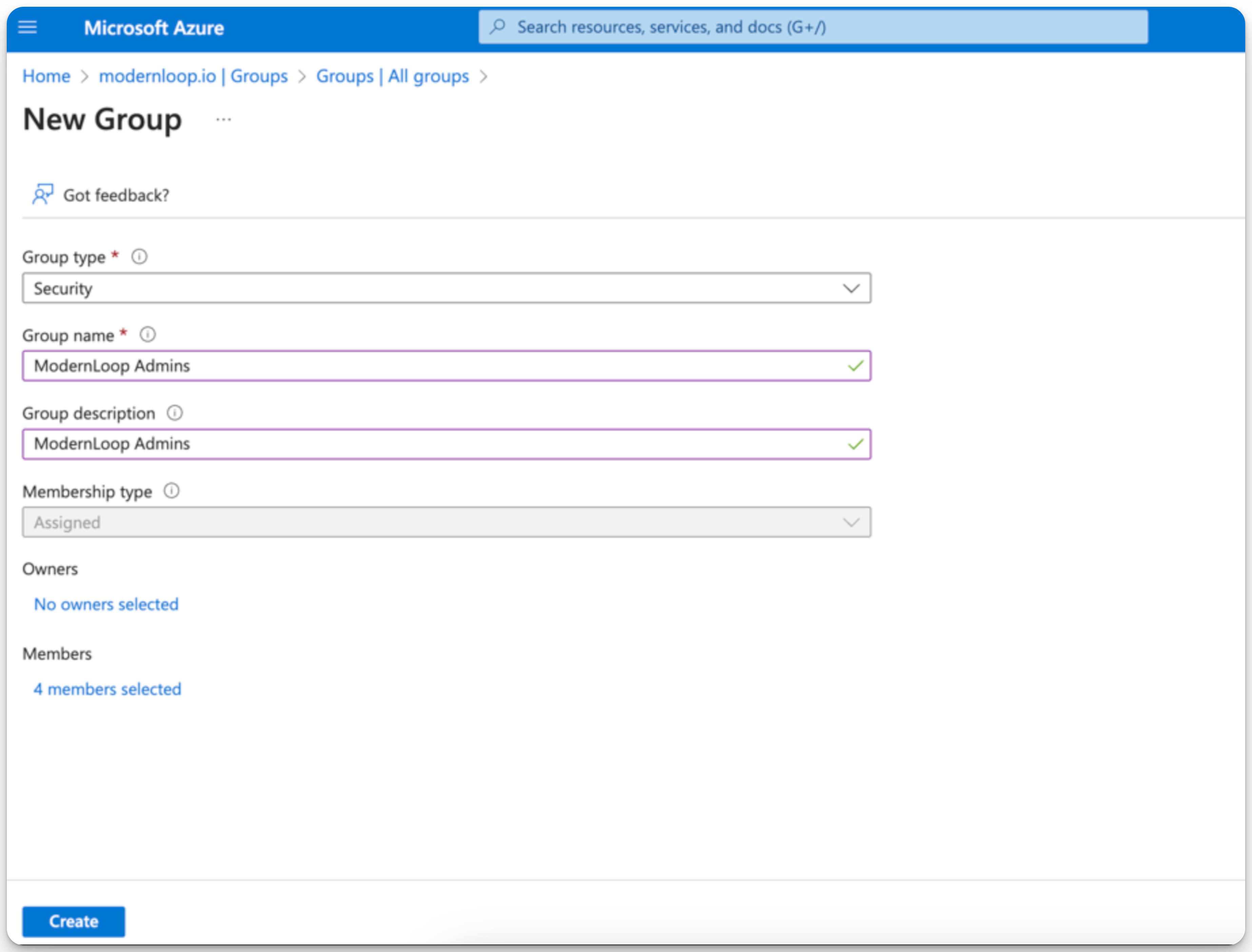
Open the SAML Enterprise App.
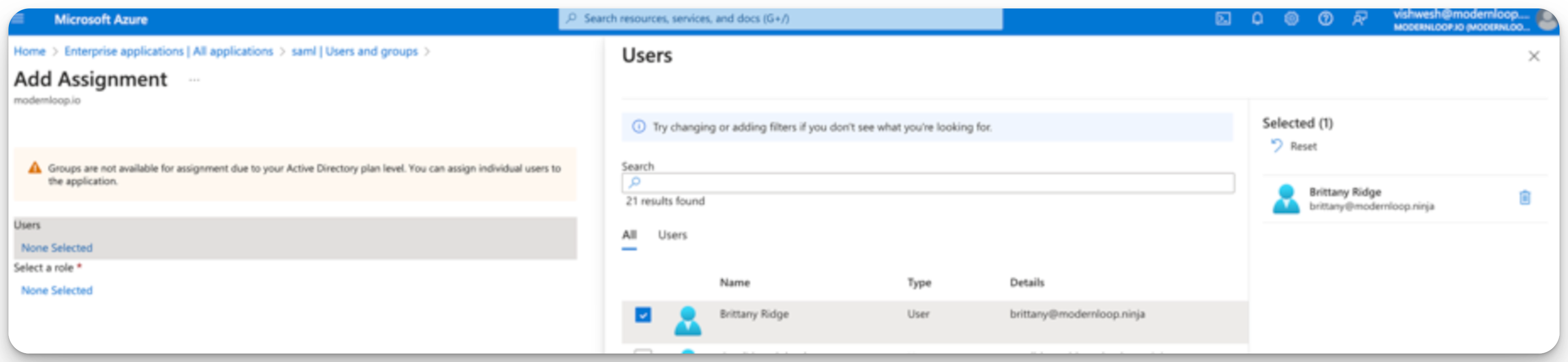
Navigate to Users and Groups.
Click Add User/Group.
Group Name: Select
ModernLoop Admin.
Select a Role: Choose the app role
ML_ADMIN.
Click Assign.
Repeat the process to create additional groups with corresponding app roles as needed.
Run SCIM Provisioning
Once the setup is complete, run SCIM provisioning again to sync these roles with ModernLoop.