Workday Integration
Last updated: June 26, 2026
ModernLoop's integration with Workday enables the following features:
Sync candidate information between Workday and ModernLoop.
Seamless navigation between candidate profiles in Workday and ModernLoop.
Import jobs, scorecards (questionnaires), and interview plans.
If you’re an existing ModernLoop customer planning to transition to a new ATS, please notify your CSM or email support@modernloop.io at least 2 weeks before your target transition date. See📄 ATS Transitioning Planfor additional information.
Prerequisites
Security Administration Access: The Workday user setting up the integration must have Security Administration access to Workday.
Admin Access in ModernLoop: The user must also have admin access in ModernLoop.
Integration User Account: Best practice is to create a dedicated Integration System User (ISU) to prevent disruptions if user accounts are deactivated.
Instructions
1. Create a New ISU for ModernLoop in Workday
Obtain ISU Credentials:
Username:
ISU-ModernLoop
Password: Please create your own password and save into a safe place for later use in the set up process.
Create ISU:
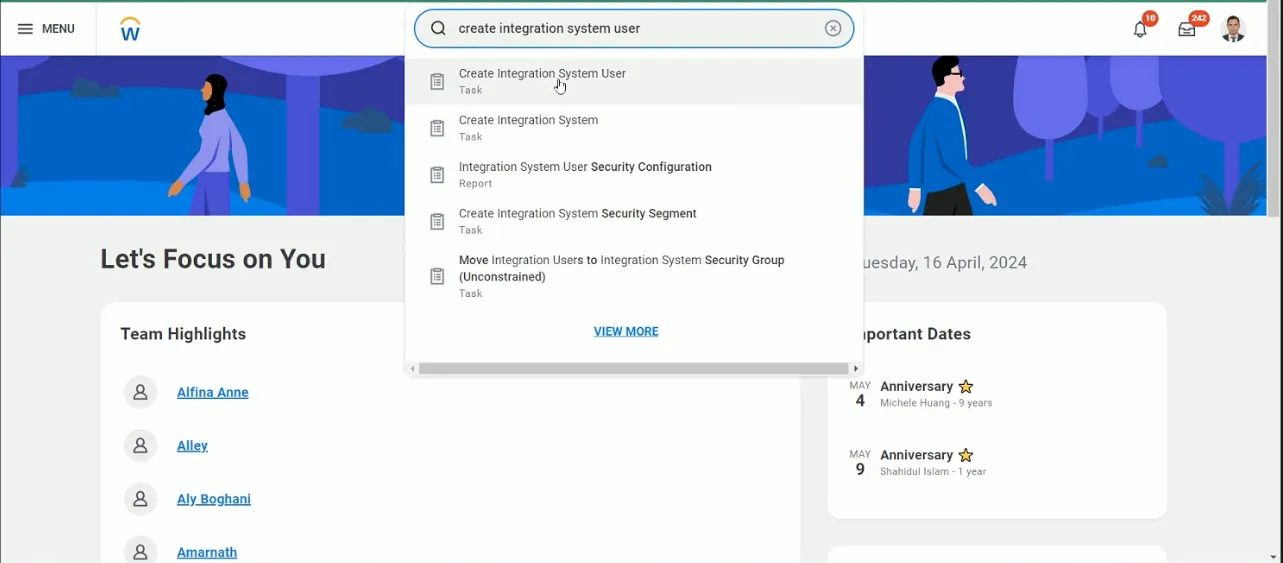
Search for and open "Create Integration System User."
Configure settings:
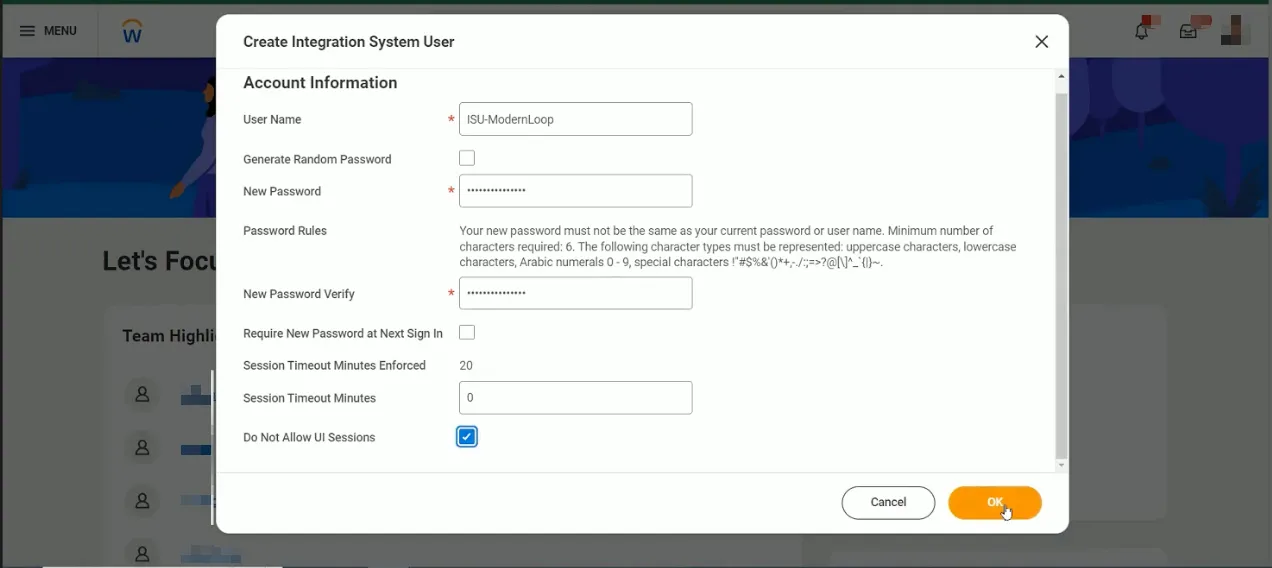
User Name:
ISU-ModernLoop
Generate Random Password: ❌ Leave unchecked
New Password: Please use the password your team created
New Password Verify: Please use the password your team created
Require New Password at Next Sign In: ❌ Leave unchecked
Session Timeout Minutes: Set to
0.
Do Not Allow UI Sessions: ✅ Check
Important notes:
Under Maintain Password Rules section, make sure to add this new “Integration System User” to the list of System Users exempt from password expiration
Due to xml encoding, "&", "<", and ">" cannot be included in the password
Ensure Require New Password at Next Sign In is NOT checked
You'll want to add this user to the list of System Users to make sure the password doesn't expire. To do this, search for the Maintain Password Rules task and add the ISU to the System Users exempt from password expiration field.
Click OK to finalize.
2. Set up Security Group, Authentication Policy, and Security Policy
Create Security Group:
Search for "Create Security Group" in the search bar.
Configure as:
Type of Tenanted Security Group: User-Based Security Group (Unconstrained).
Ensure this is a User-Based Security Group, not an Integration one.
Name:
UBSG-ModernLoop.
Click the action button (…) of the new Security Group and select: User-Based Security Group → Assign Users.
Select the Integration System User from the previous step (
ISU-ModernLoop)Click Done
Configure Domain Security Policy Permissions:
Search for "Maintain Permissions for Security Group."
Configure the settings:
Operation: Maintain
Source Security Group:
UBSG-ModernLoopClick OK
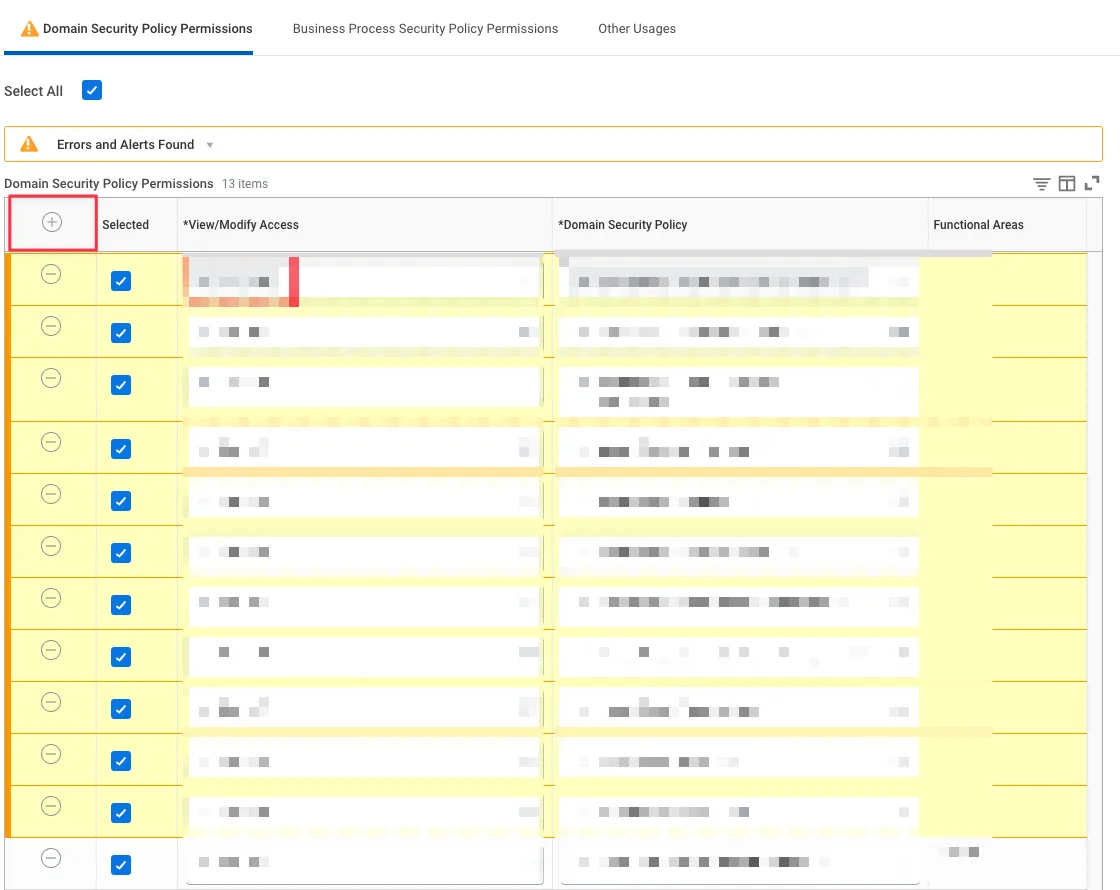
Add the necessary Domain Security Policies (see section).
Activate Security Policy Changes:
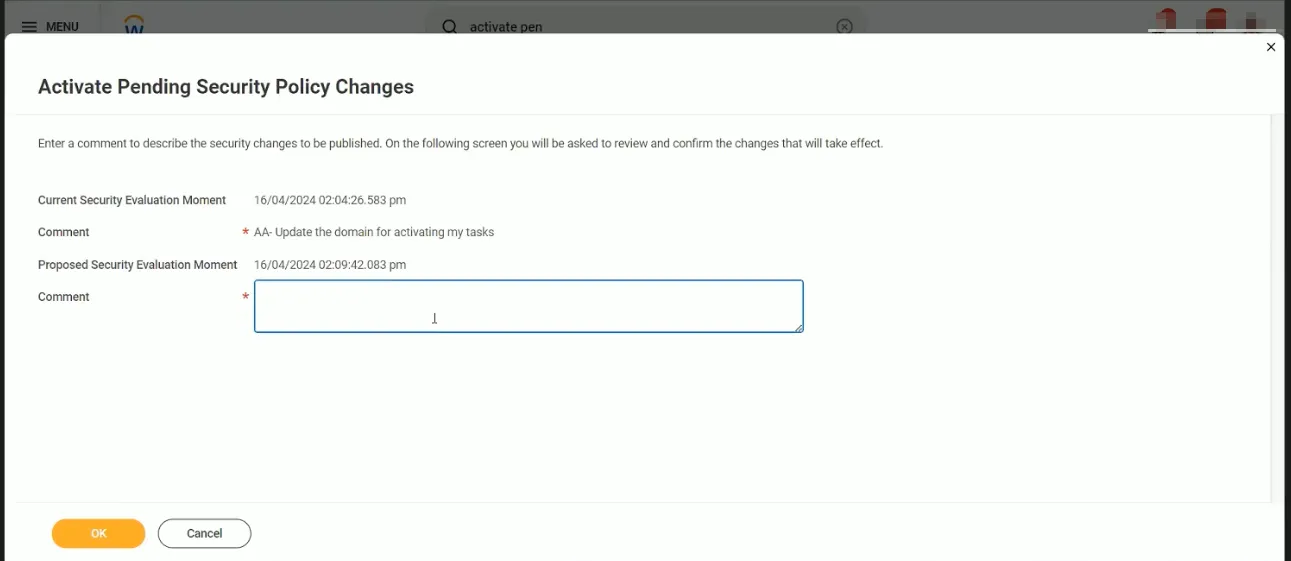
Search for "Activate Pending Security Policy Changes" task.
Review and verify the summary of changes in the security policy, and add any comments for internal auditing purposes, such as “Setting up ModernLoop Application to automate interview scheduling and coordination while delivering the best candidate experience.”
Click OK.
3. Set Authentication Policies
Since our Integration System User uses User Name and Password, we need to ensure User Name and Password are set as valid login strategies for its Security Group. Additionally, please make sure the user is exempt from MFA and SSO.
Set Authentication Policy to User Name and Password
Edit authentication policies
Create an Authentication Rule and add the Security Group UBSG-ModernLoop to the Rule.
Configure the settings:
Authentication Condition Name: AC-ModernLoop
Authentication Conditions: Any
Allowed Authentication Types: Specific AND User Name Password
Activate the New Authentication Policy
Search for and open the “Activate All Pending Authentication Policy Changes” task
Review and verify the summary of changes, and add any comments for internal auditing purposes, such as “Setting up ModernLoop Application to automate interview scheduling and coordination while delivering the best candidate experience.”
Check Confirm and proceed
4. Get “Web Service Endpoints” + “UI URL”
In Workday, search and open “Public Web Services” report
Hover over
Recruitingservices, and press action menu (…)Click
Web Service→View WSDL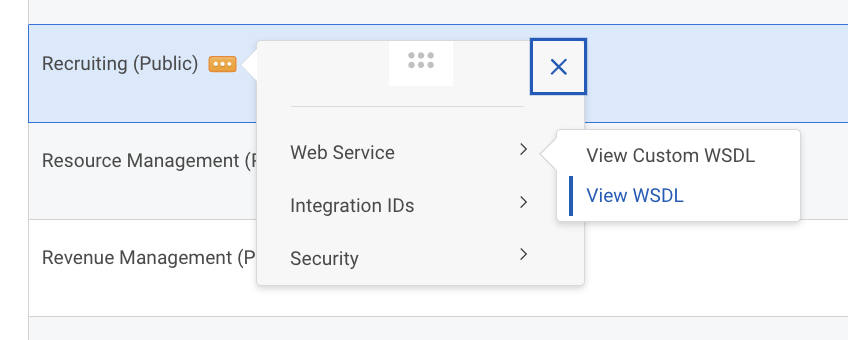
This should open a new page, scroll all the way to the bottom, and find the
<soapbind:addresstag. Copy paste url the “location” field into a safe place for later use in the set up process. ex.https://abc.workday.com/ccx/service/xyz/Recruiting/v42.0
Hover over
Human Resourcesservices, and press action menu (…)Click
Web Service→View WSDL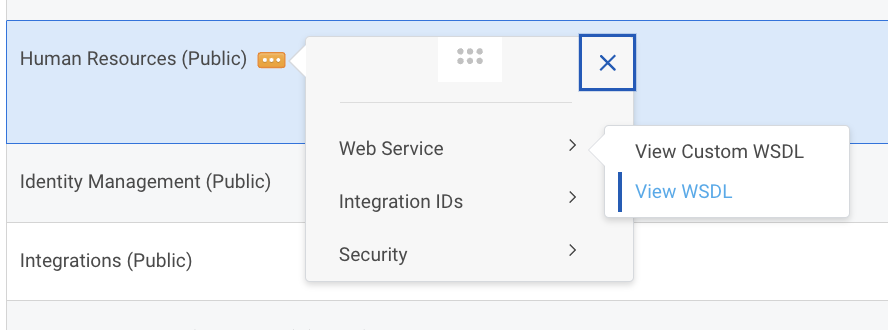
This should open a new page, scroll all the way to the bottom, and find the
<soapbind:addresstag. Copy paste url the “location” field into a safe place for later use in the set up process. ex.https://abc.workday.com/ccx/service/xyz/Human_Resources/v42.0
Additionally, copy paste the Workday’s homepage UI URL from browser
We need this so we can build internal Workday links to send in employee communications
5A. Add Security Group to Business Process Security Policy
Navigate to
Edit Business Process Security Policy
Select the
Interviewbusiness processUnder the
Who Can Do Action Steps in Business Processsection, add the newly created Security Group (UBSG-ModernLoop) to the following steps:Manage Interview Feedback
Schedule Interview Team
Schedule Interview
Navigate to
Edit Business Process Security Policy
Select the
Job Applicationbusiness processUnder the
Who Can Do Action Steps in Business Processsection, add the newly created Security Group (UBSG-ModernLoop) to the following step:Interview
Activate the new security policy change
5B. Allow Security Group to schedule interviews
Navigate to Interview Business Process Definition (search
bp: Interview) → Under actions (…) →Business Process→Edit Definition→OK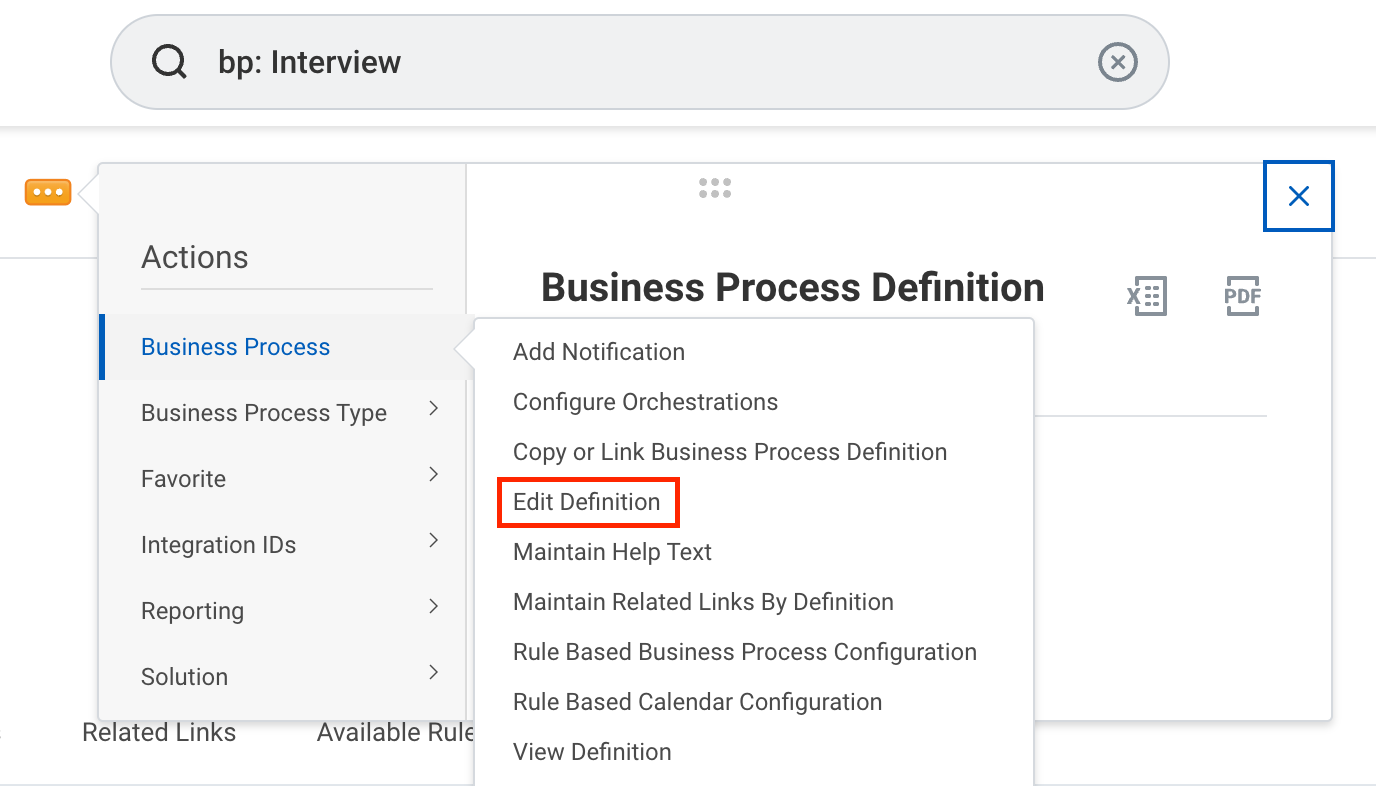
Add the newly created Security Group (
UBSG-ModernLoop) → to the Group column for the business process steps:Schedule Interview Team(Optional) When adding the Schedule Interview Team, make sure to include it when setting up the
Schedule Interview
Manage Interview Feedback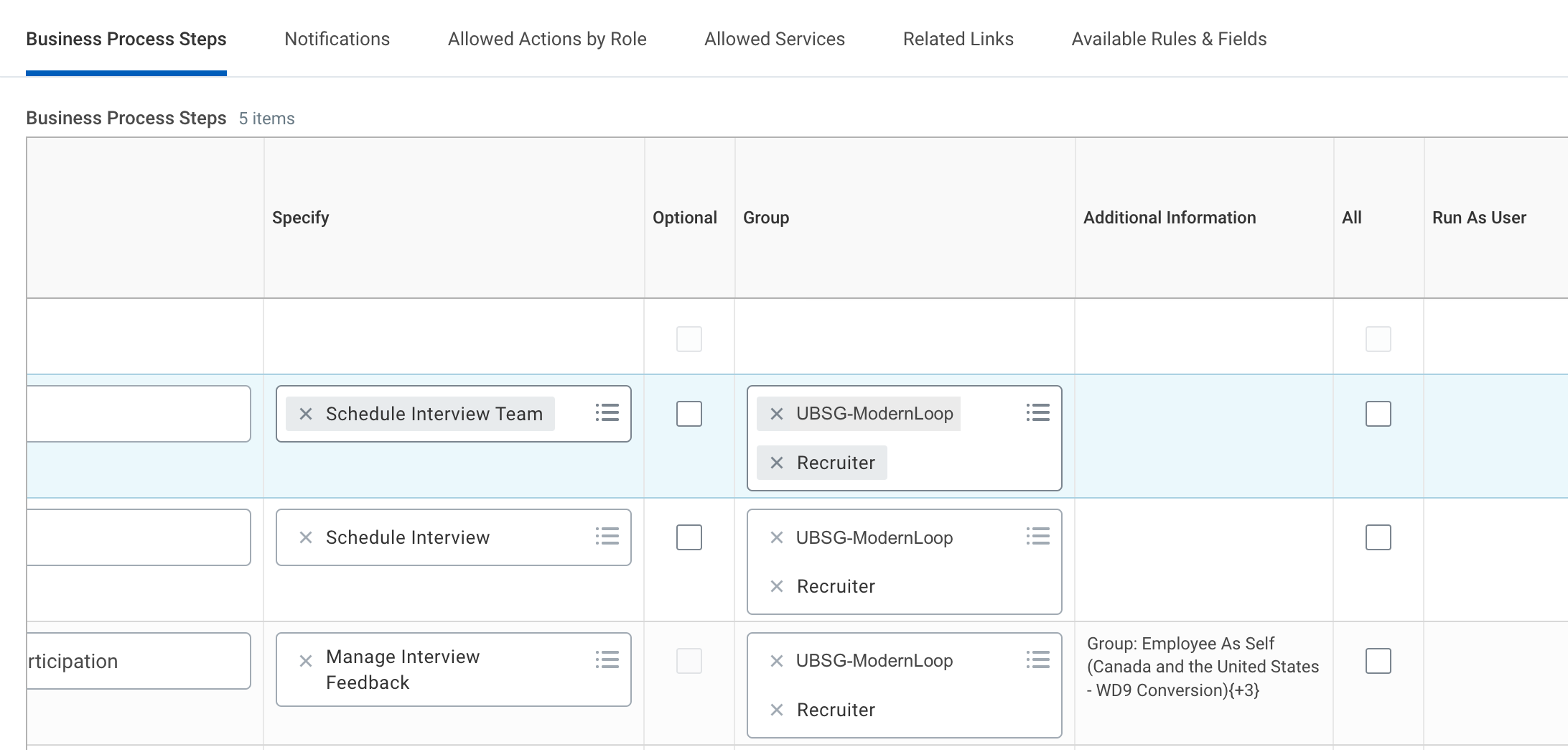
6. Create Job Application Stages and Steps Custom Report
Search
Create Custom Report. Enter details as per image and clickOK.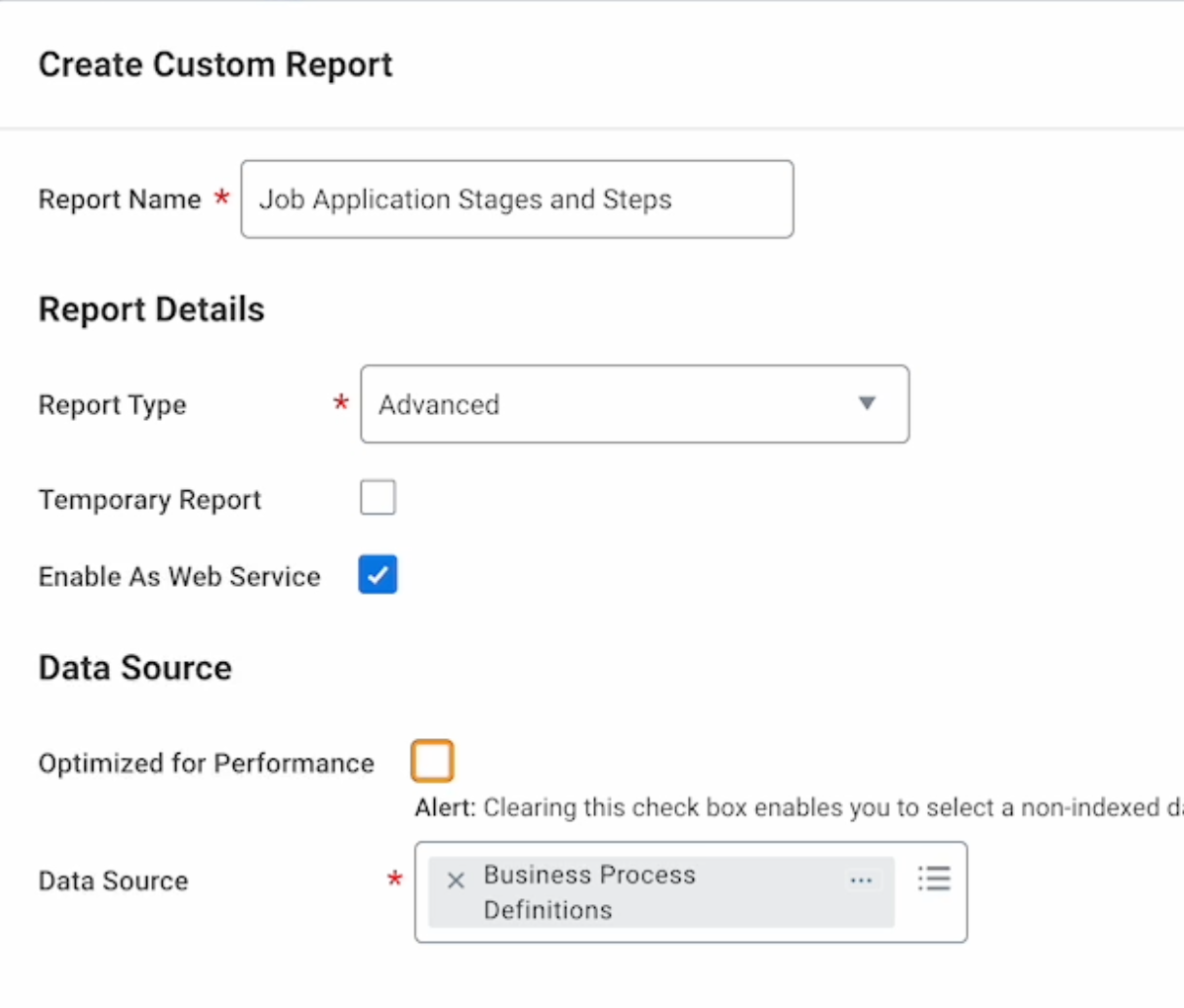
Verify details at the top.
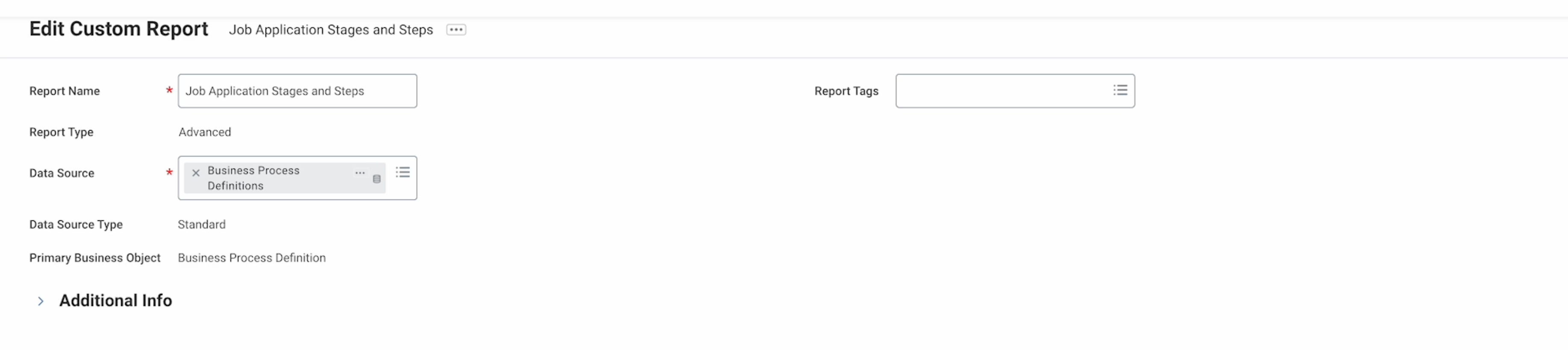
Enter these details in the
Groupcolumn. Ensure all fields match the image exactly.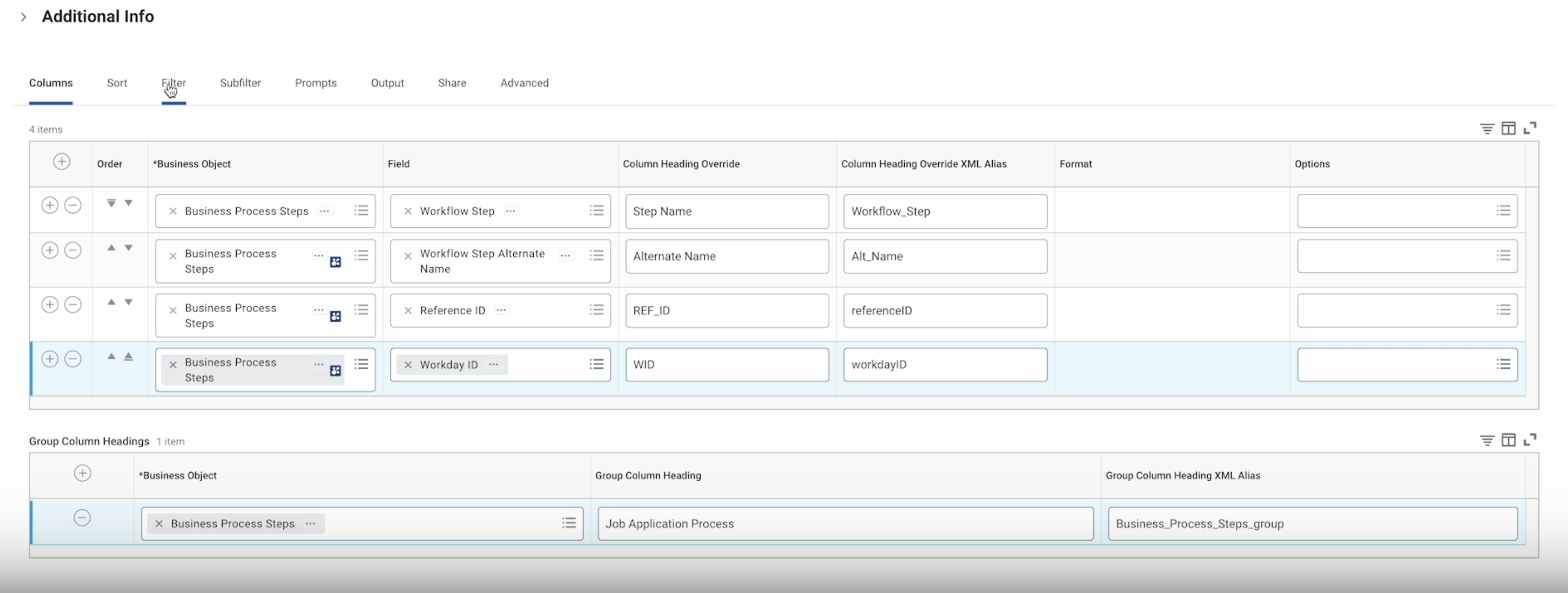
Enter these details in the
Filtercolumn. Ensure all fields match the image exactly.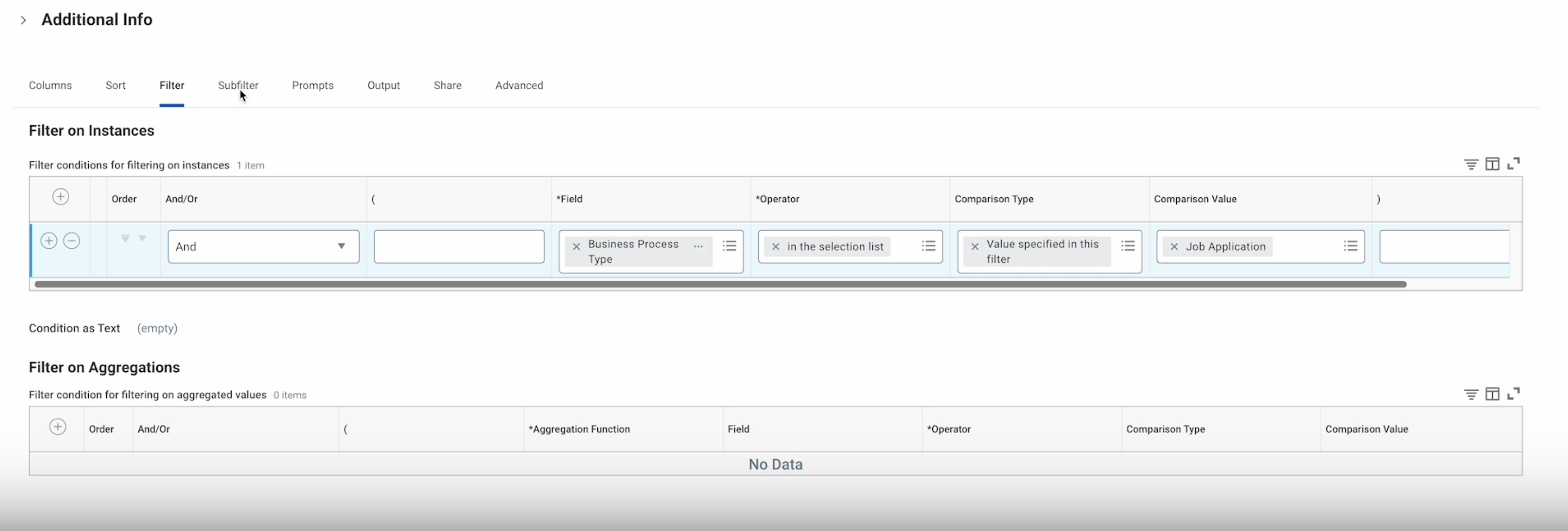
In the
Sharecolumn, share the report with theISU-ModernLoopuser.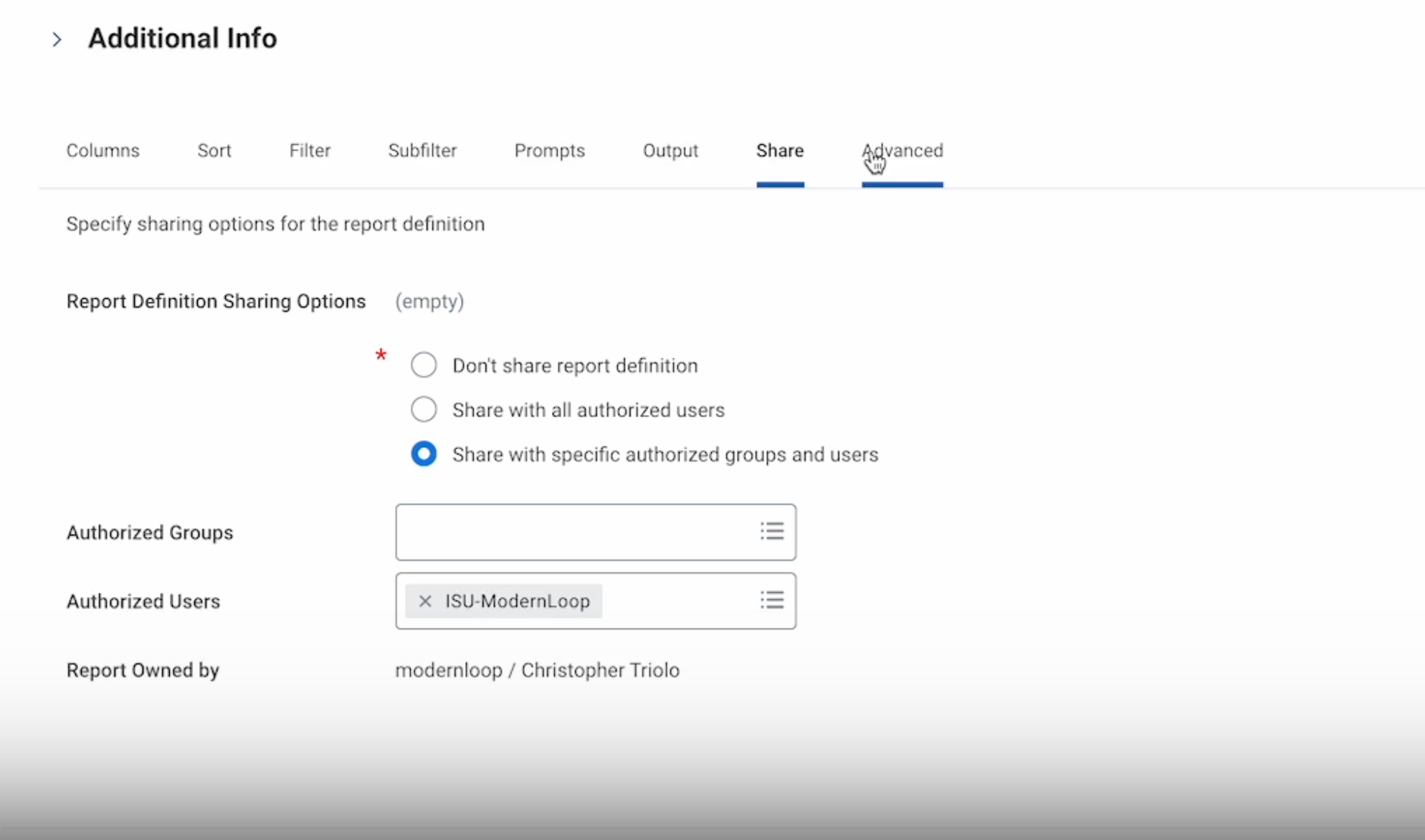
In the
Advancedcolumn → UnderWeb ServicesOptions → Enter these details. Ensure all fields match the image. Leave everything else as is.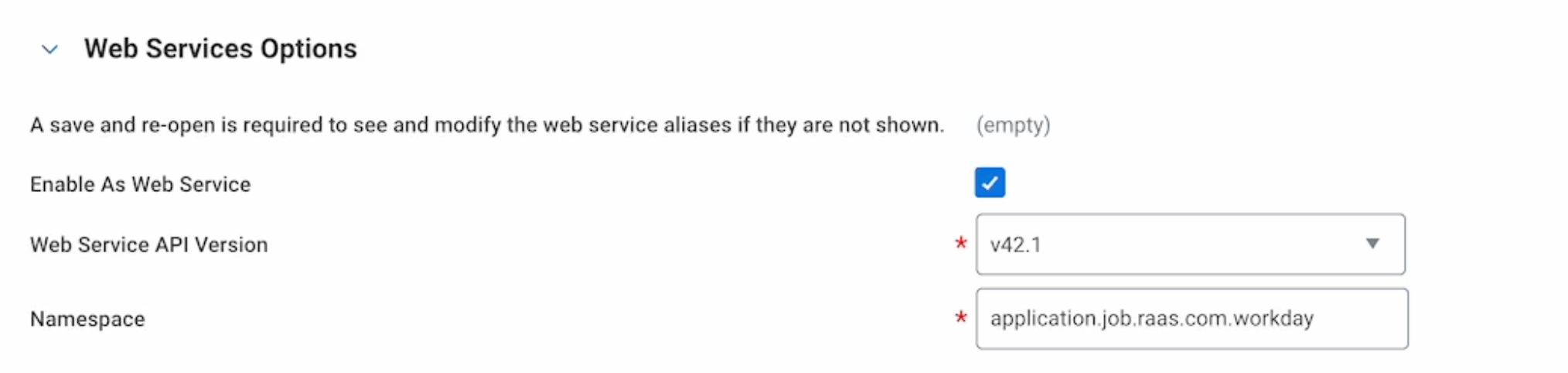
Click
OKto save the report. Ignore any alerts.
Run the report to verify. It should look like this.
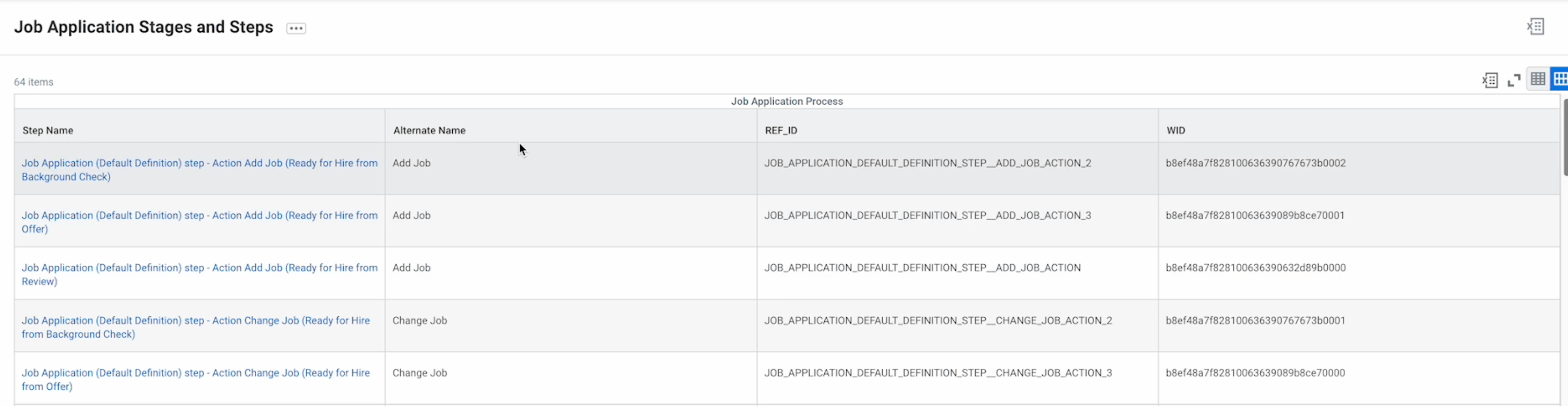
Press action menu (
…) next toJob Application Stages and Stepsat the top of the page.
Select
Web Service -> View URLs
Find the
WSDLhyperlink and either:Select the action menu (
…) next to it, and clickcopy url, and save to be inputted directly in ModernLoop.
Click the
WSDLlink, copy the “Report” URL at the bottom of the page, and save to be inputted directly in ModernLoop.
7. Create Interview Events Custom Report
Search
Create Custom Report. Enter details as per image and clickOK.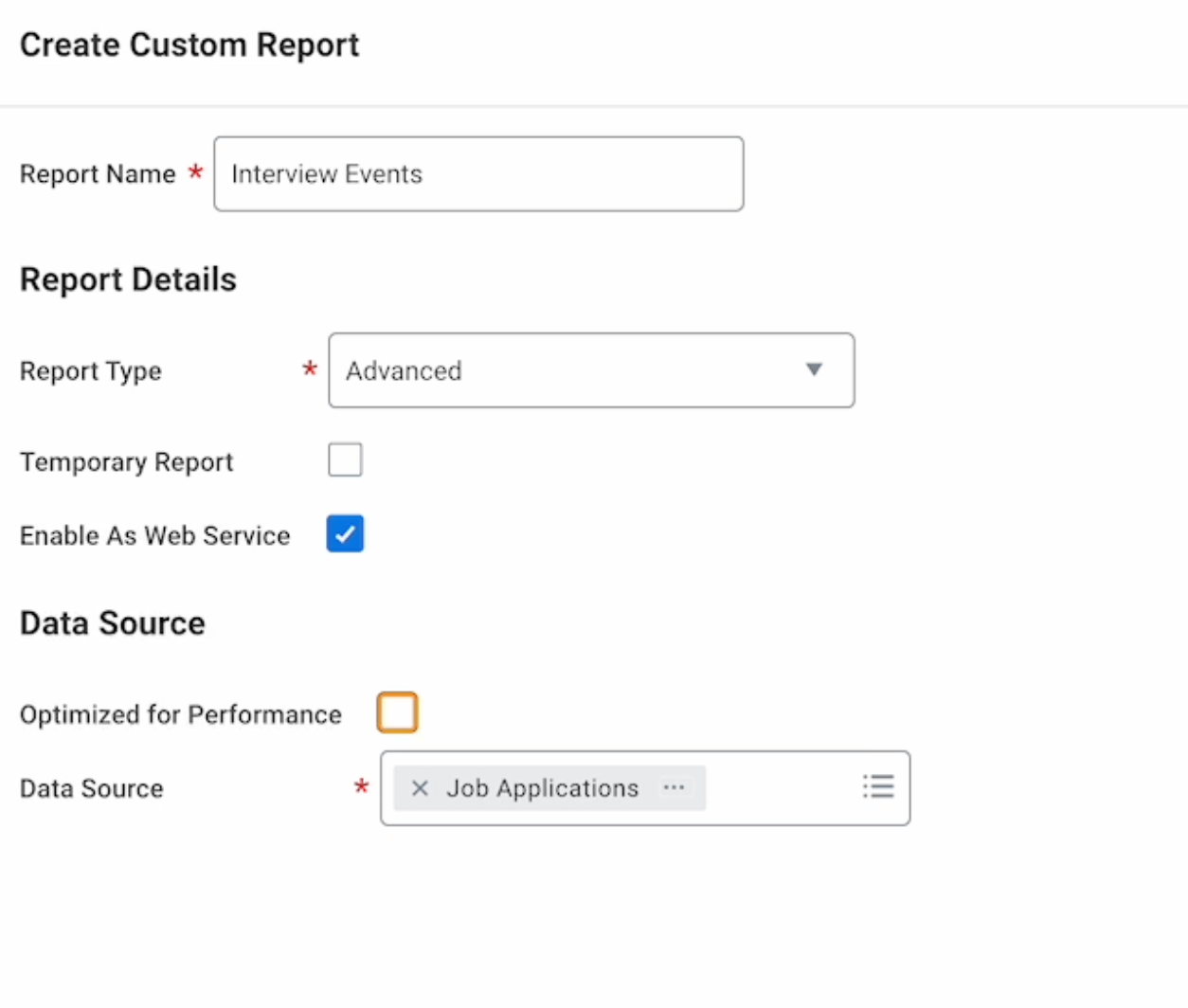
Verify details at the top and click OK.
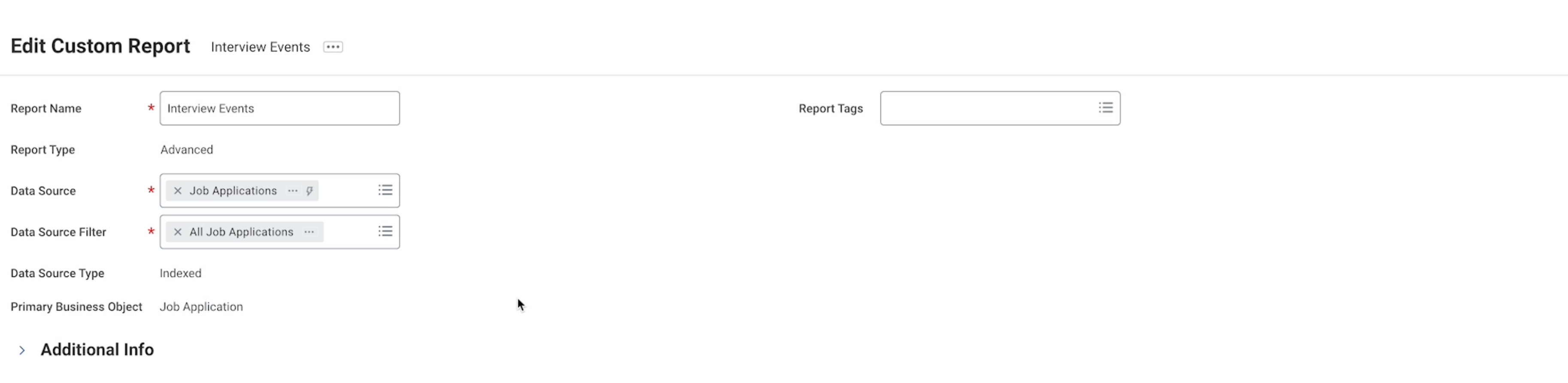
Enter these details in the
Groupcolumn. Ensure all fields match the image.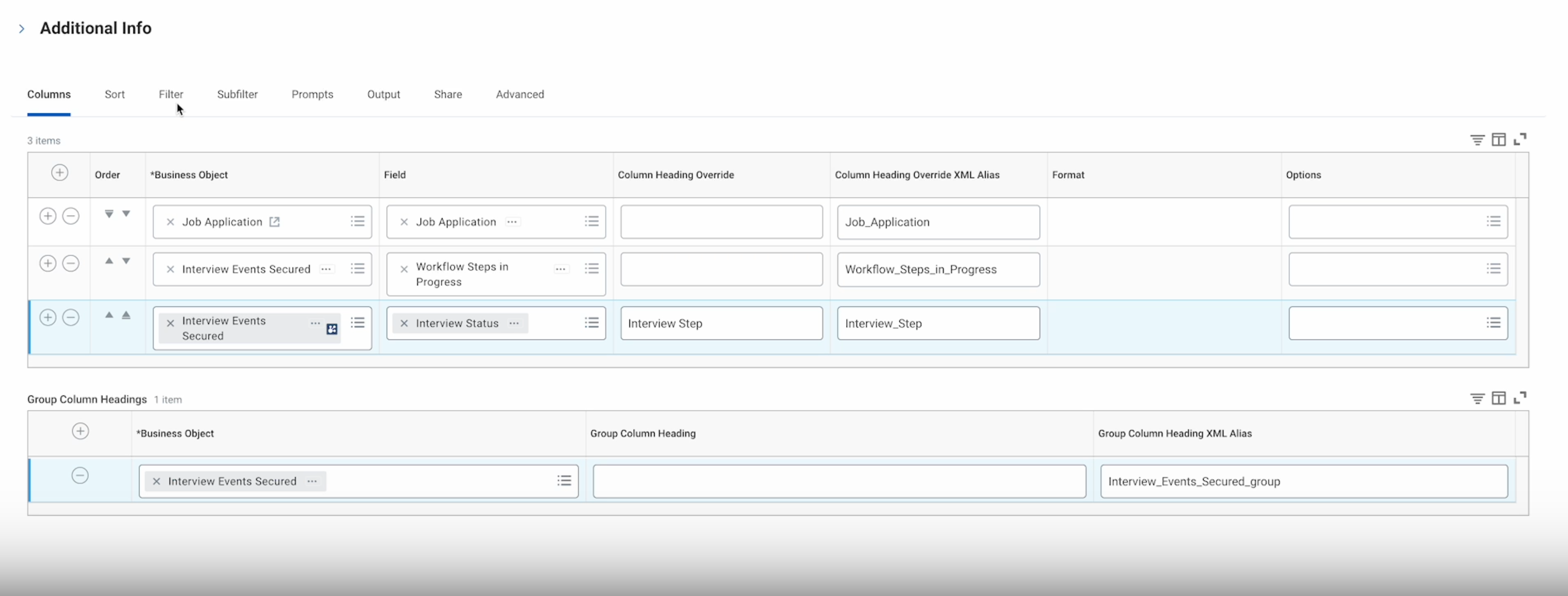
Enter these details in the
Filtercolumn. Ensure all fields match the image.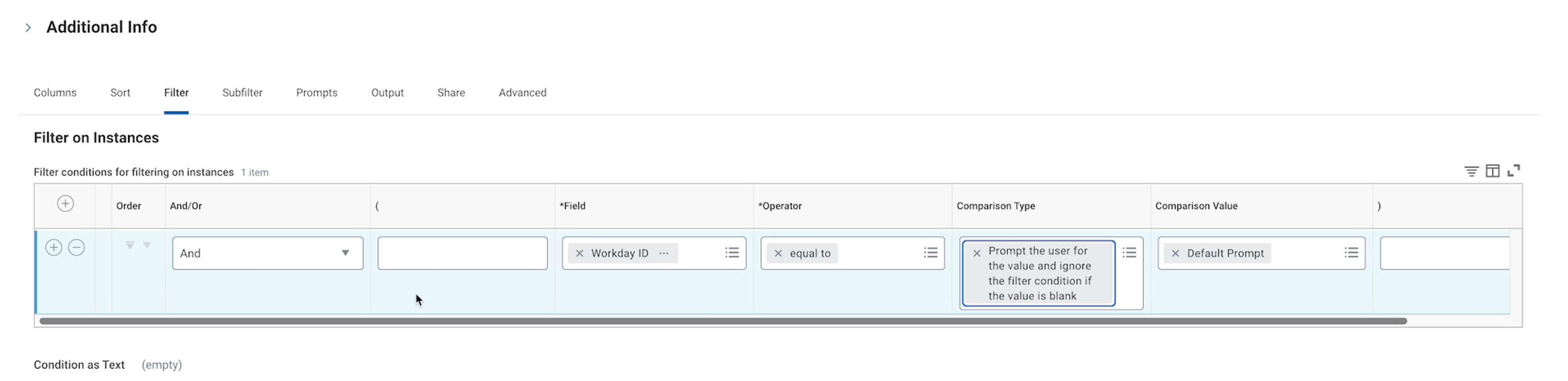
Enter these details in the
Promptscolumn. Ensure all fields match the image.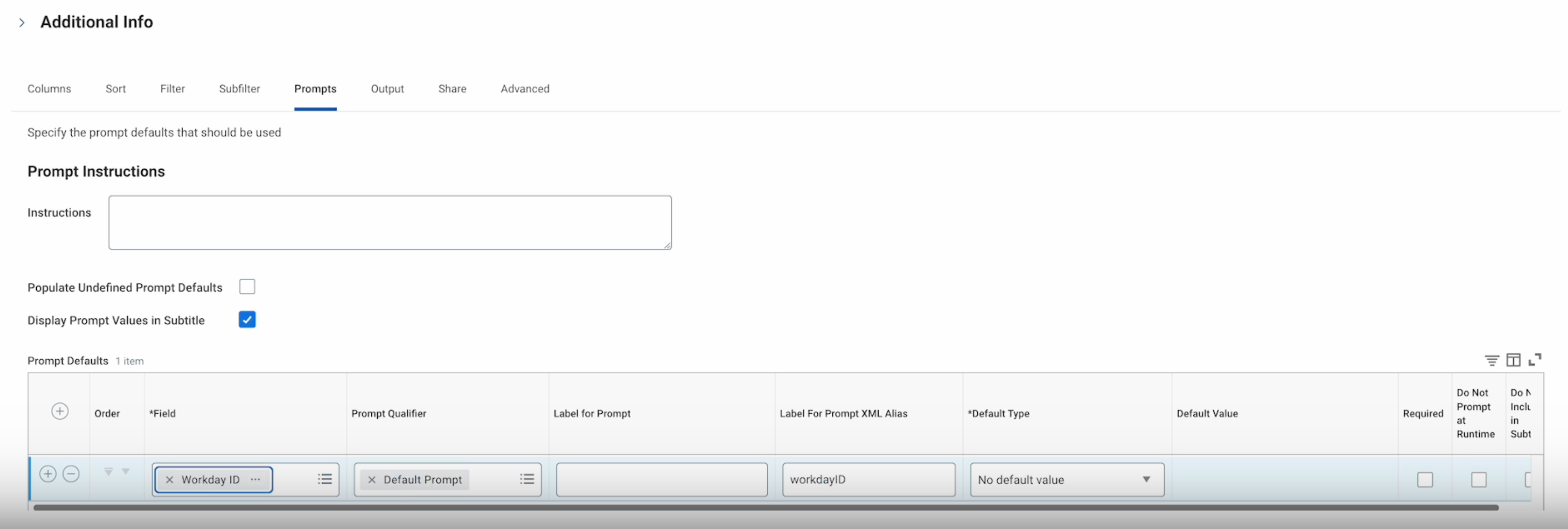
In the
Sharecolumn, share the report with theISU-ModernLoopuser.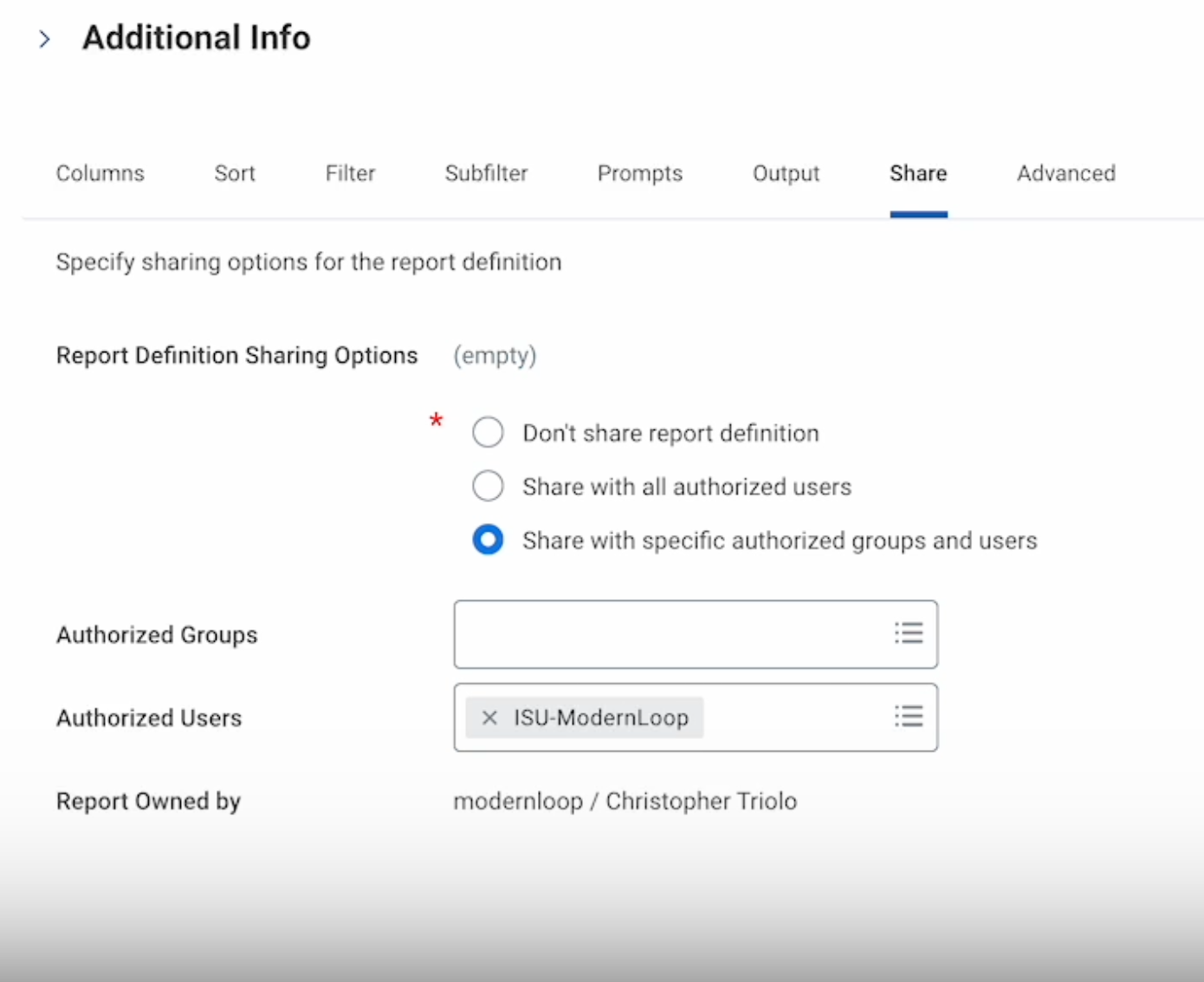
In the
Advancedcolumn → UnderWeb ServicesOptions → Enter these details. Ensure all fields match the image. Leave everything else as is.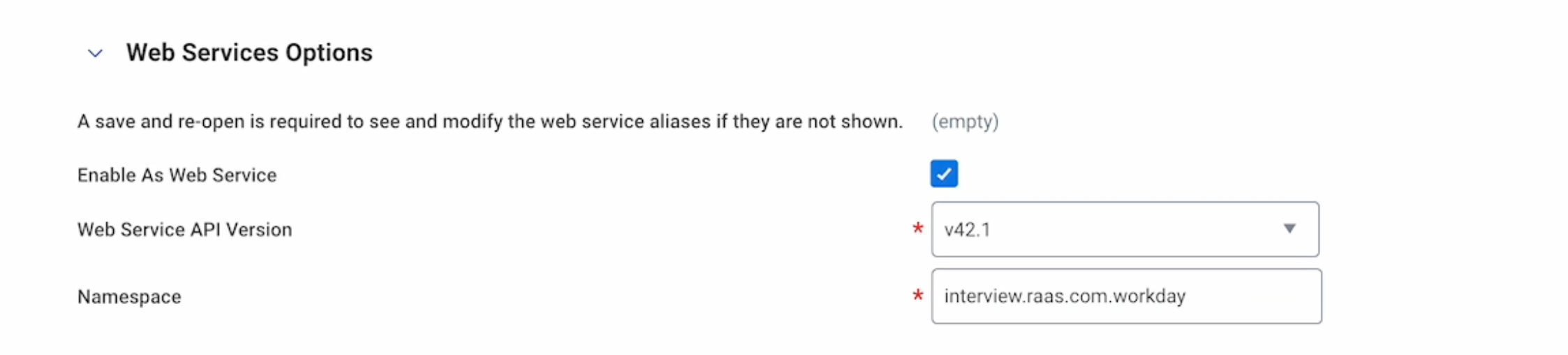
Click
OKto save the report. Ignore any alerts.
Run the report to verify. Leave
Workday IDinput blank. It should look like this.
Similar to Step 7, press action menu (
…) next toInterview Eventsat the top of the page.
Select
Web Service -> View URLs
Find the
WSDLhyperlink and either:Select the action menu (
…) next to it, and clickcopy url, and save to be inputted directly in ModernLoop.
Click the
WSDLlink, copy the “Report” URL at the bottom of the page, and save to be inputted directly in ModernLoop.
8. Chrome Extension Support
For our extension to work with Workday, we need to have the candidate id included in the candidate's name. This allows us quickly sync applications.
Search
Edit Tenant Setup - HCM
Under
IDs, enableInclude ID in Candidate Nameand clickOK.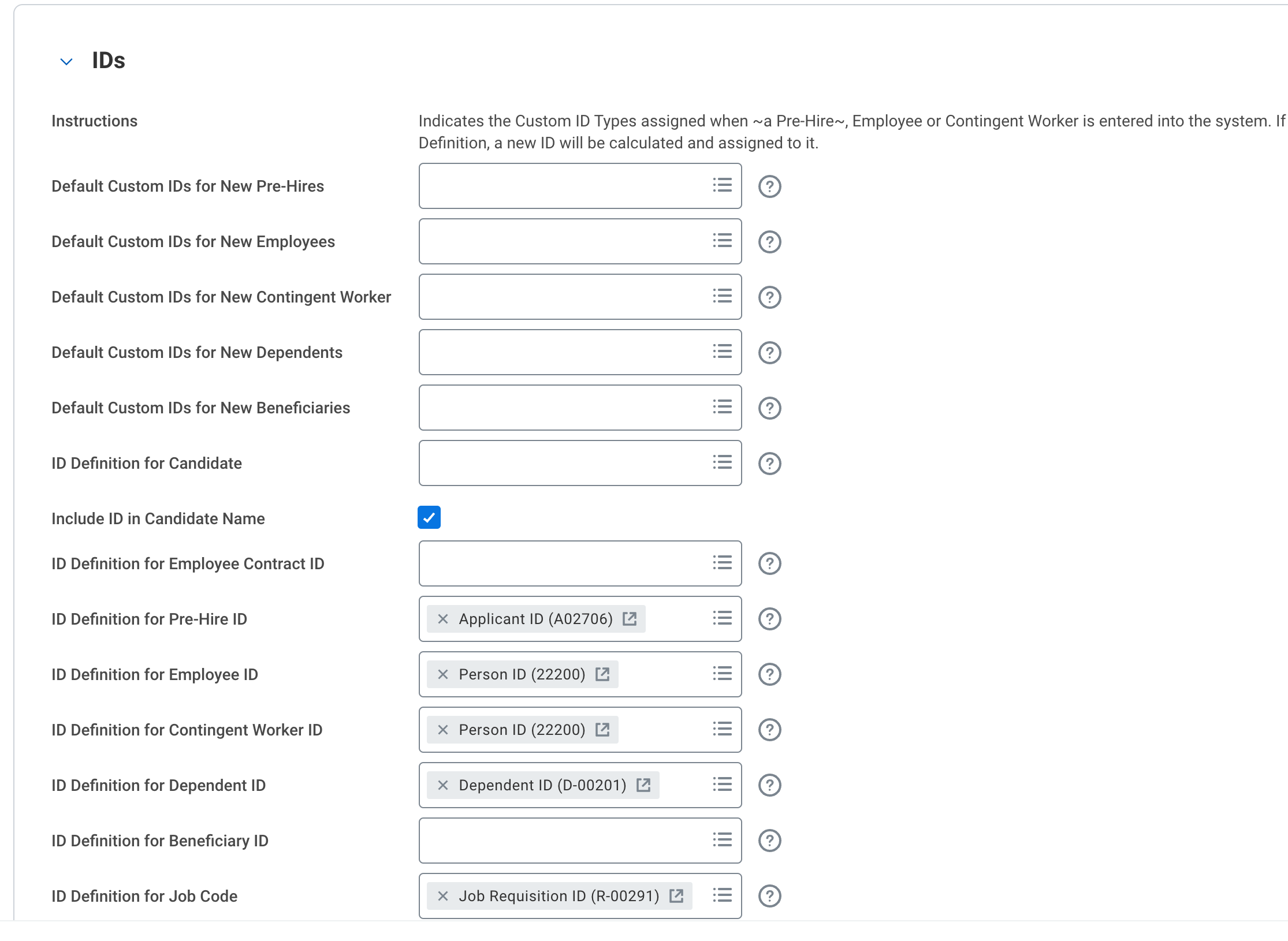
9. Enabling Questionnaires
Search
Configure Optional Fields→ Select Functional AreaInterview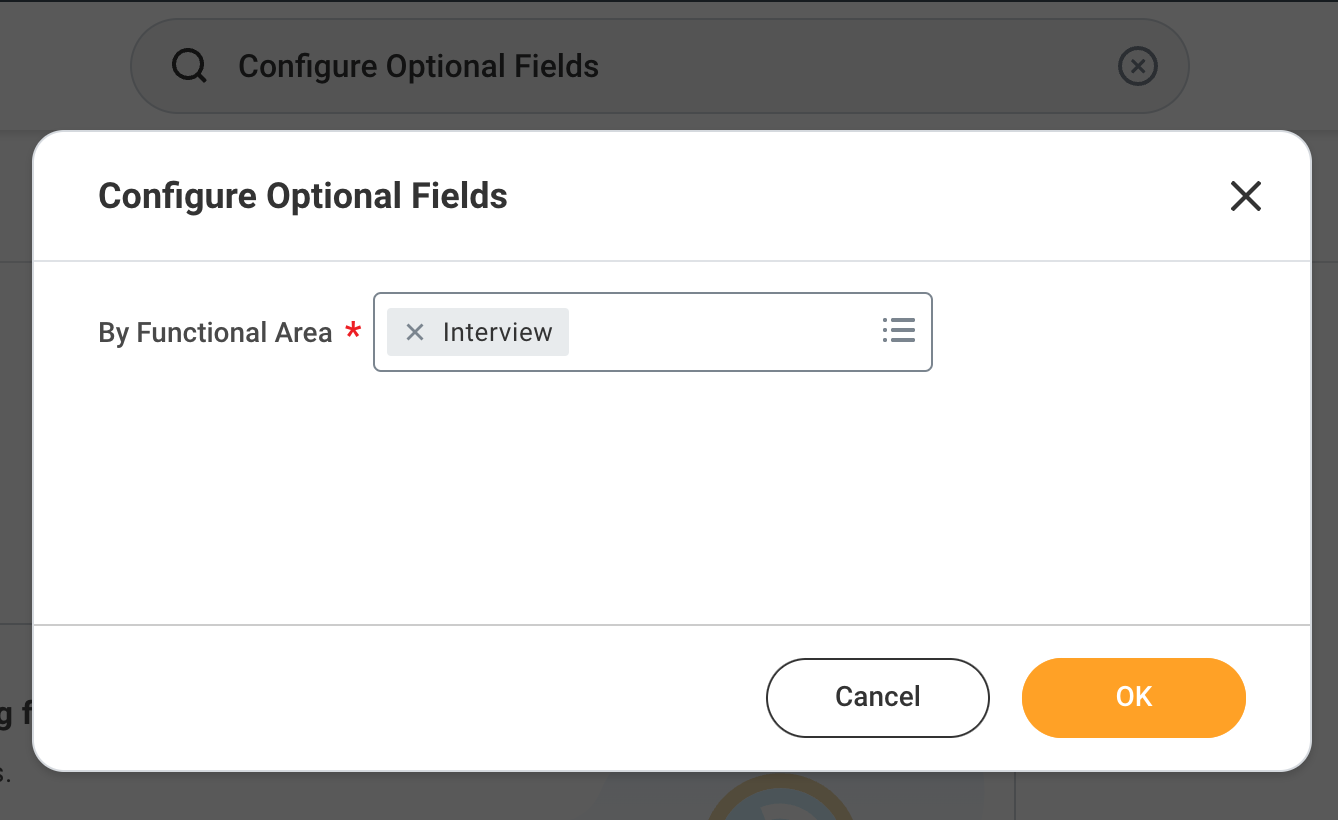
Add the following rows and ensure
Criteriais set toRequire For All. Do not selectEnable required in web services. Leave remaining fields blank.Questionnaires (Manage Interview Feedback)
Questionnaires (Schedule Interview)

All configured Questionnaires should be
Interviewtype.
NOTE: You will be able to create interviews without any scorecard when scheduling via ModernLoop.
10. Providing System Timezone
Navigate to
Edit Tenant Setup - System→ Time Zone Configuration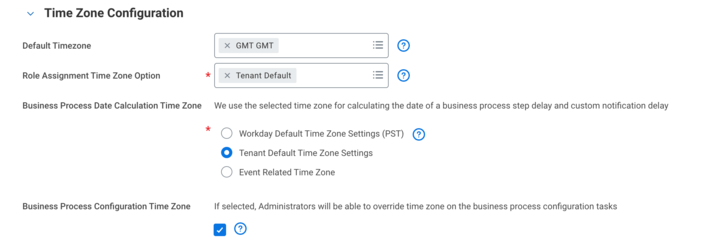
Provide the value set in the
Default Timezonesection
Complete Integration in ModernLoop
Go to https://app.modernloop.io/login and sign into your ModernLoop account
Navigate to Integrations
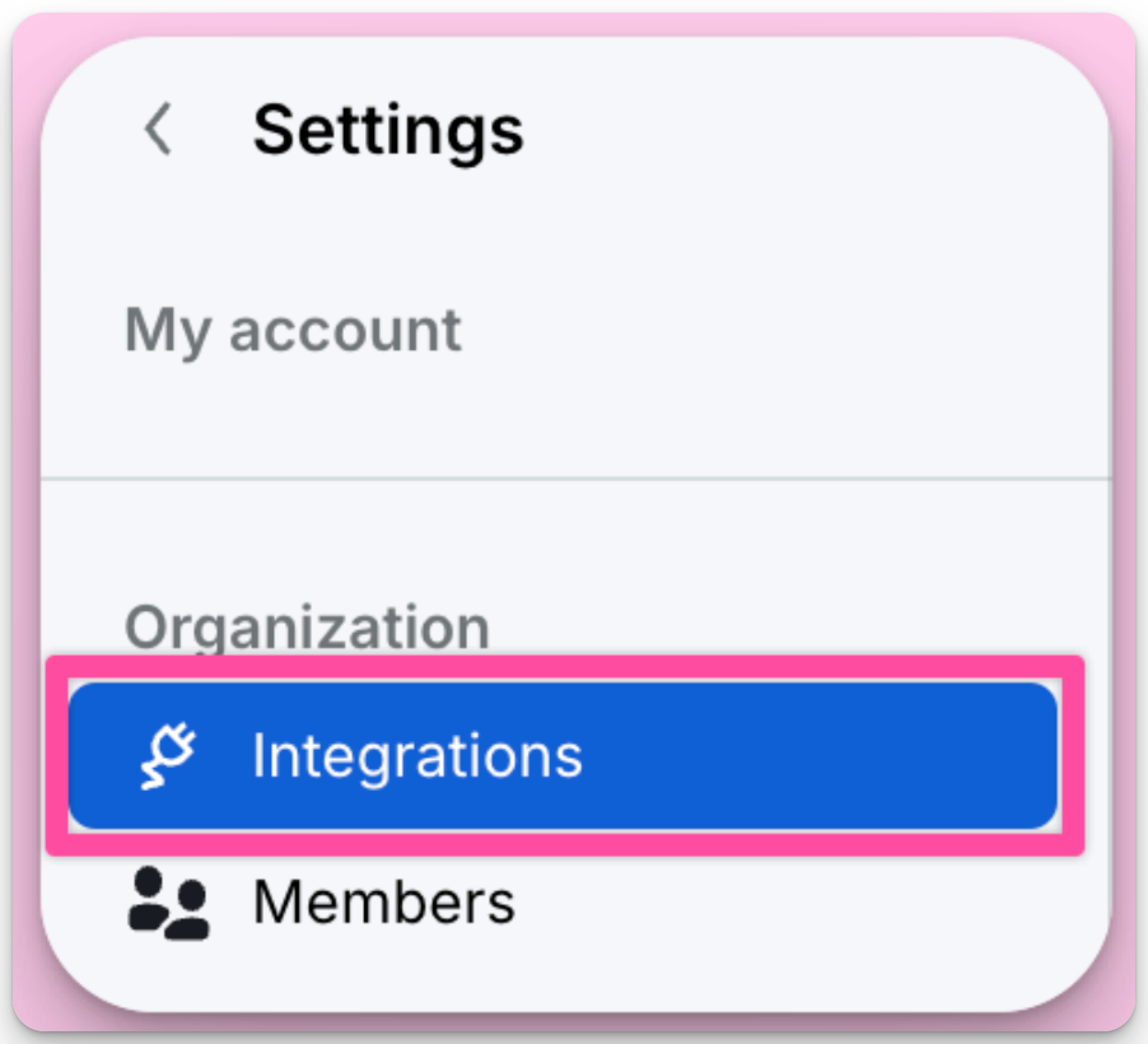
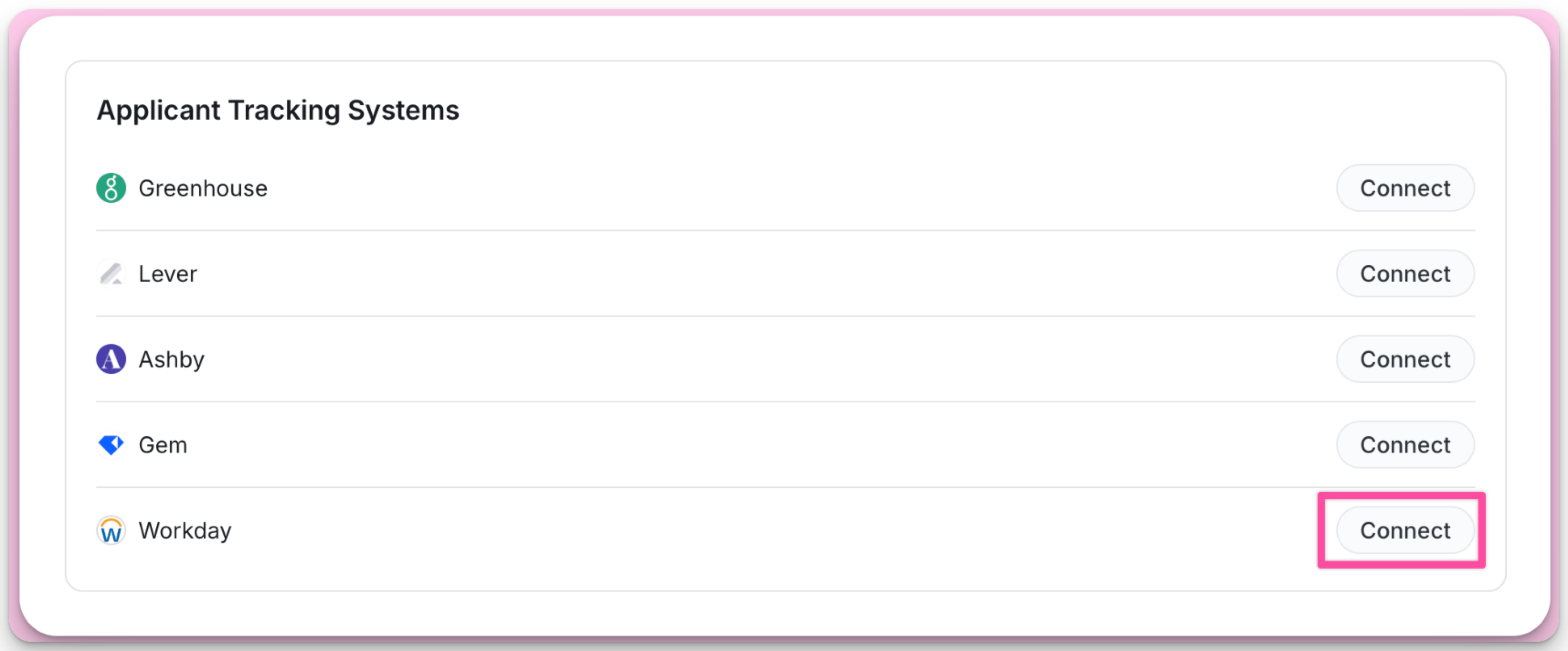
Click Connect next to Workday in the Applicant Tracking System section
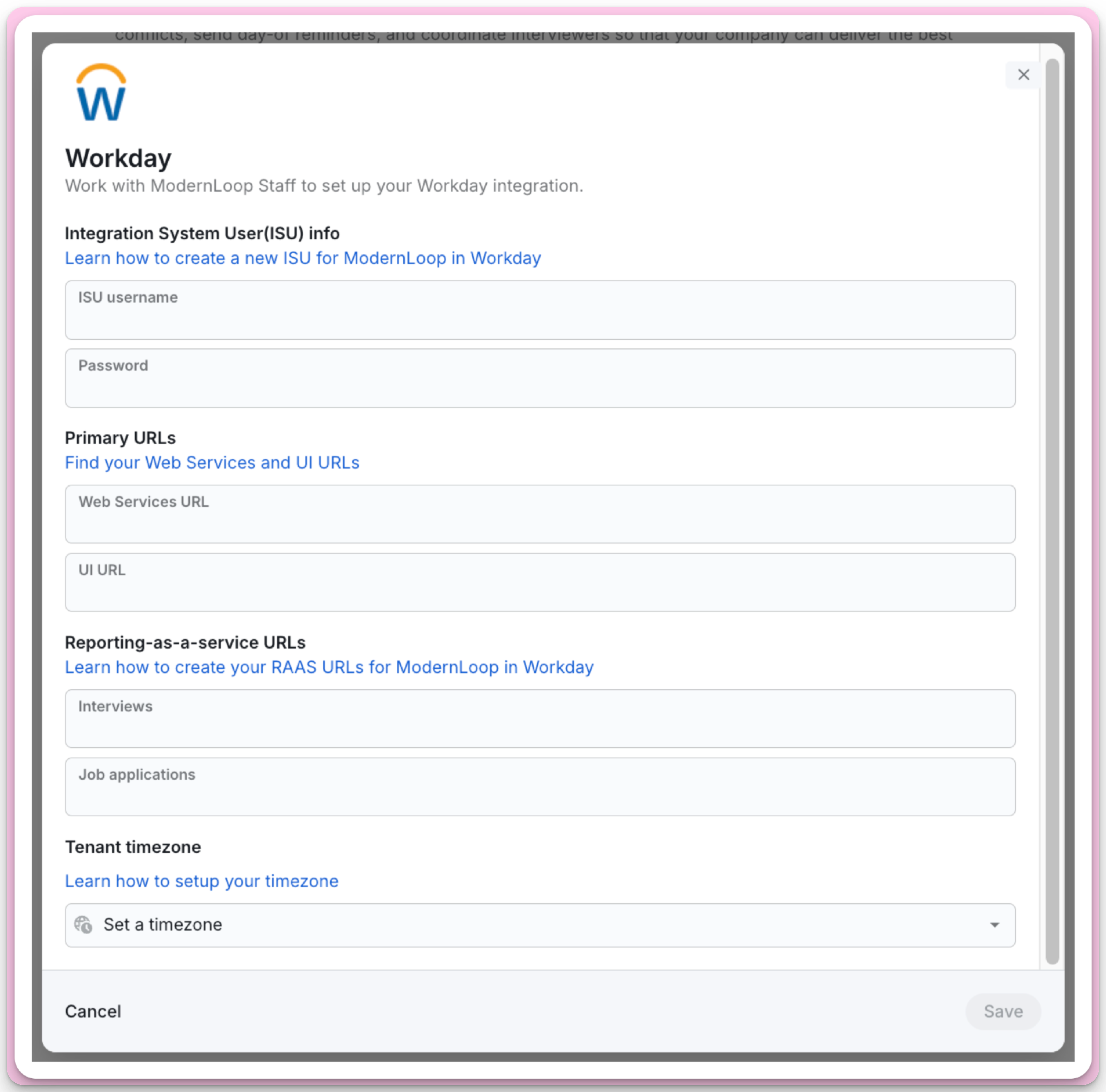
Input the following information and click Save
Integration System (ISU) info
ISU username
Password
Primary URLs
Web Services URL
UI URL
Reporting-as-a-service URLs
Interviews
Job applications
Tenant timezone
Permissions & Privacy
When syncing Workday “Job Requisitions” and “Workers”, we additionally sync the “Supervisory Org” and/or “Cost Center” that the job or worker belong to. That data is used in ModernLoop to enforce Workday permissions. We only display Jobs (and by extension, Candidates/Applications) to the ModernLoop User if they are also part of the same Supervisory Org or Cost Center as that job. If the ModernLoop User (and corresponding Workday “Worker”) are not part of a matching Supervisory Org or Cost Center, then that Job and any related data will be inaccessible to them in ModernLoop.
Data Use: ModernLoop syncs "Supervisory Org" and "Cost Center" information to enforce permissions, ensuring users only access data relevant to their role.
Data Visibility: Jobs, candidates, and related data are accessible only if users share the same Supervisory Org or Cost Center.
Domain Security Policies
These are the permissions required for the ModernLoop Workday integration.
ModernLoop Operation | Domain Security Policy | Functional Area | Purpose | Sub-domains |
Get | Business Process Reporting | System | This domain provides access to reporting on Business Process setup and execution. | NONE |
Get and Put | Prospects | Recruiting | This domain provides access to prospects. | NONE |
Get | Candidate Data: Job Application | Recruiting | This domain provides access to view a candidate job application. | Candidate Data: Assessment Results |
Get | Candidate Data: Questionnaires | Recruiting | This domain provides access to all tasks and reports related to configurable questionnaires. | Question Library |
Get and Put | Candidate Data: Attachments | Recruiting | This domain provides access to the candidate attachments tab on the Candidate Profile. | NONE |
Get and Put | Candidate Data: Interview Schedule | Recruiting | This domain will control who can view interview schedules. | NONE |
Get | Candidate Data: Personal Information | Recruiting | This domain provides access to candidate’s name, contact information, etc. | NONE |
Get | Candidate Data: Interview Feedback Results | Recruiting | This domain provides access to view candidate job application feedback results. | NONE |
Get and Put | Move Candidate | Recruiting | This domain provides access to move a candidate at any point. | Copy Candidate |
Get | Manage: Candidate Job Application Notes | Recruiting | This domain gives access to the candidate’s application notes. | NONE |
Get and Put | Candidate Data: Edit Job Application | Recruiting | This domain provides access to edit job application information for candidates. | NONE |
Get | Manage: Candidate Notes | Recruiting | This domain gives access to the candidate’s notes. | NONE |
Get | Manage: Candidates | Recruiting | This domain provides access to the public work email addresses of workers for the Get Workers web service. | NONE |
Get | Questionnaire Results | System | This domain gives access to the submitted questionnaire data. | NONE |
Get | Worker Data: Public Worker Reports | Staffing | This domain provides access to information all workers can access about all other workers, including web services. Also provides the ability for Workers to search for other workers and view their public information on the Worker Profile. The Get Workers operation, secured to this domain, returns all contact information - public and private. | NONE |
Get | Job Postings | Recruiting | This domain provides access to view Job Postings posted to your internal and external career sites. | Job Postings: External |
Get | Manage: Organization Integration | Organizations and Roles | This domain provides access to the get and find organizations. Contains web services. | NONE |
Get | Worker Data: All Positions | Staffing | This domain provides access to positions and their details (e.g., hiring restrictions). | NONE |
Get | Questionnaire | System | This domain provides access to all tasks and reports related to configurable questionnaires. | NONE |
Get | Job Requisition Data | Pre-Hire Process | This domain provides access to job requisition data. | NONE |
Get | Person Data: Public Work Email Address Integration | Contact Information | This domain provides access to the public work email addresses of workers for the Get Workers web service. | NONE |
Get | Job Requisitions for Recruiting | Recruiting | This domain provides access to the recruiting-specific job requisition details. This includes the Job Overview details, Job Posting details and applied Candidates. | NONE |
Get | Manage: Evergreen Requisitions | Recruiting | This domain manages all tasks and reporting for evergreen requisitions. | Consolidated Candidate Pool |
Get | Questionnaire Creation and Distribution | System | This domain gives access to attaching questionnaires to interviews. | NONE |