Microsoft 365 - GCC High Installation
Last updated: February 5, 2026
ModernLoop's Microsoft 365 - GCC High/Outlook Integration enables seamless scheduling coordination for interview teams and candidates. This integration allows ModernLoop to:
Assign interviewers from users on your workspace.
Identify the optimal interview schedule.
Analyze interviewer conflicts.
Read and write calendar resources, such as rooms.
Send emails to candidates.
If you’re an existing ModernLoop customer planning to transition from Microsoft to Google Workspace, please notify your CSM or email support@modernloop.io at least 1 month prior to your target transition date.
Prerequisites
Administrator Permissions:
You must have administrator permissions for your company's Microsoft workspace.
Azure Gov Cloud Access:
You must be able to log in to Azure Gov Cloud and create an enterprise application.
ModernLoop Platform Access:
Ensure you have access to the ModernLoop platform. If you do not, please contact your ModernLoop Customer Success Manager (CSM).
If the Microsoft account used for the integration is deprecated, the integration will stop functioning. We recommend creating a service account specifically for this task to ensure continuity.
List of Permissions
ModernLoop requires the following app permissions to function properly:
Read and write calendars in all mailboxes
Read all user mailbox settings
Read all company places
Read all users' full profiles
Sign in and read user profile
Integrating Microsoft 365 GCC High
(Directory + Calendar Setup via Azure Enterprise Application)
To access directory and calendar information necessary for scheduling, you must create an Enterprise Application in your Azure Gov Cloud. Follow the steps below.
Step-by-Step Guide to Creating an Enterprise Application
Sign In to Azure Gov Cloud:
Log in to the Microsoft Azure portal using an account with permissions to create an enterprise application.
Register a New Application:
Navigate to App Registrations and click New Registration.
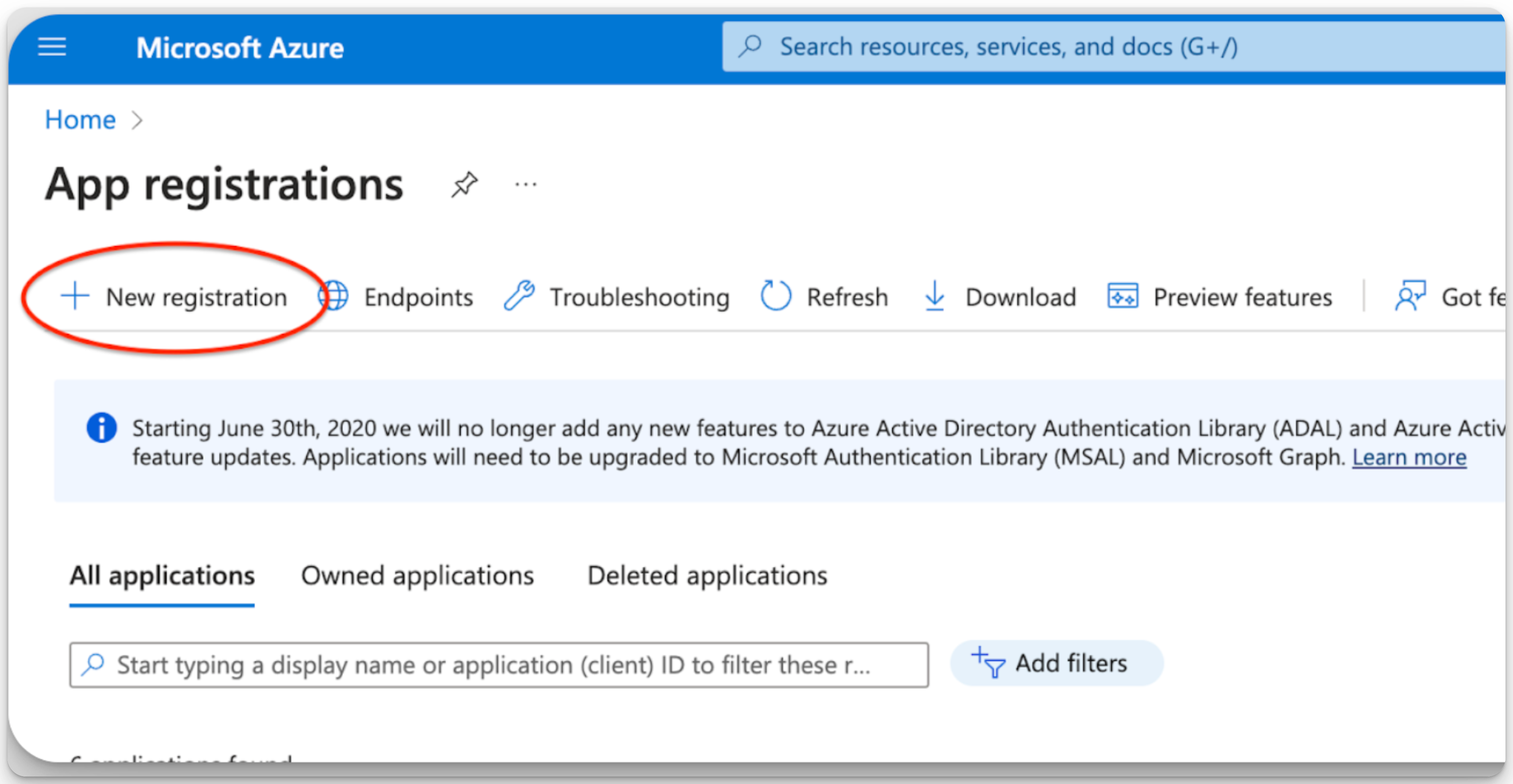
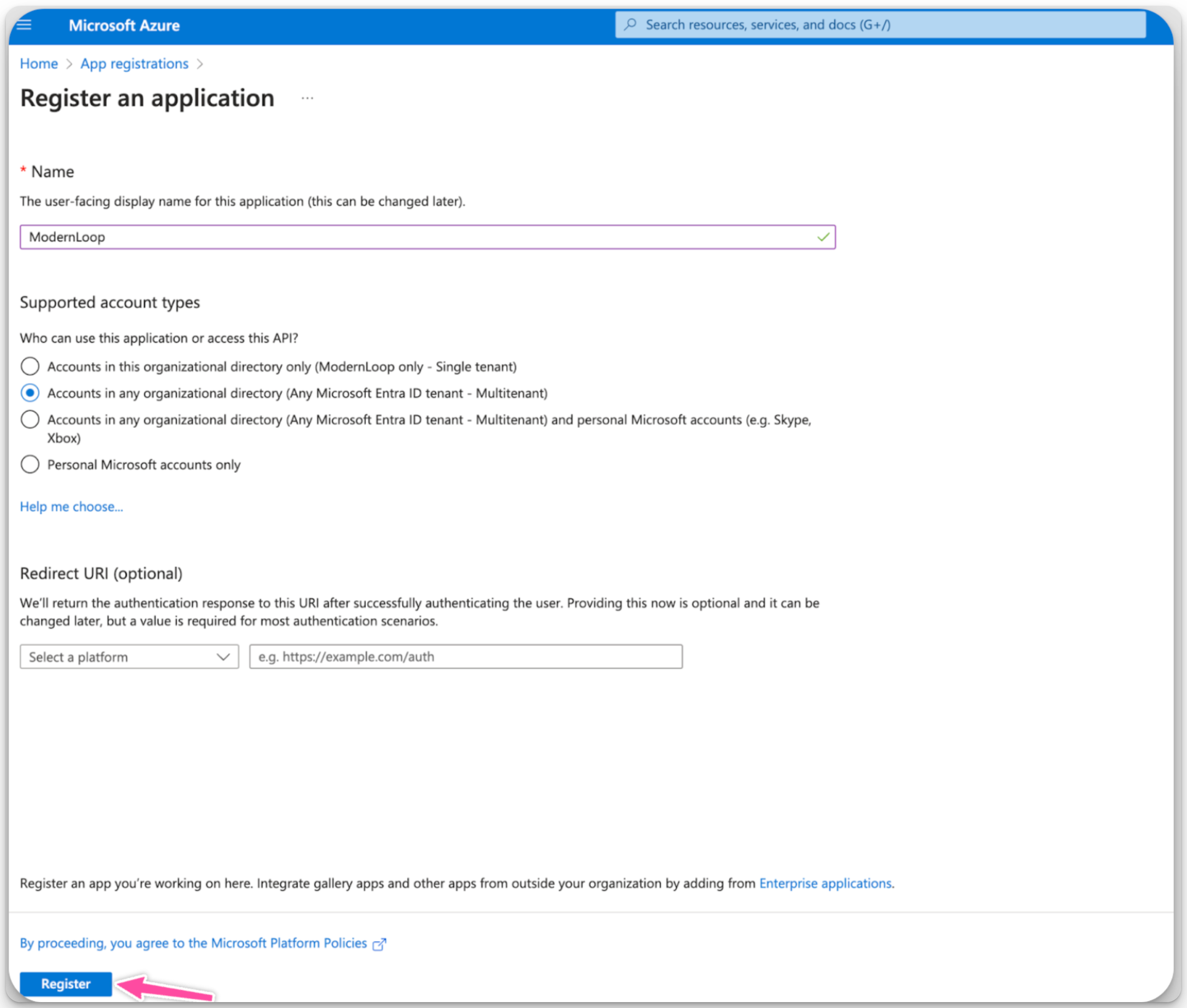
Enter
ModernLoopor a preferred application name in the Name field.
Select the Multi-tenant option.
Leave the Redirect URL field empty.
Click Register.
Assign Permissions:
Navigate to the newly created application.
Click on API Permissions → Add a Permission.
Add the following permissions under the Microsoft Graph API:
Calendars.ReadWriteRead and write calendars in all mailboxes
MailboxSettings.ReadRead all user mailbox settings
Place.Read.All Readall company places
User.Read.All Readall users' full profiles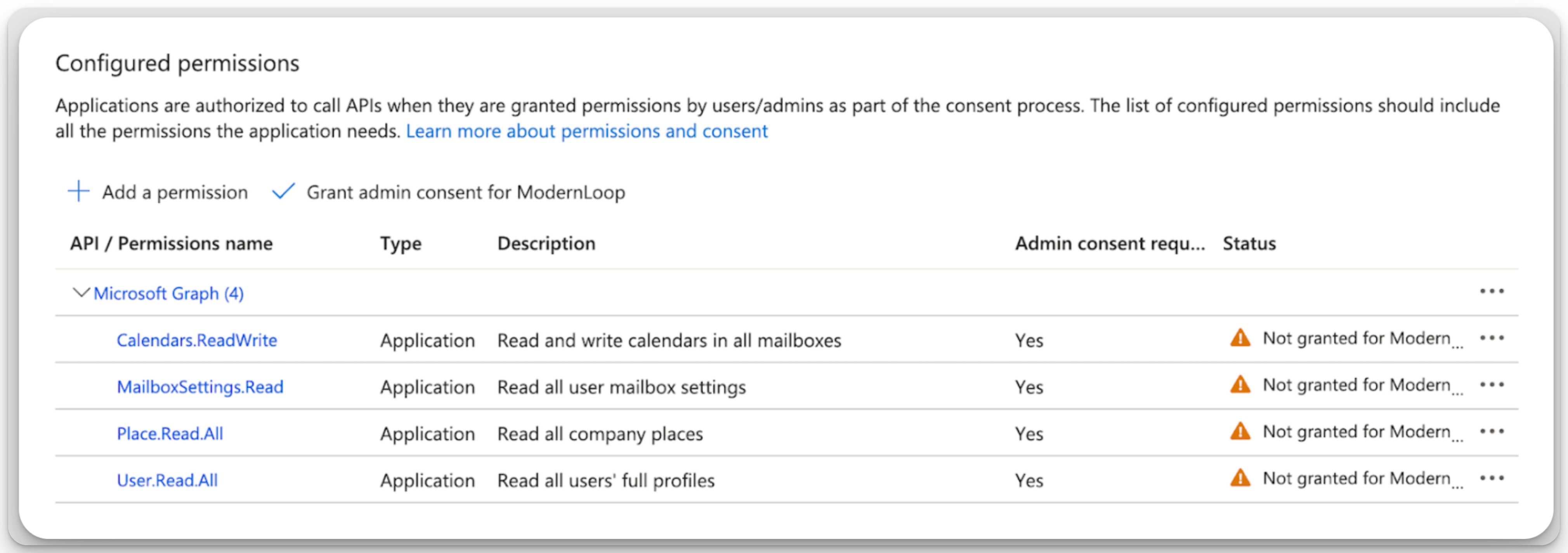
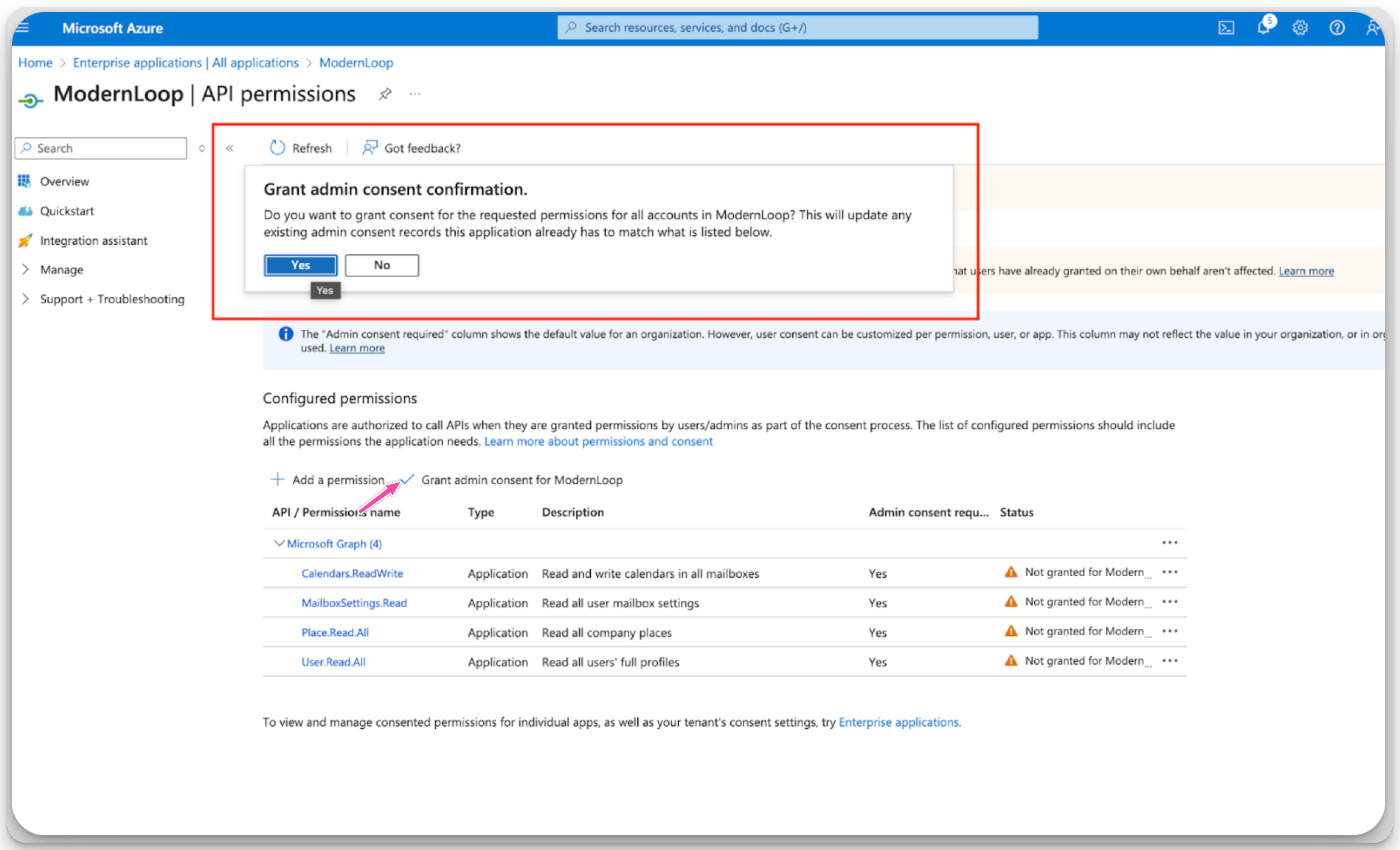
Once permissions are added, click Grant admin consent for ModernLoop.
Create a Client Secret:
Go to Certificates and Secrets → Client Secrets.
Click New Client Secret.
Add a description (e.g.,
ModernLoop Integration).
Set an expiration date that matches or exceeds your ModernLoop contract end date.
Click Add.
Save the Client Secret Value immediately, as it will only be shown once.
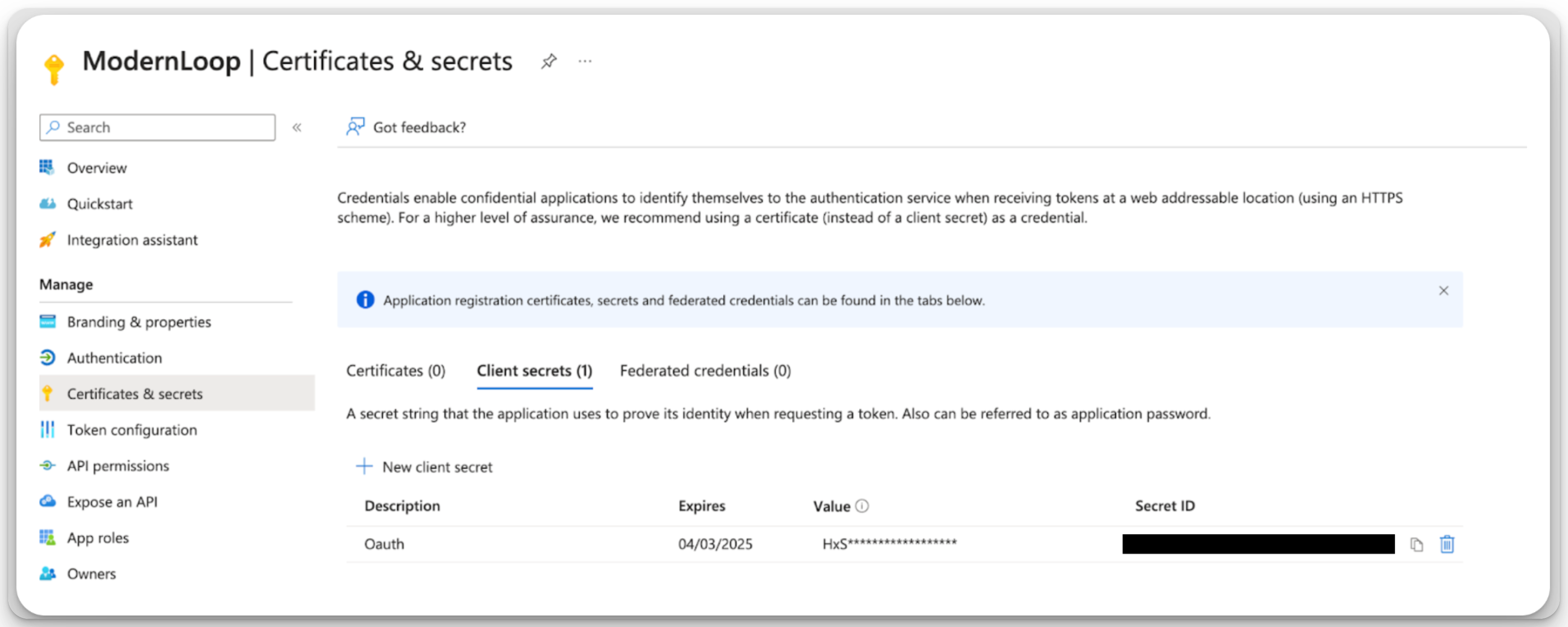
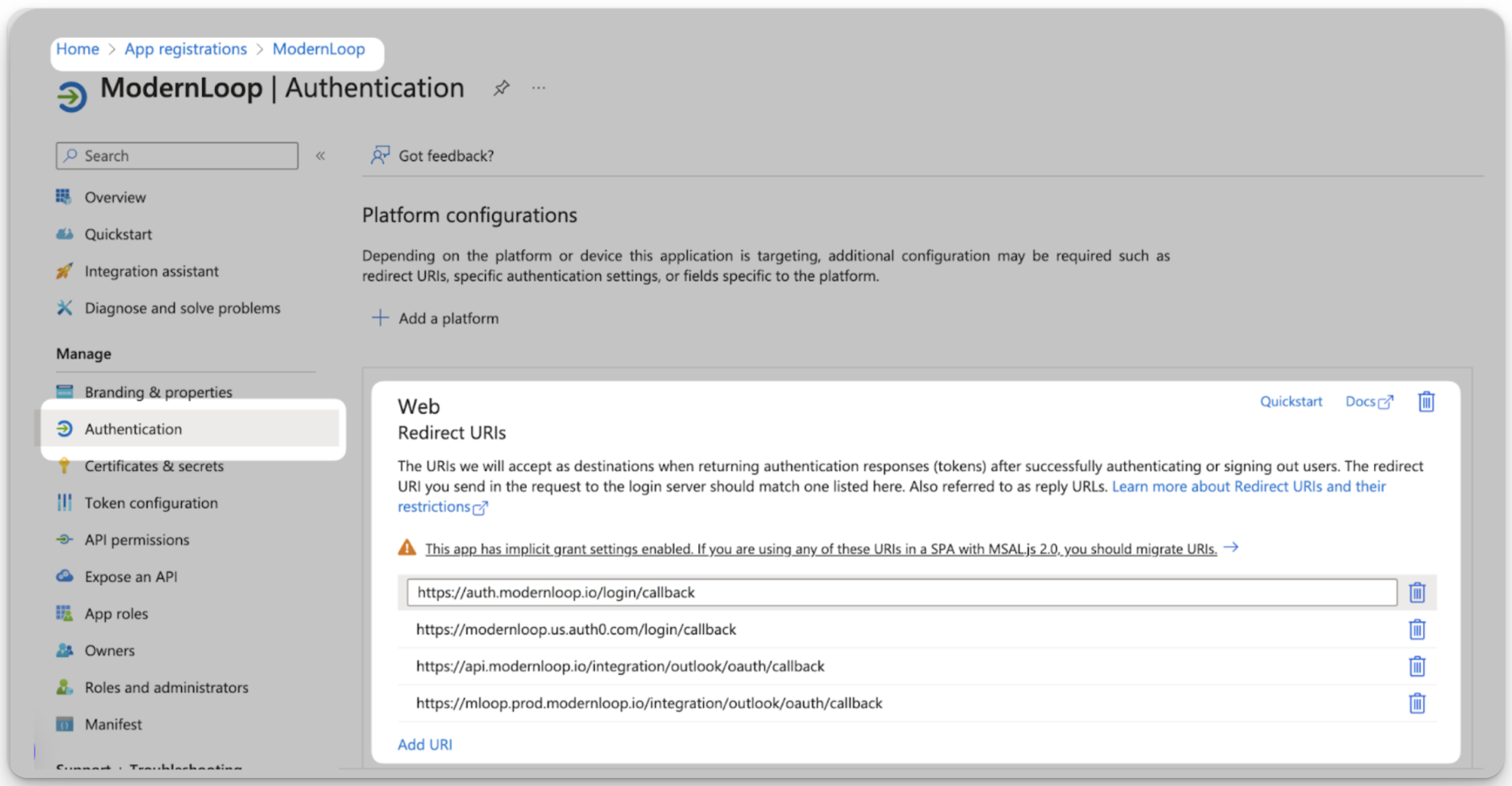
Add Authentication Redirect URLs:
Go to Authentication → Add a Platform.
Add the following redirect URLs:
https://api.modernloop.io/integration/outlook/oauth/callback
https://mloop.prod.modernloop.io/integration/outlook/oauth/callback
https://modernloop.us.auth0.com/login/callback
https://auth.modernloop.io/login/callback
Ensure Access Tokens are selected for these endpoints.
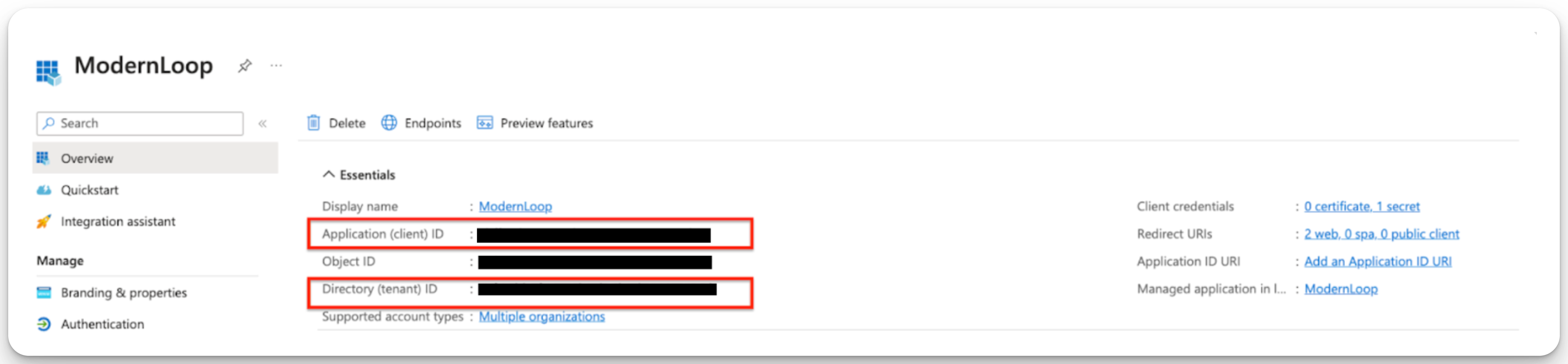
Provide Credentials to ModernLoop:
Share the following details with the ModernLoop team to complete the integration:
Application ID
Directory (Tenant) ID
Client Secret Value (from step 4)
Integration Instructions
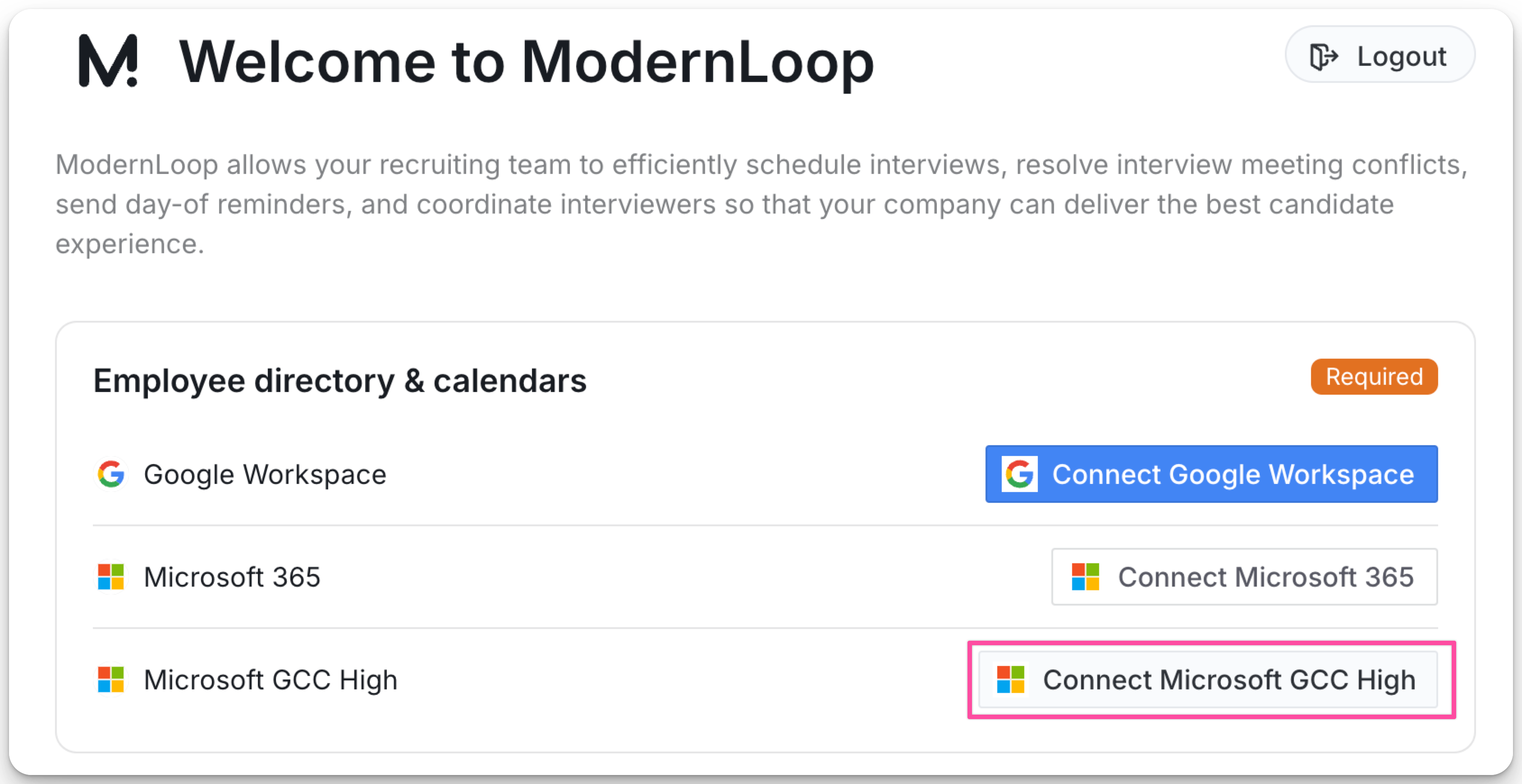
Log in to ModernLoop at https://app.modernloop.io/ using your Microsoft 365 account.
Click Connect Microsoft GCC High.
Review the permissions on the Organization App Consent screen
Click Accept to grant the necessary permissions.
Allow up to 24 hours for Microsoft to sync with ModernLoop.
Meeting Rooms Data
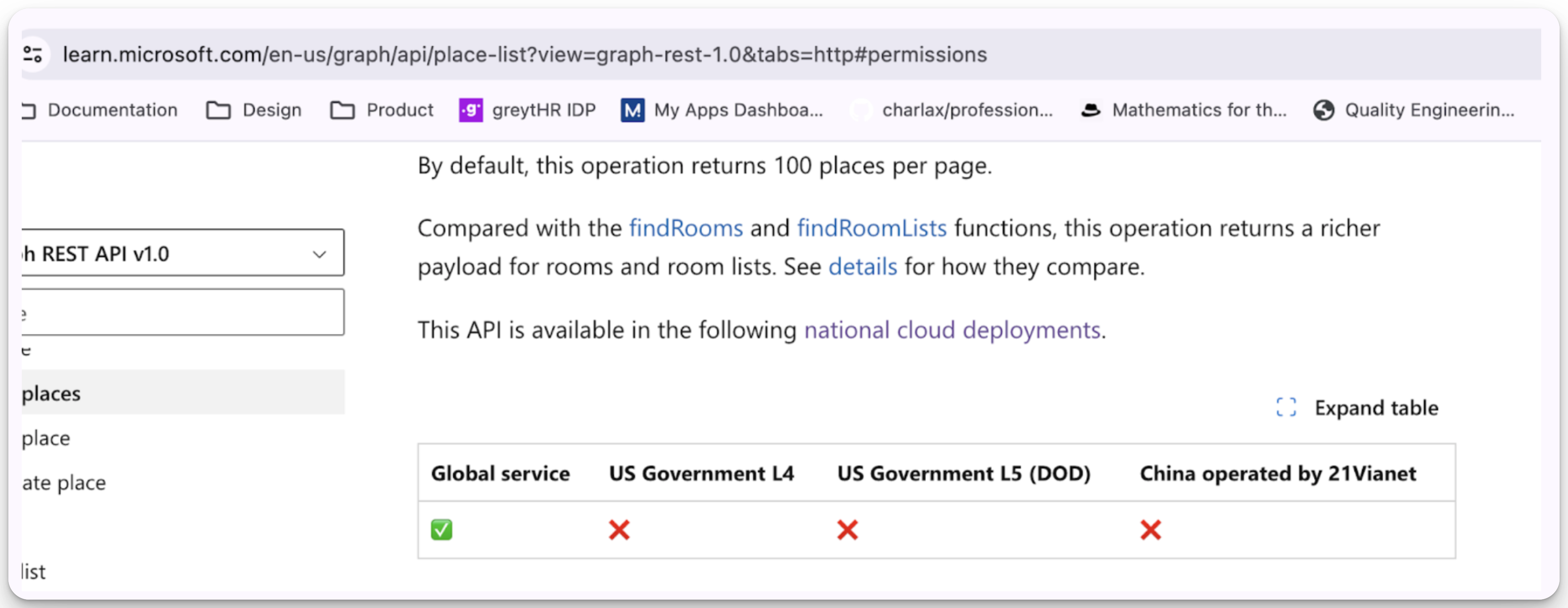
Due to GCC High restrictions on Meeting Room API access, ModernLoop requires your organization to manually provide meeting room details. These details will be used for scheduling interviews.
Please provide the following information for each meeting room (example below):
Name | Description | Capacity | Building Remote ID | Floor Name | |
| Earth | Redbricks Office Building - 1 - Earth (23) | 23 | Redbricks Office Building | 1 |
For more information about meeting room API permissions, refer to Microsoft's documentation.