Microsoft 365 - Onboarding with Restricted Calendar Permissions
Last updated: February 5, 2026
🛑 This article is for customers who wish to set up restricted calendar permissions. This setup comes with significant customer-facing caveats and is significantly more expensive due to the extra resources ModernLoop needs to employ to support this. This setup is not recommended, uncommon, and we strongly recommend using the standard setup. If you’d like to continue please reach out to your Account Manager.
If you’re an existing ModernLoop customer planning to transition from Microsoft to Google Workspace, please notify your CSM or email support@modernloop.io at least 1 month prior to your target transition date.
Custom Enterprise Application Creation
Follow these steps to create a custom Enterprise Application in the Microsoft Azure Portal:
Sign In to Azure
Log in to the Microsoft Azure Portal using a user account with sufficient permissions to create an Enterprise Application.
Create the Application
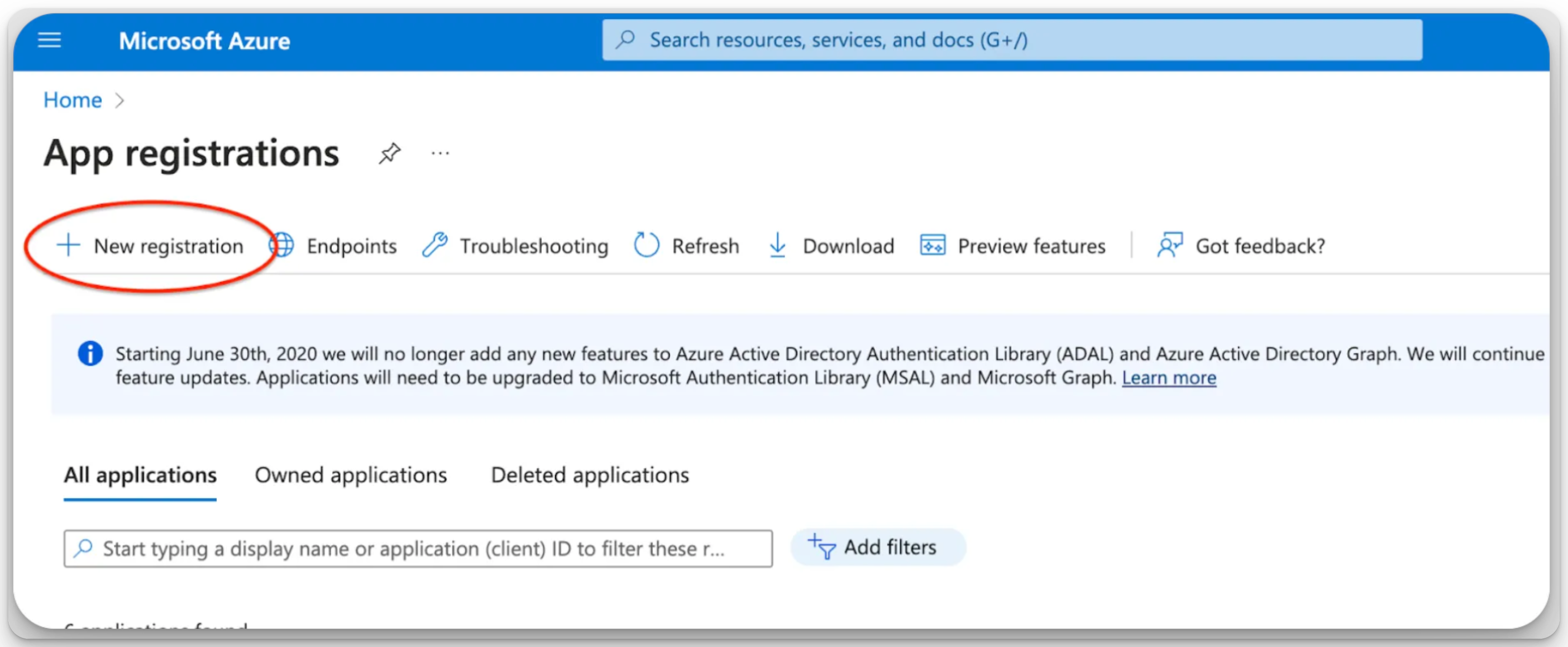
Navigate to App Registrations and click New Registration.
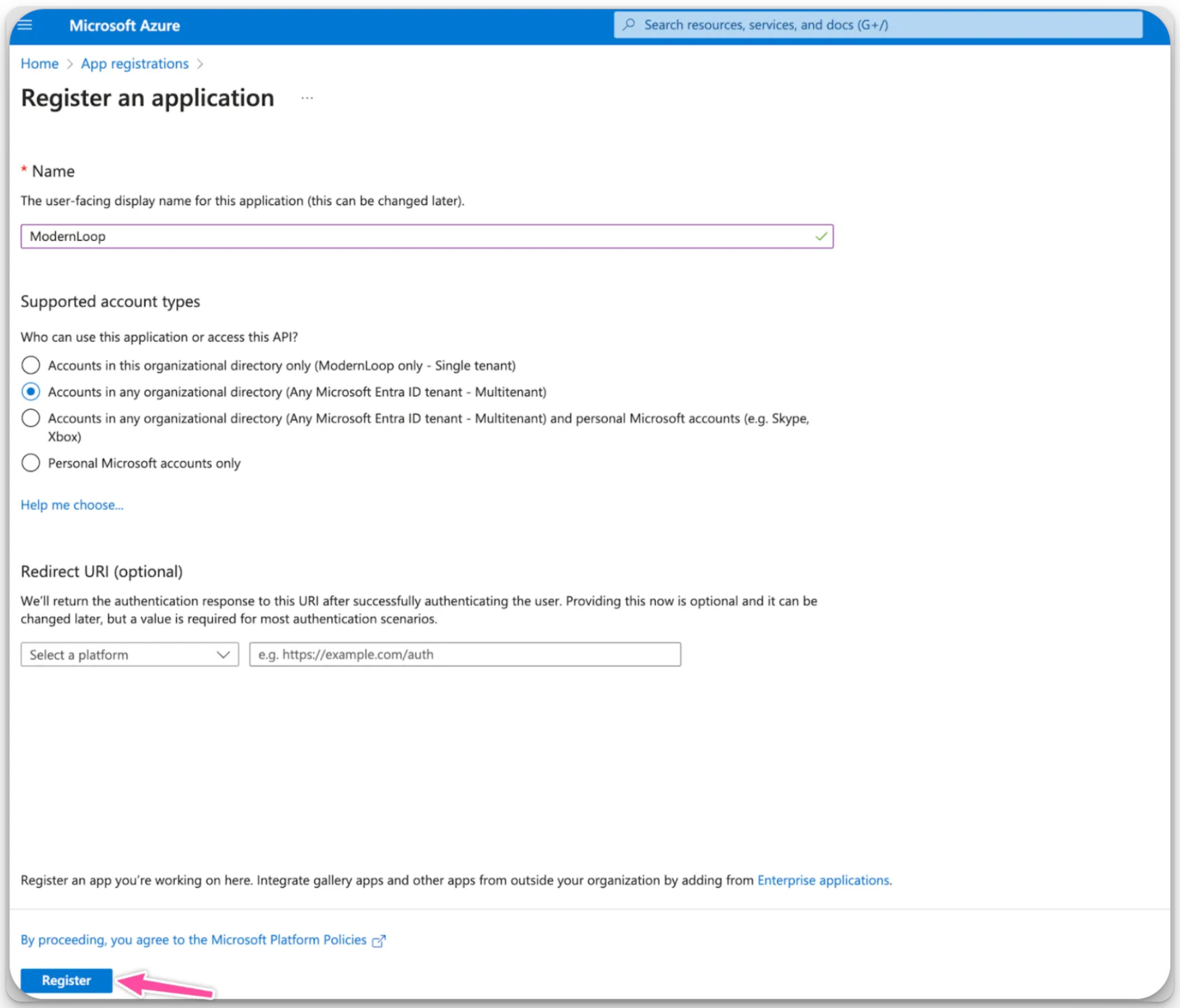
In the Name field, enter
ModernLoopor a preferred name for the application.
Select the Multi-tenant option.
Leave the Redirect URL field empty.
Click Register.
Assign Permissions
ModernLoop requires the following permissions. These are split into Application-Level and User-Level permissions:
List of permissions:
Application Level Permissions
User Level Permissions
User.Read.All
(Read all users' full profiles)Calendars.ReadWrite
(Have full access to user calendars)Calendars.ReadBasic.All
(Read basic details of calendars in all mailboxes)Mail.Send
(Send mail as a user)Place.Read.All (Read all company places)
offline_access
(Maintain access to data you have given it access to)MailboxSettings.Read
(Read all user mailbox settings)openid
(Sign users in)User.Read (Sign in and read user profile)
4. Add API Permissions
Navigate to the newly created application.
Select API Permissions and click Add a Permission.
Add all the permissions listed above under Microsoft Graph APIs.
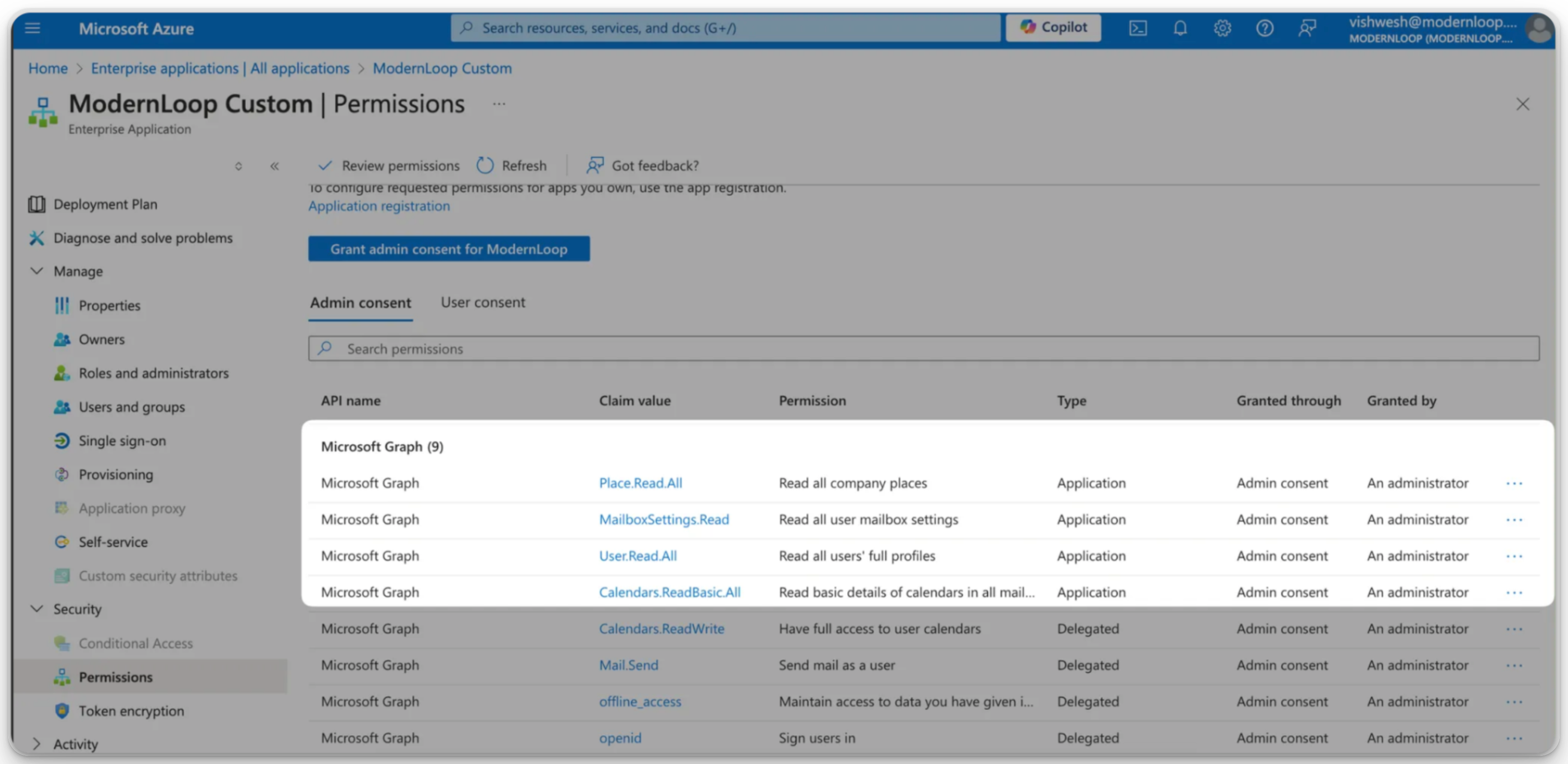
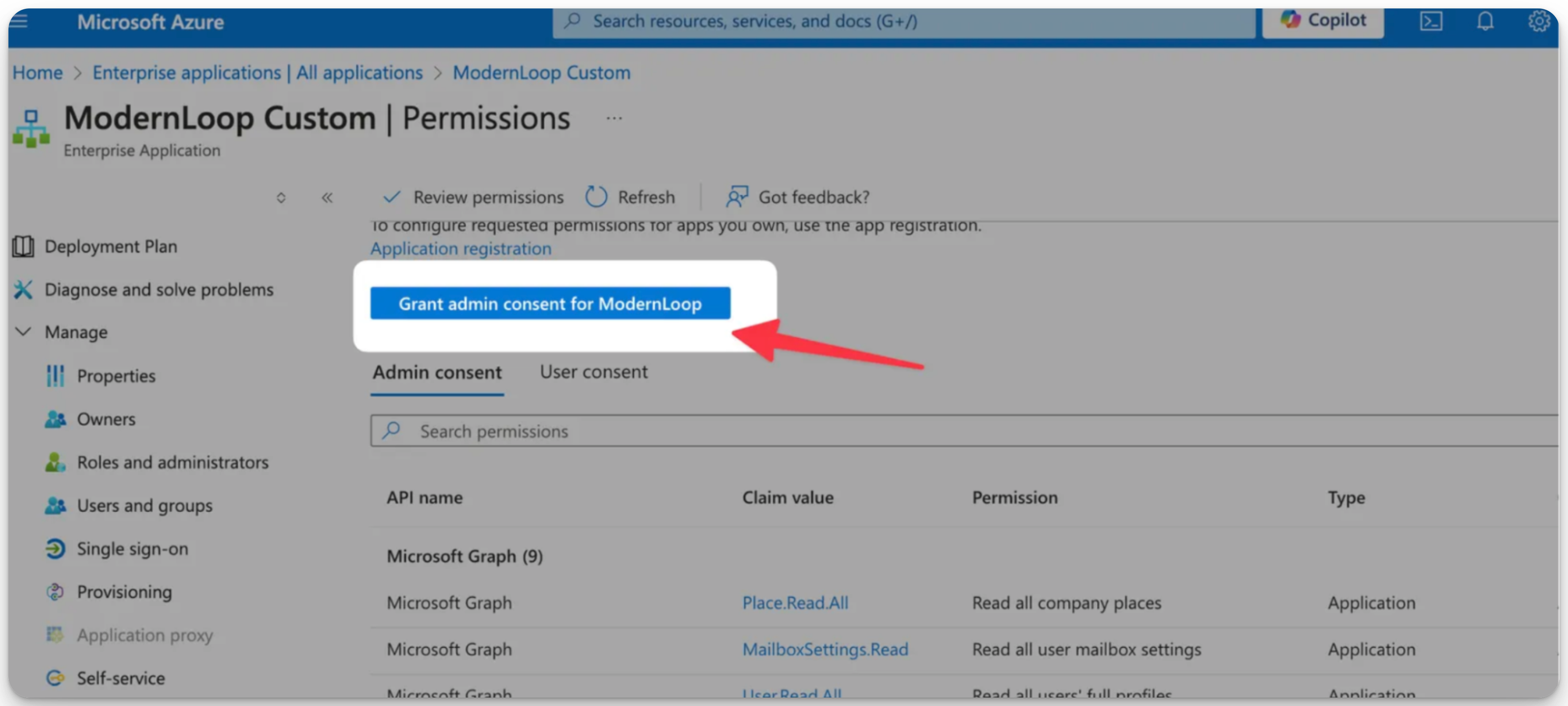
Once permissions are added, click Grant Admin Consent for ModernLoop to approve them.
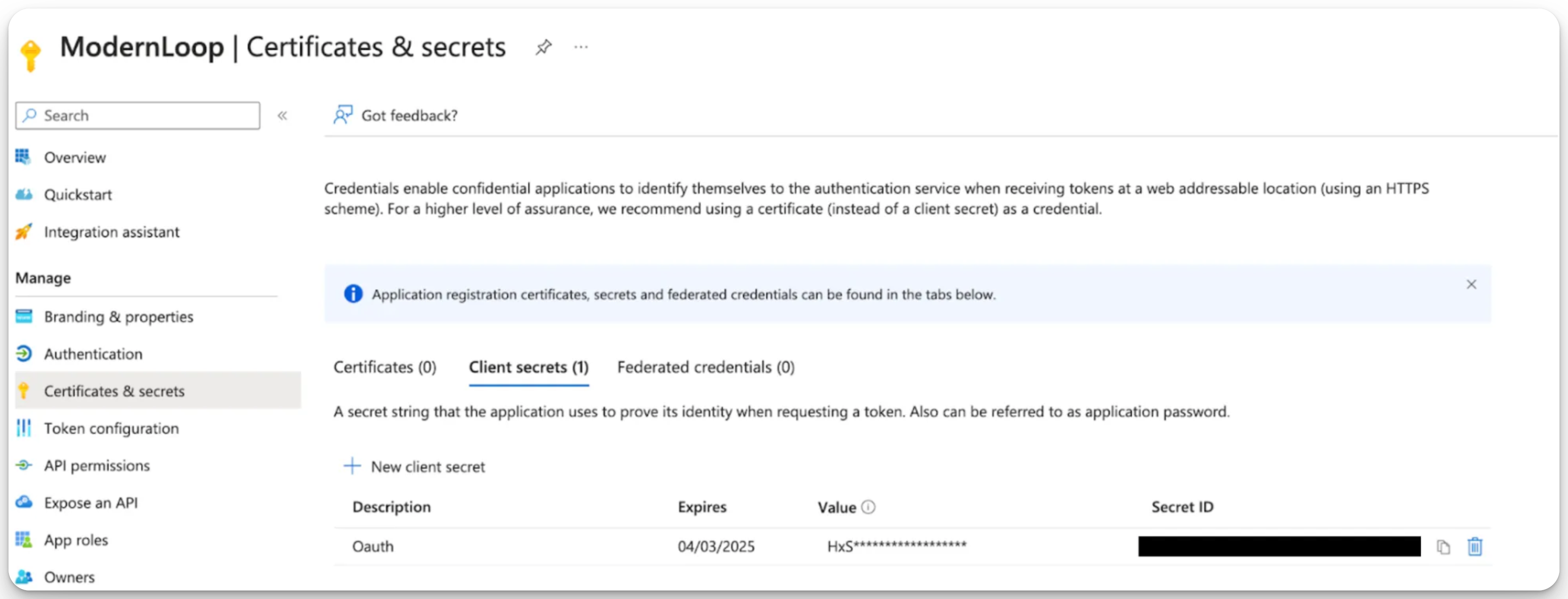
5. Create a Client Secret
Go to Certificates and Secrets → Client Secrets.
Click New Client Secret.
Add a description (e.g.,
ModernLoop Integration).
Set an expiration date that matches or exceeds the ModernLoop contract end date.
Click Add.
Save the Client Secret Value immediately, as it cannot be retrieved later.
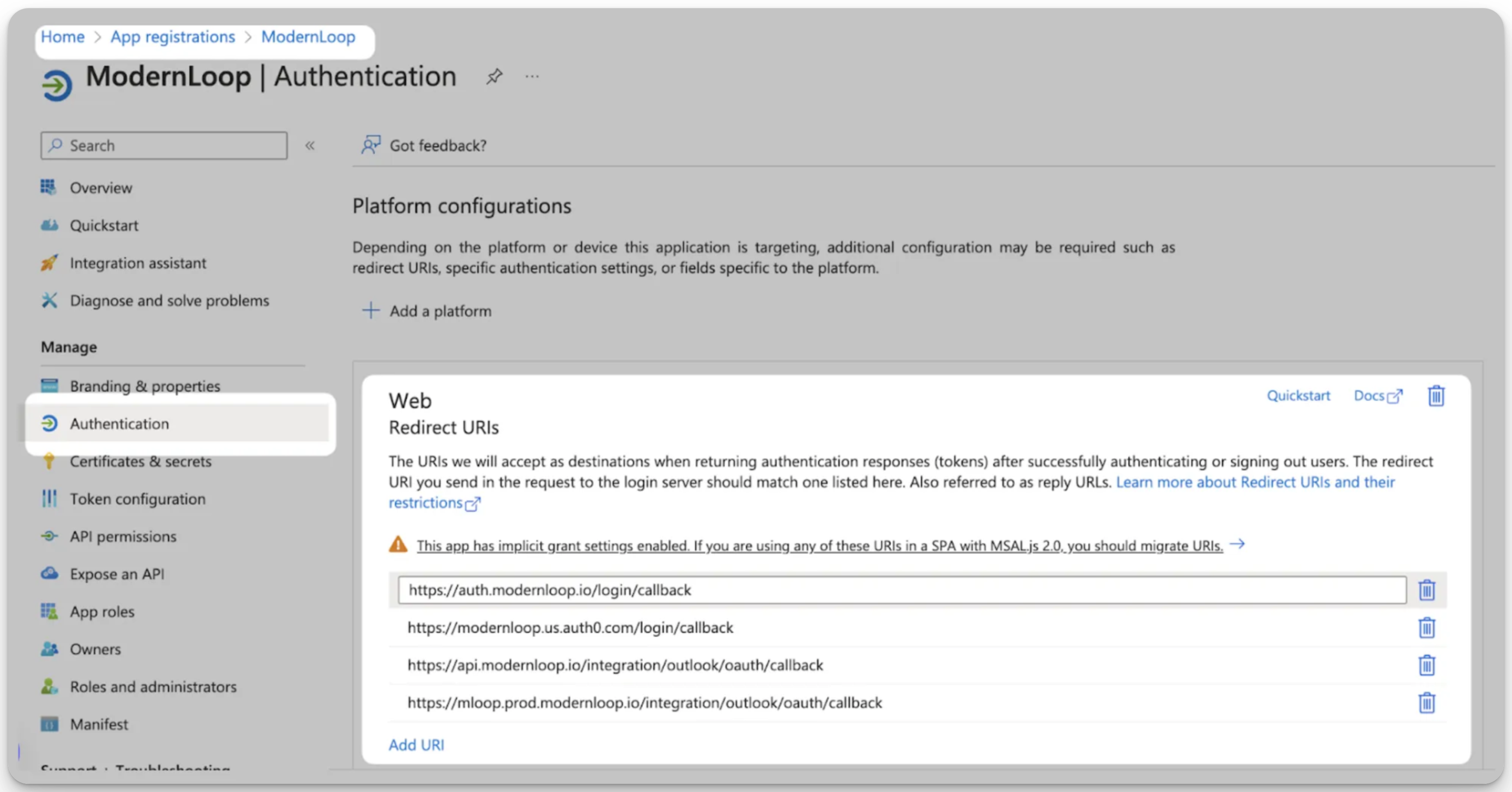
6. Add Authentication Redirect URLs
Navigate to Authentication → Add a Platform.
Add the following redirect URLs:
https://api.modernloop.io/integration/outlook/oauth/callback
https://mloop.prod.modernloop.io/integration/outlook/oauth/callback
https://modernloop.us.auth0.com/login/callback
https://auth.modernloop.io/login/callback
Ensure Access Tokens are selected for these endpoints.
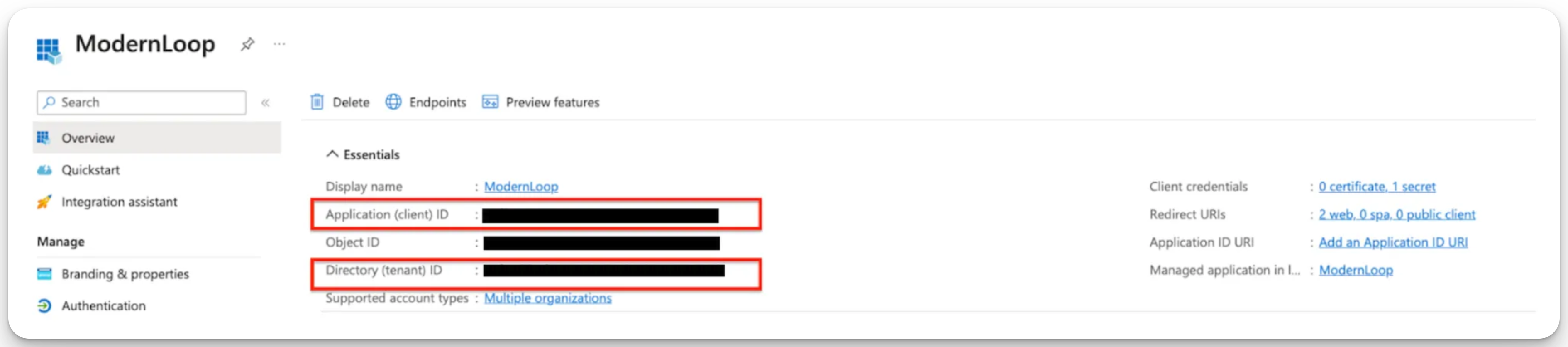
7. Share Application Credentials with ModernLoop
Provide the following values to the ModernLoop team:
Application ID
Directory (Tenant) ID
Client Secret Value (saved from Step 5).
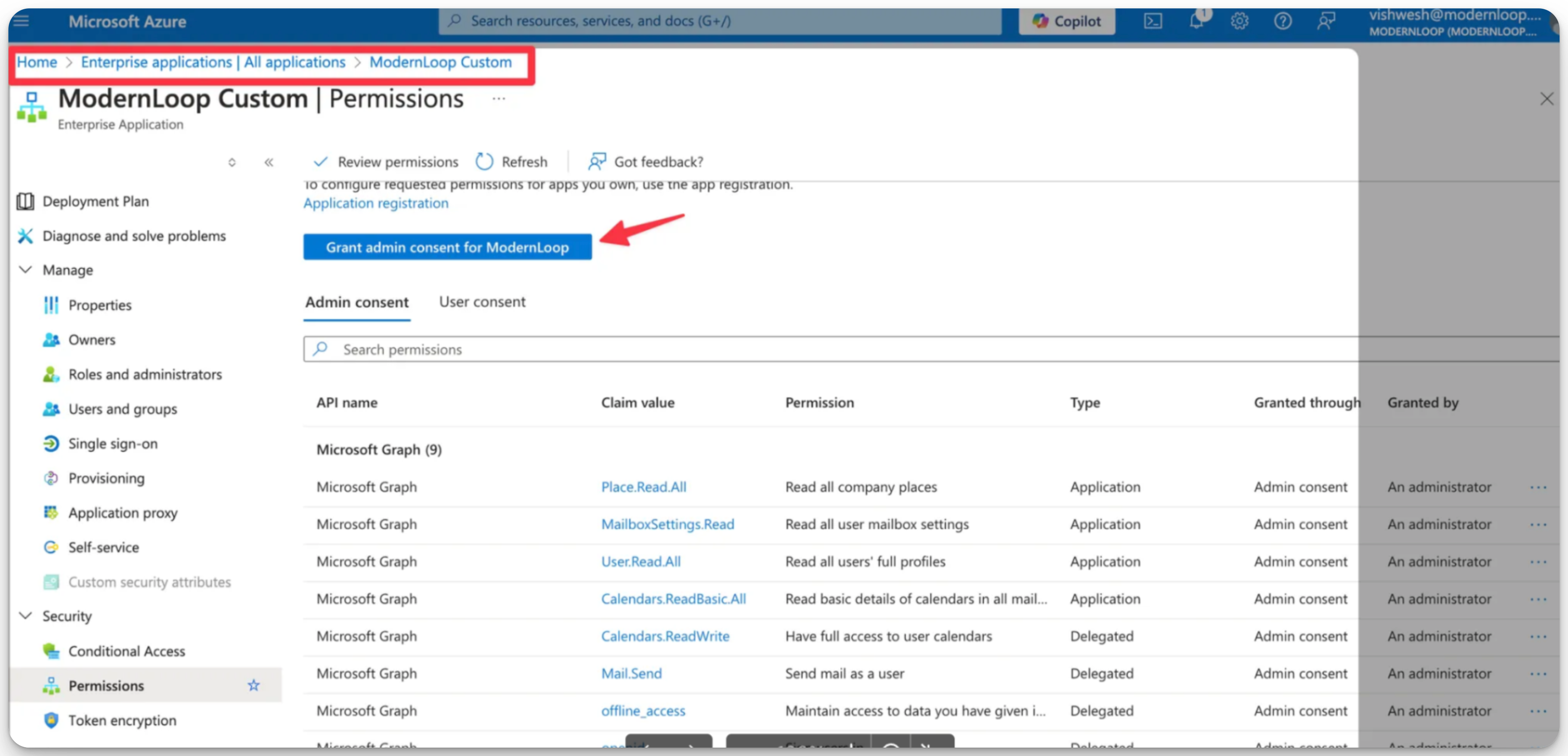
8. Grant Admin Consent for Enterprise Application
Navigate to Enterprise Applications → ModernLoop → Permissions.
Click Grant Admin Consent for ModernLoop to finalize.
First-Time Login Experience
When individual users log in to ModernLoop for the first time, they will encounter a Permission Grant Screen. This step ensures that user-level permissions (outlined in Step 3) are granted for all employees and service accounts that will be used within ModernLoop.
Users log in to ModernLoop.
Review the required permissions and click Grant Access.
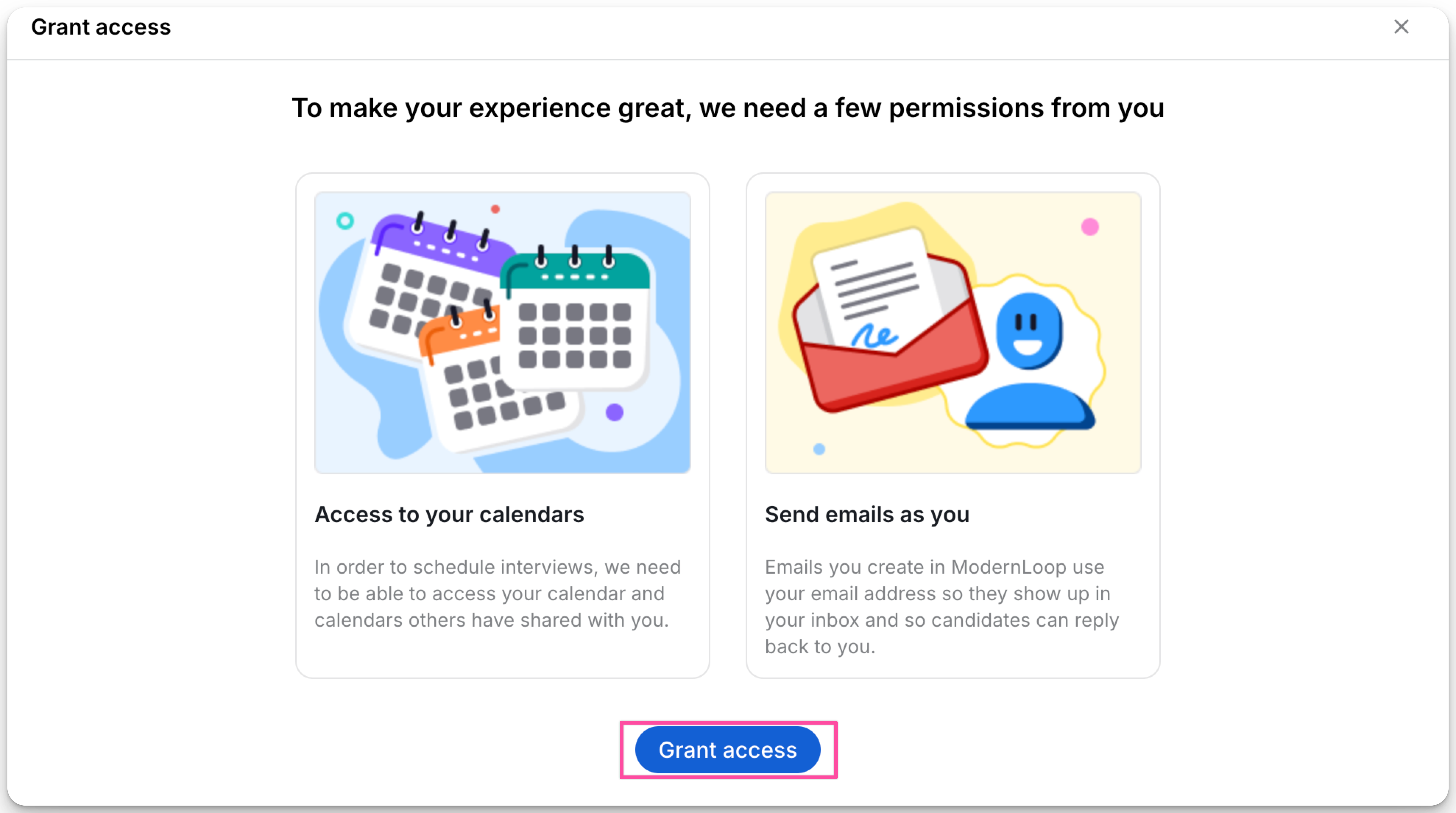
Complete the process to ensure seamless operation within ModernLoop.
Caveats
The service user for your Calendars will need to be logged into every 90 days for ModernLoop to retain access. For instructions on how to log in to retain access, see:
📄 Maintaining Access with Restricted Calendars