ModernLoop Multi-Directory Integrations
Last updated: May 14, 2026
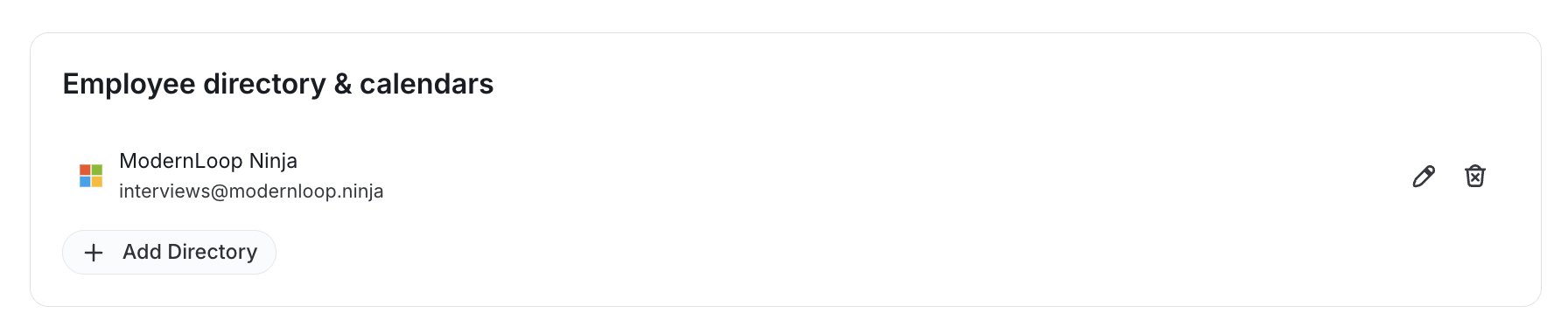
ModernLoop supports multiple Microsoft 365 and Google Workspaces per instance. This enhancement allows your teams to:
Connect more than one identity directory (e.g., multiple Google Workspace domains and/or Microsoft Azure tenants).
Use employees from any connected directory within the platform.
Schedule events on calendars associated with any directory your organization adds.
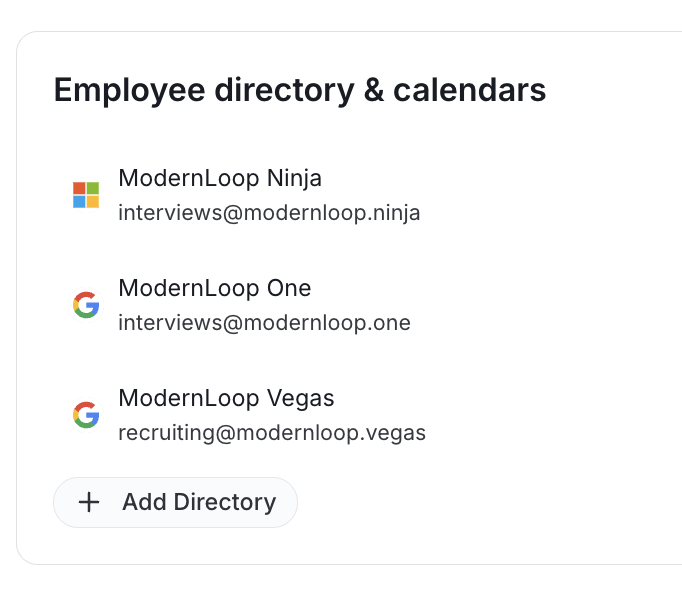
A single Microsoft 365 and/or Google Workspace instance is hereafter referred to as a “tenant”.
Key Requirement: Calendar Service User per Directory
For each Microsoft tenant or Google tenant your organization connects, you must create one Calendar Service User.
Why is this required?
The Calendar Service User serves as the tenant’s calendar owner for that directory. It ensures:
The platform has a stable account with the required permissions to perform calendar operations, allowing scheduling features remain consistent even if individual employee permissions or memberships change.
Your team controls which calendars and calendar events the service user can see, allowing you to restrict what events are visible in the application.
Allows users from any tenant to manage interview schedules on that or any other tenant.
What is needed?
A full Google or Microsoft user account licensed with the respective calendar product.
Google only: The user must have API Admin Read access to all users in scope for the integration. Meaning either “All Company” or the Organization Units that were marked as in scope via the Workspace App
What won’t work
An email alias to a different user
A group or mailing list (aka a Google Group)
What is not required
This user does not need to be a Member (Admin or Scheduler) of your ModernLoop instance
Recommendations
Since this user will be able to see who has created their calendar events, we highly recommend using a naming convention that is relevant to interviewing or recruiting (e.g. interviews@yourcompany.com or recruiting@yourcompany.com)
Use a consistent naming convention for each service user across all your tenants
Integration Steps
Please make sure your ModernLoop CSM is aware of all the domains that your teams are using across all tenants. You will only be able to create an integration for domains that you own.
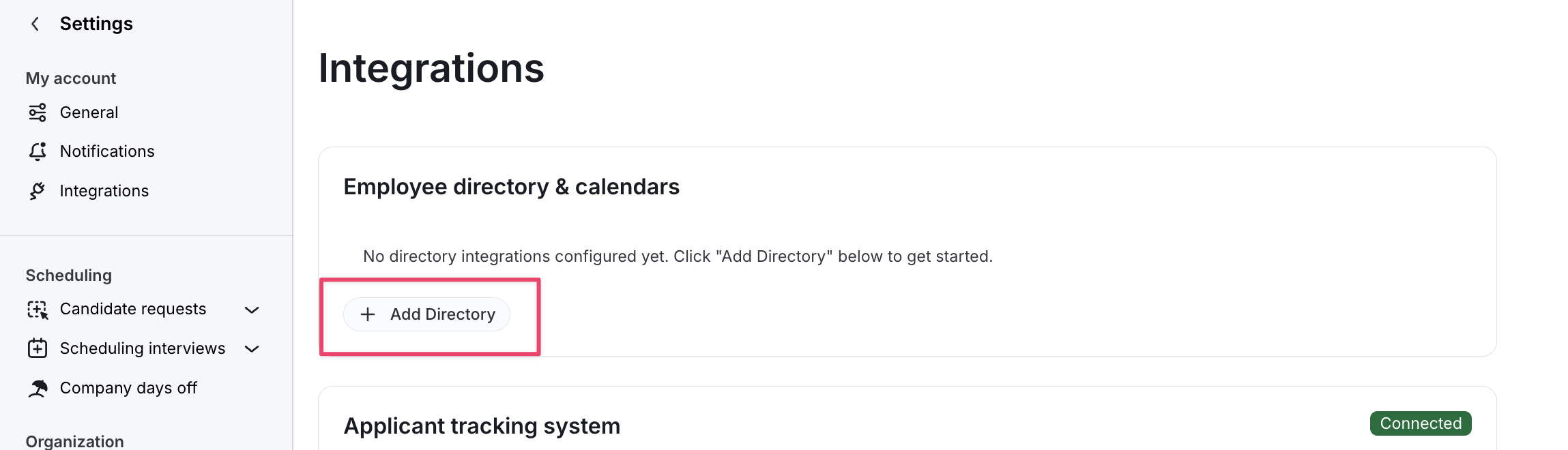
Navigate to Settings -> Organization -> Integrations -> Employee directory & calendars
Click on Add Directory to add your first tenant.
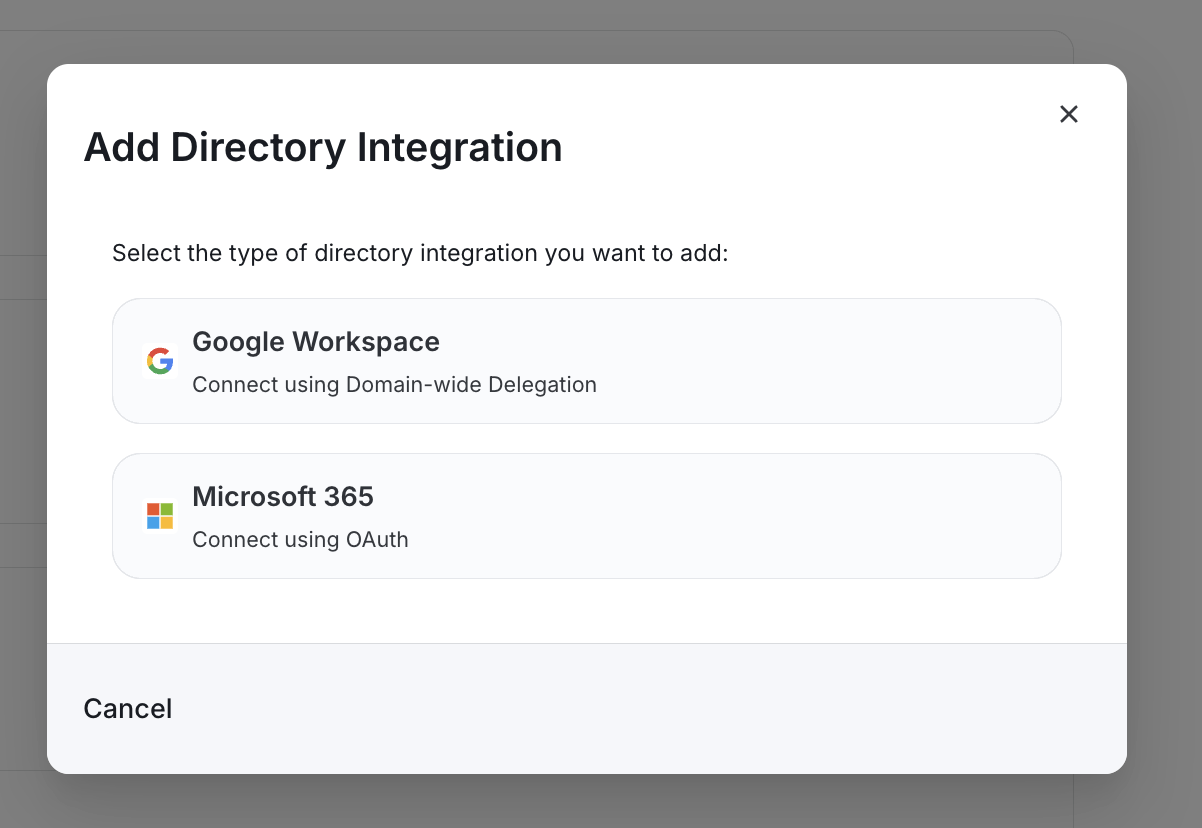
Choose to add a Google Workspace or a Microsoft 365 Workspace
Setting up a Google Workspace tenant.
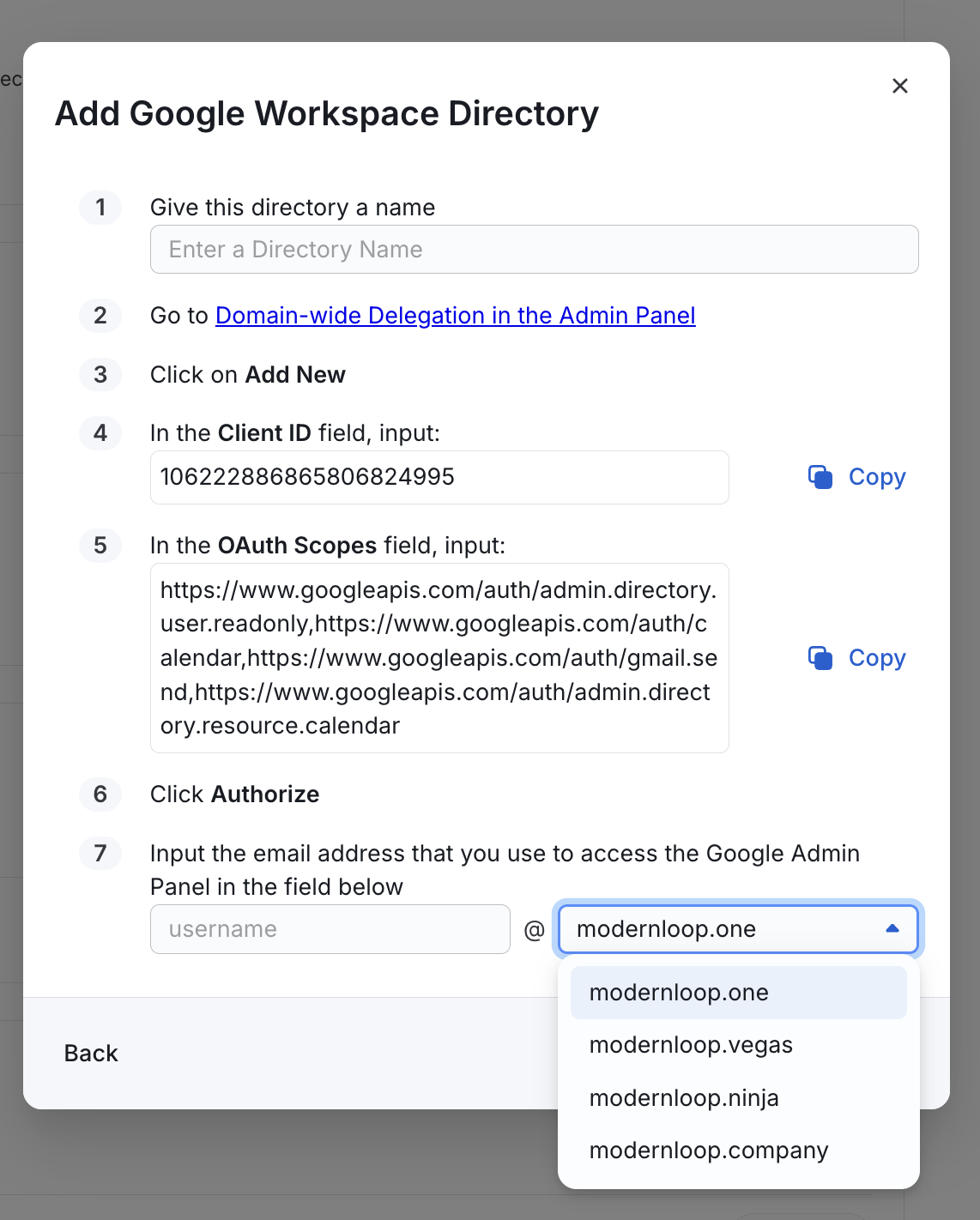
Give this tenant a name in step 1.
Follow steps 2-6 in the Google Admin Panel
In step 7, enter the username of the service user you created for this tenant, and the domain that this tenant will be associated to. Note that domains already used for other active tenants will not be available for selection here.
Click Save
Setting up a Microsoft 365 Tenant
Click the Connect Microsoft 365 button
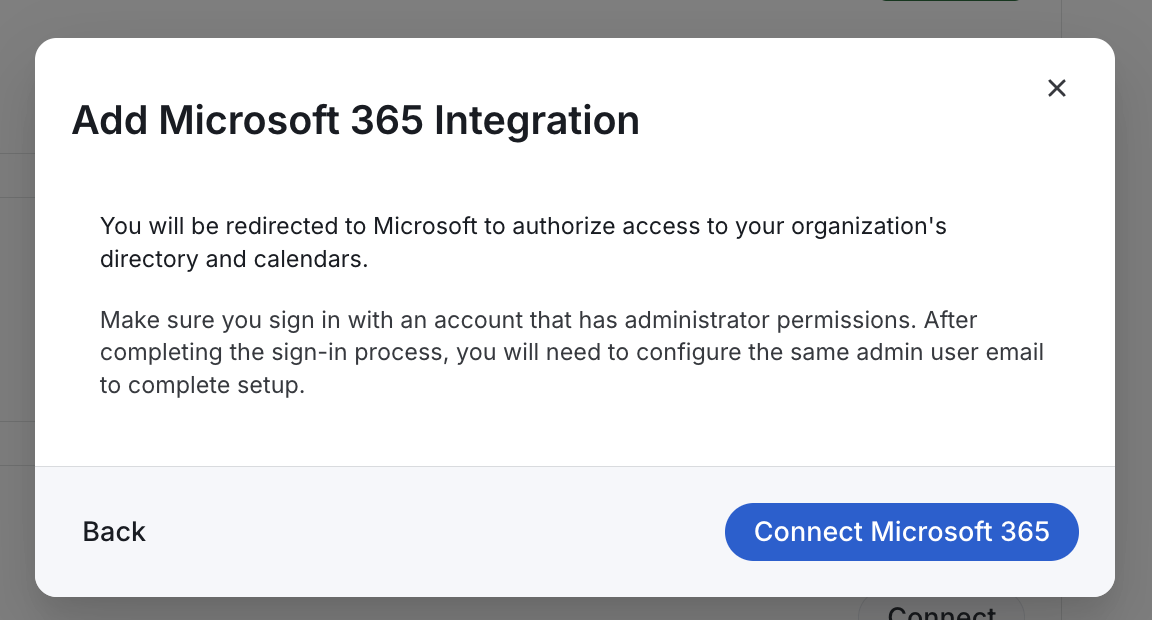
Sign in to Microsoft 365 with the service user that you've created for this tenant.
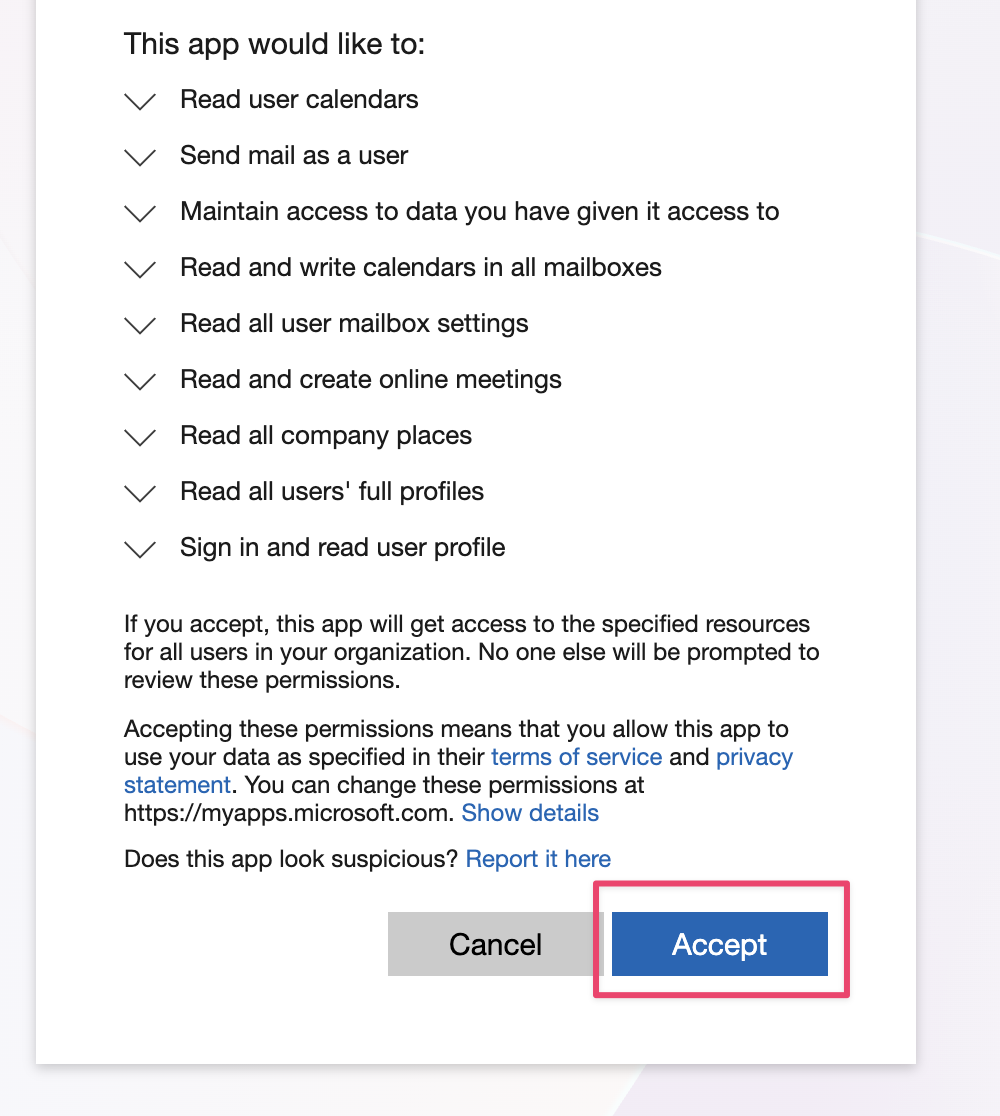
Review the permissions that ModernLoop is requesting and click Accept
You will be redirected back to the ModernLoop Integrations page, but setup is not yet complete.
You will see a newly added Microsoft Directory in your list of tenants. Click the pencil icon on the far right to continue setting up this tenant's integration.
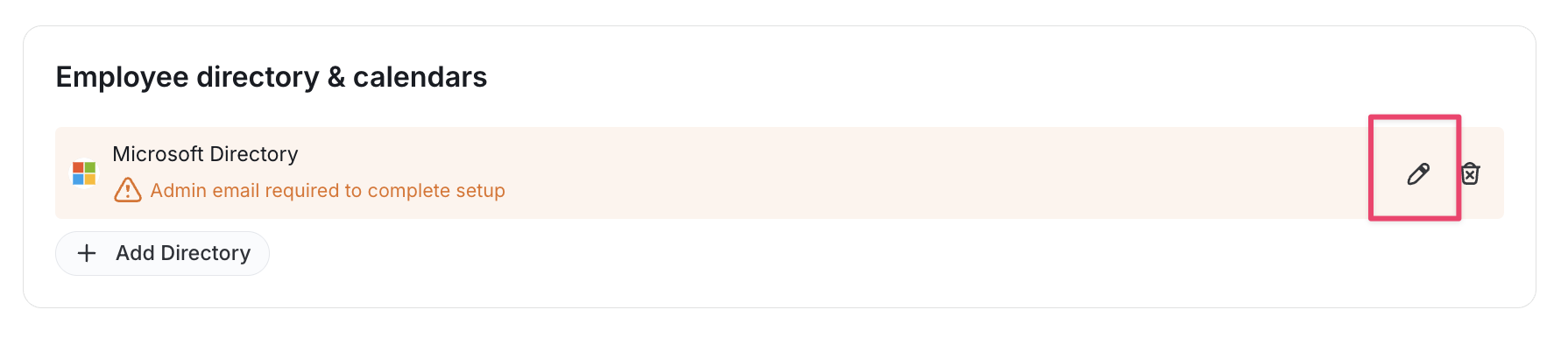
Enter the following details for this new tenant:
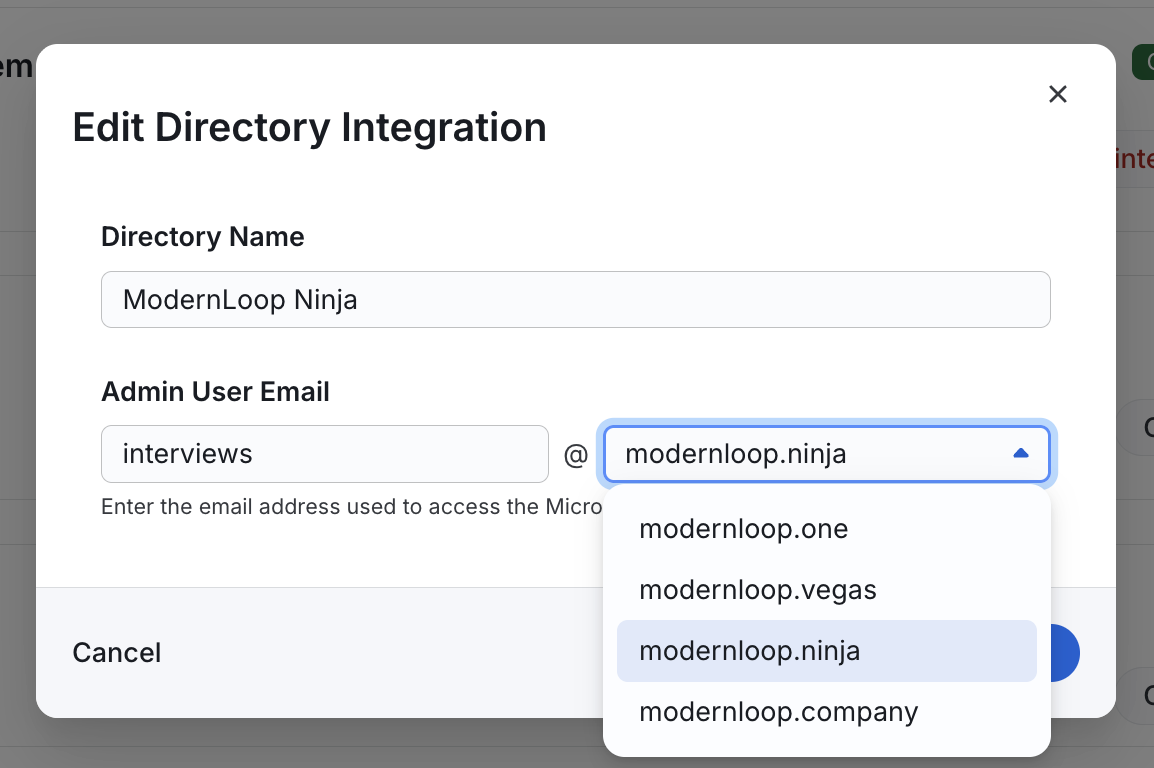
Name of the tenant
Username of the service user
e.g. if your service user for this tenant is
interviews@modernloop.comthis value will beinterviews
Select the domain that this tenant belongs to
e.g. if your service user for this tenant is
interviews@modernloop.comthis value will bemodernloop.com
Click Save
Verify that you no longer see the yellow warning background and that the correct service user is configured for this tenant.