ZoomGov Integration
Last updated: February 6, 2026
To enable the ModernLoop ZoomGov integration, your CSM will work with you to create a private setup.
Please visit marketplace.zoomgov.com and create a Server-to-Server OAuth private application. Make sure to include the following permissions: meeting:write:admin and user:read:admin.
Once the application is set up, please provide ModernLoop with the Account ID, Client ID, and Client Secret to complete the integration process.
Required Permission Scopes
To ensure proper functionality, the following scopes must be enabled in the ZoomGov application:
Scope | Purpose |
| View and manage all user meetings. |
| View all user information. |
Step-by-Step Guide
1. Sign in to ZoomGov Marketplace
Visit marketplace.zoomgov.com and sign in with your admin credentials.
2. Create a Server-to-Server OAuth App
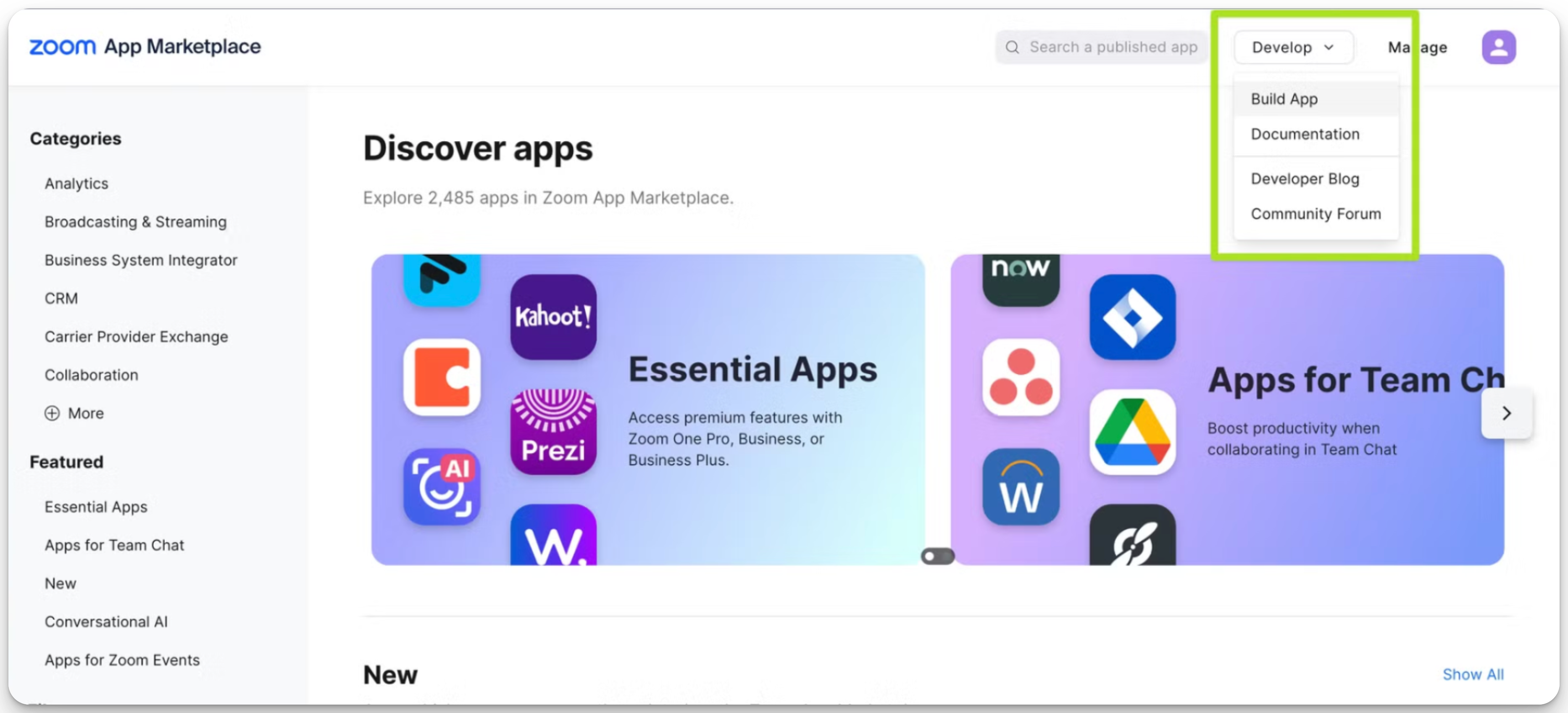
Click Develop → Build from the top menu.
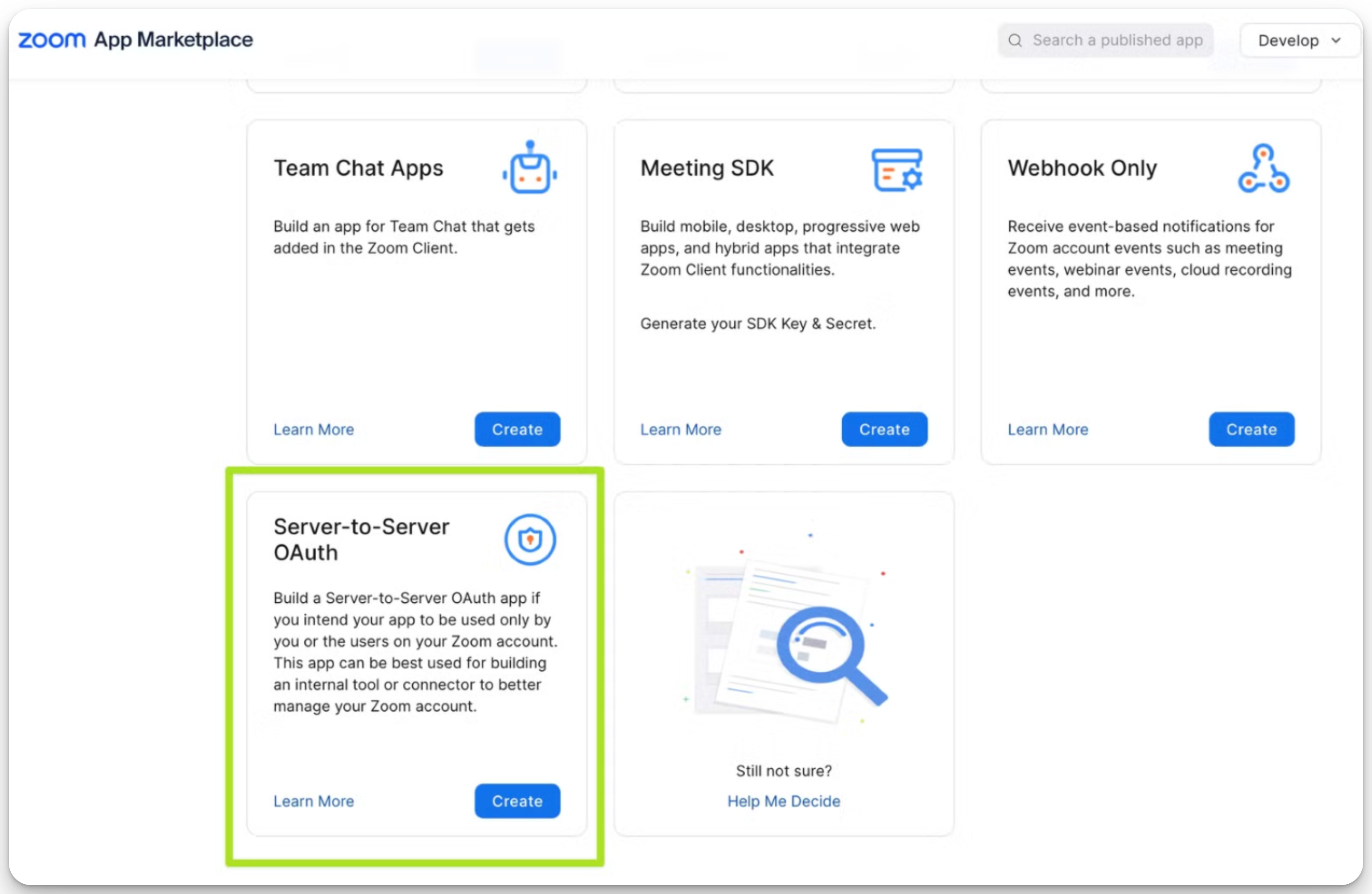
Scroll down to Server-to-Server OAuth and click Create.
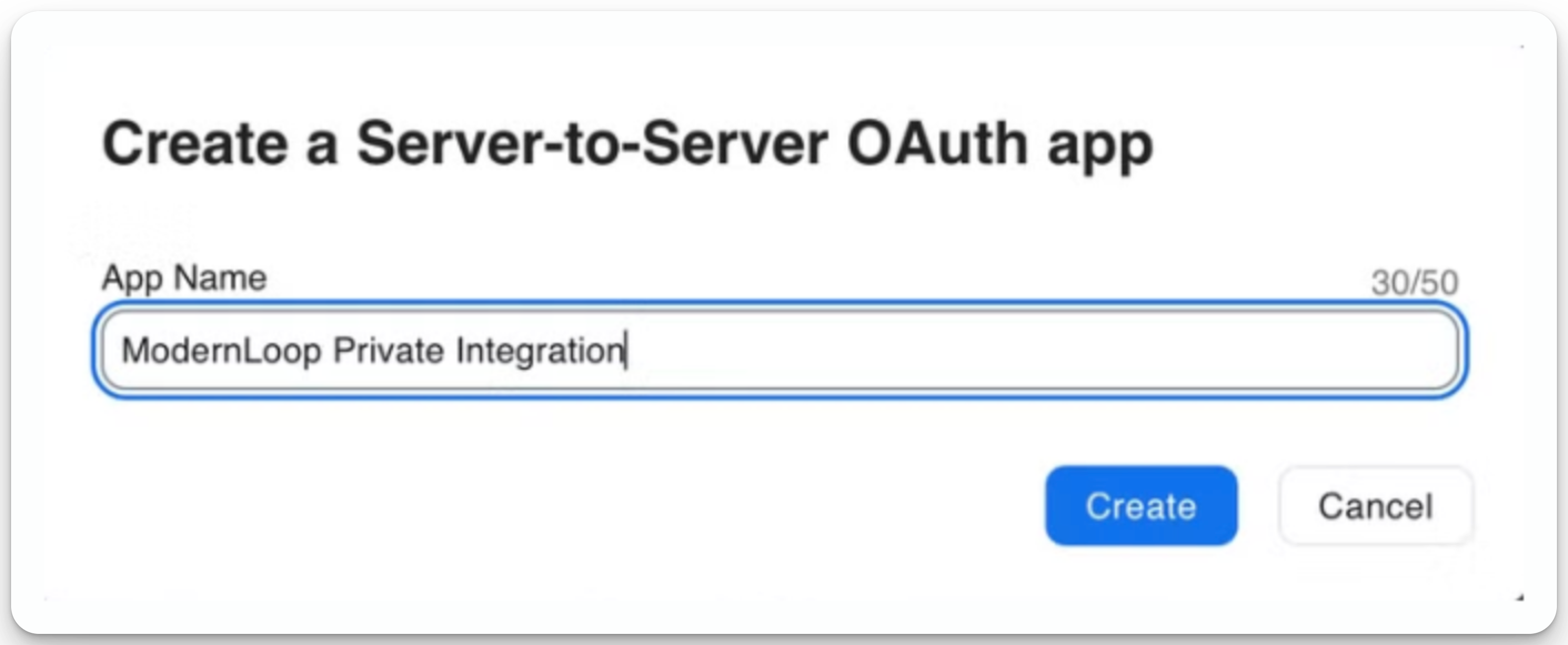
Name your app, e.g., "ModernLoop Private Integration."
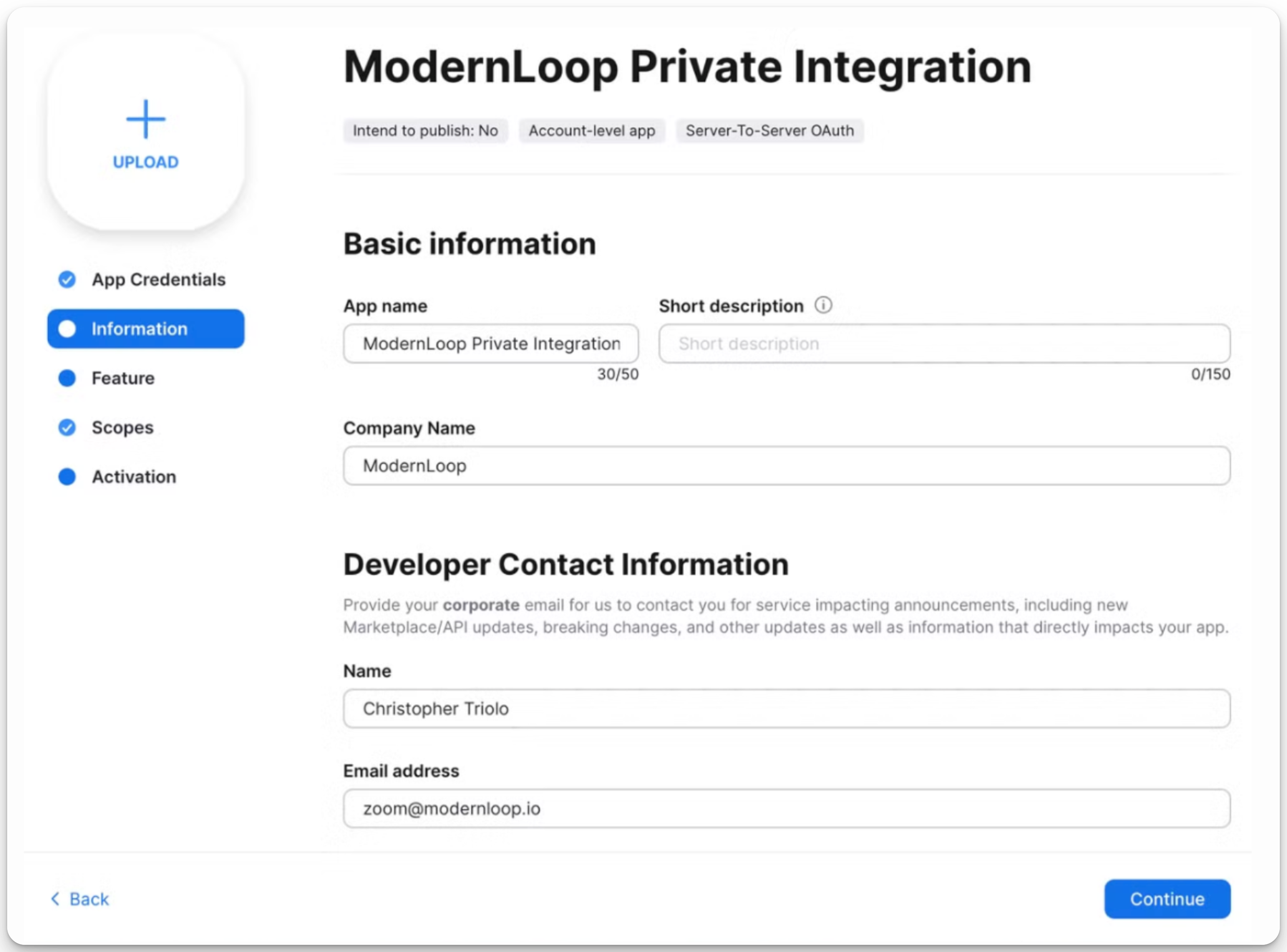
Fill out the basic information form.
3. Set Required Scopes
Navigate to the Scopes tab and click Add Scopes.
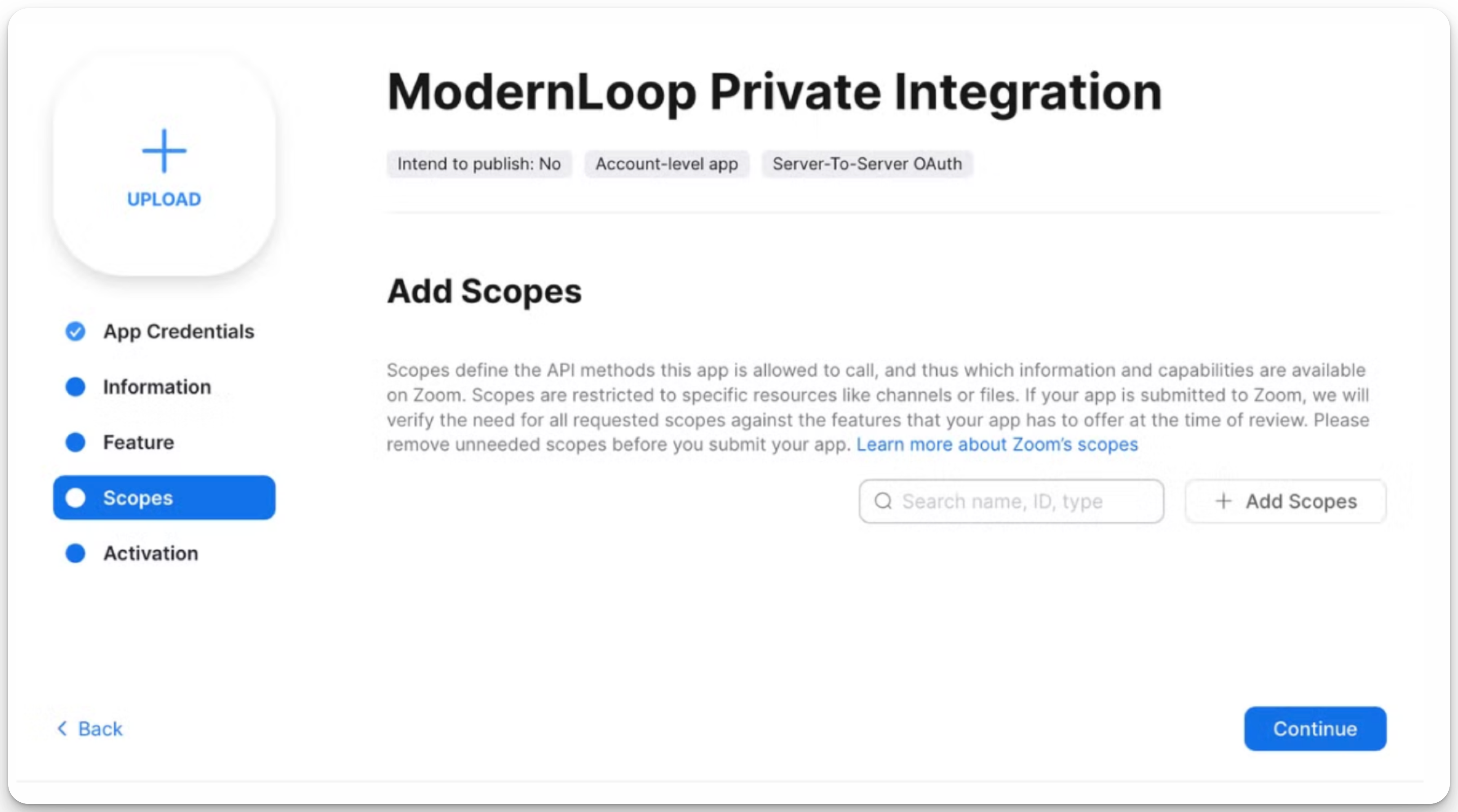
Under the Meeting section, enable:
"View and manage all user meetings" (
meeting:write:admin).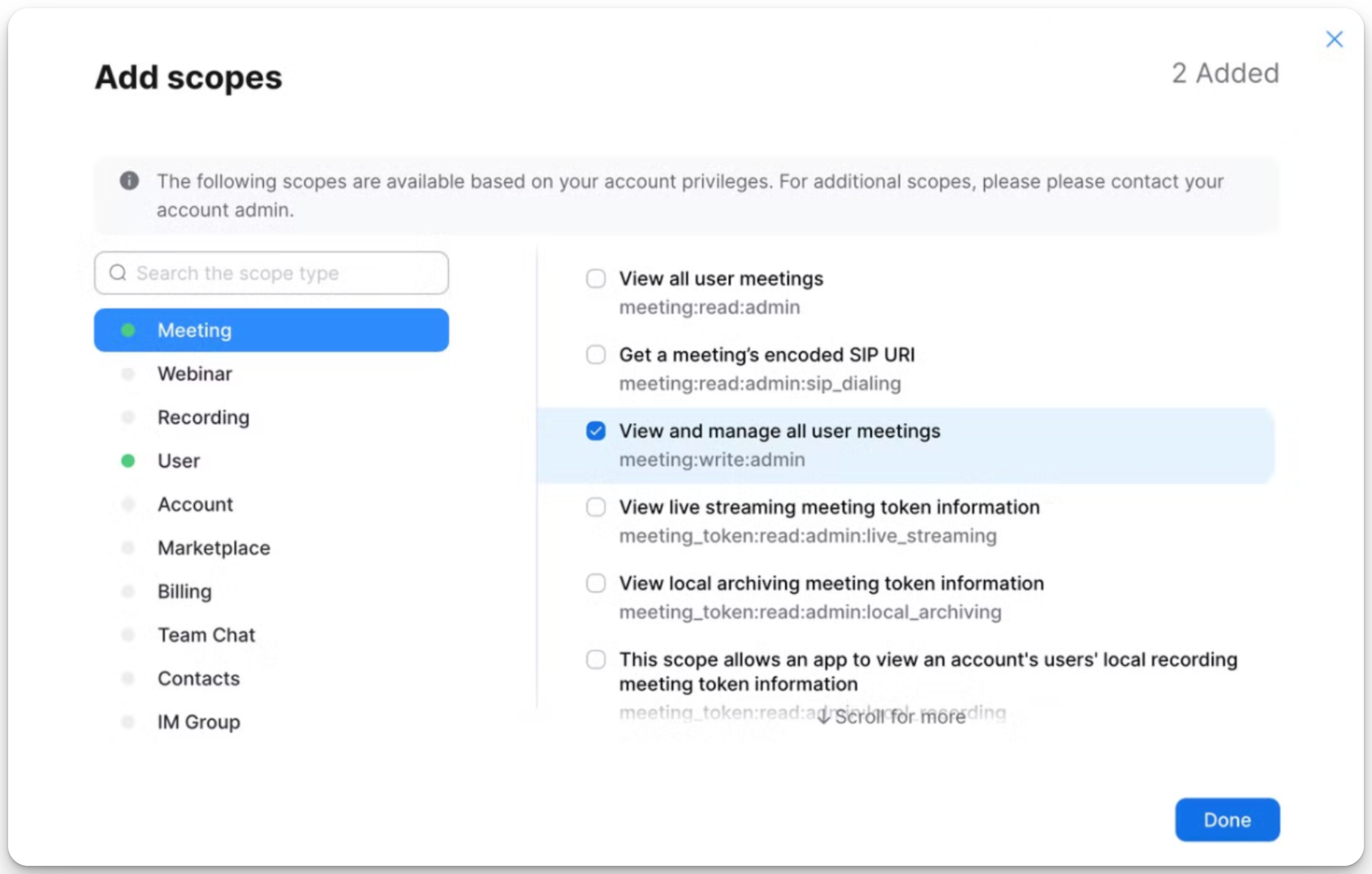
Under the User section, enable:
"View all user information" (
user:read:admin).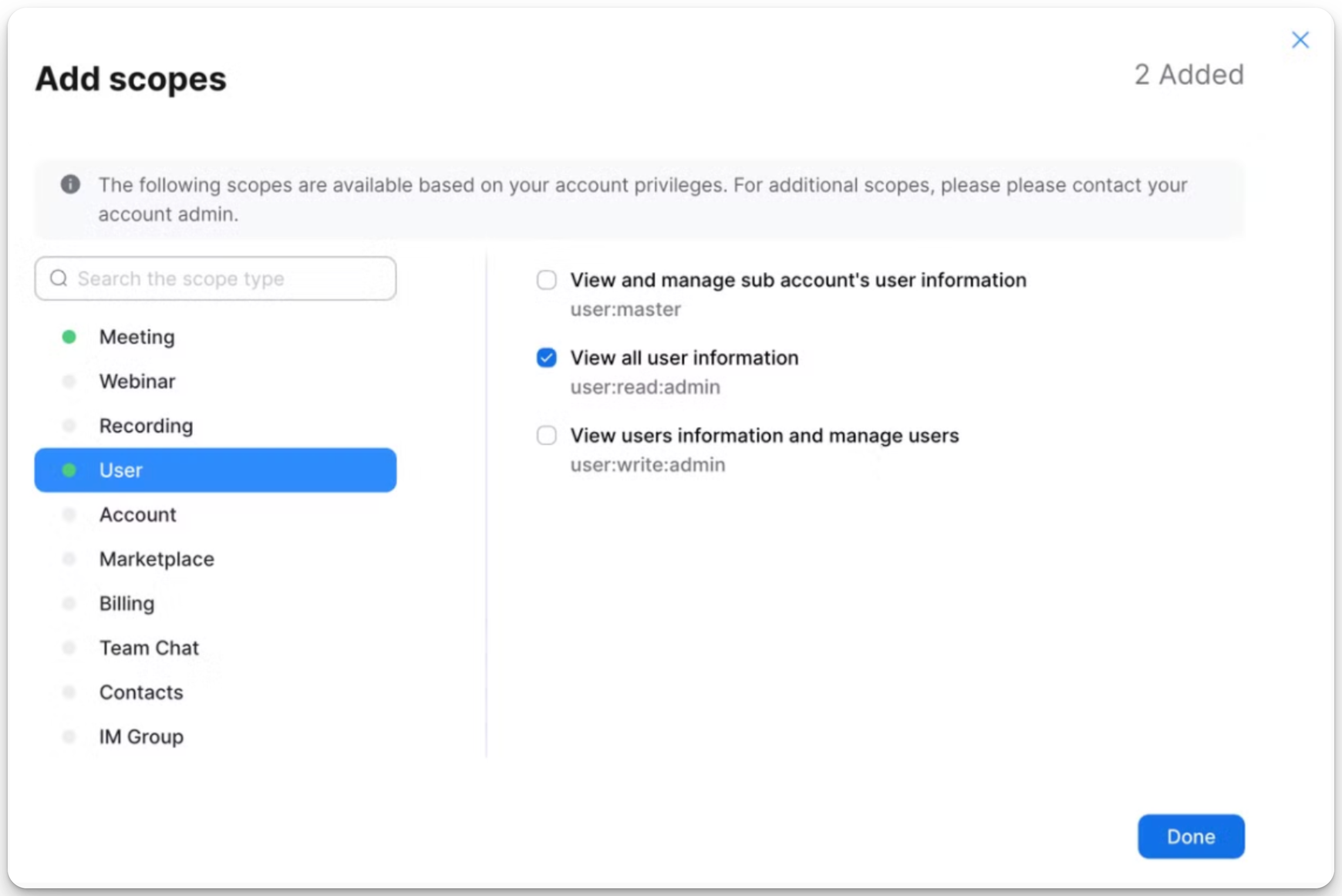
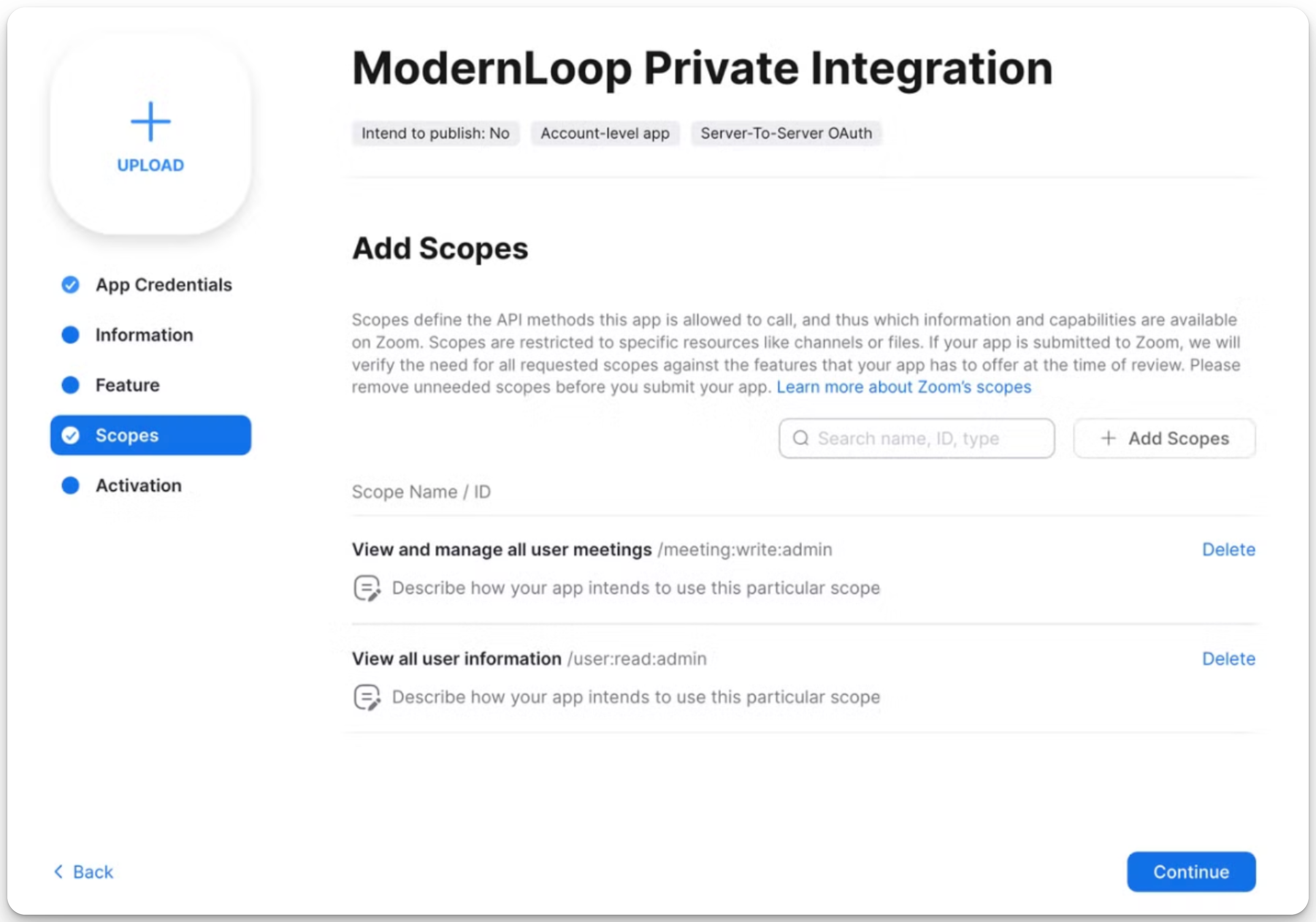
Verify that the Scopes tab reflects the required permissions.
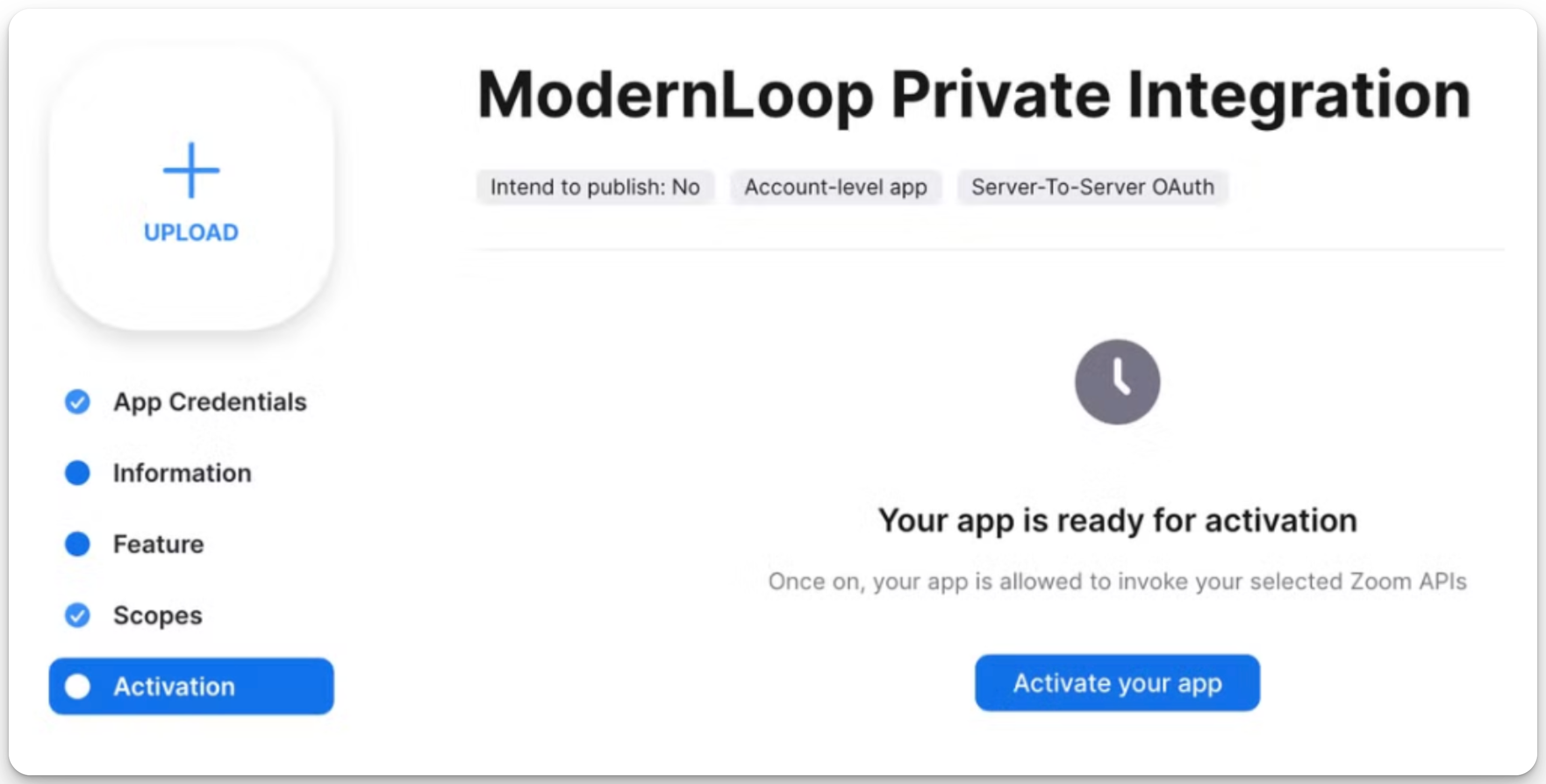
4. Activate the Application
Go to the Activation tab and click Activate your app to make it live.
5. Share Credentials with ModernLoop
Navigate to the App Credentials tab.
Provide the following details to your Customer Success Manager:
Account ID
Client ID
Client Secret
Next Steps
Once you share the credentials with the ModernLoop team, they will complete the integration process. After completion, you’ll be able to use all ZoomGov features within ModernLoop!