Google Meet
Last updated: February 9, 2026
Integrating Google Meet with ModernLoop allows you to automatically add Google Meet video links to interview invitations. Follow this guide to set up and use the integration seamlessly.
Prerequisites
Ensure that your Google Integration is complete. If not, refer to the📄 Google Workspace - Workspace App Installguide for setup instructions.
How to Use the Google Meet Integration
When scheduling an Interview
Go to the Schedule flow in ModernLoop.
In the final step, navigate to the Communications tab.
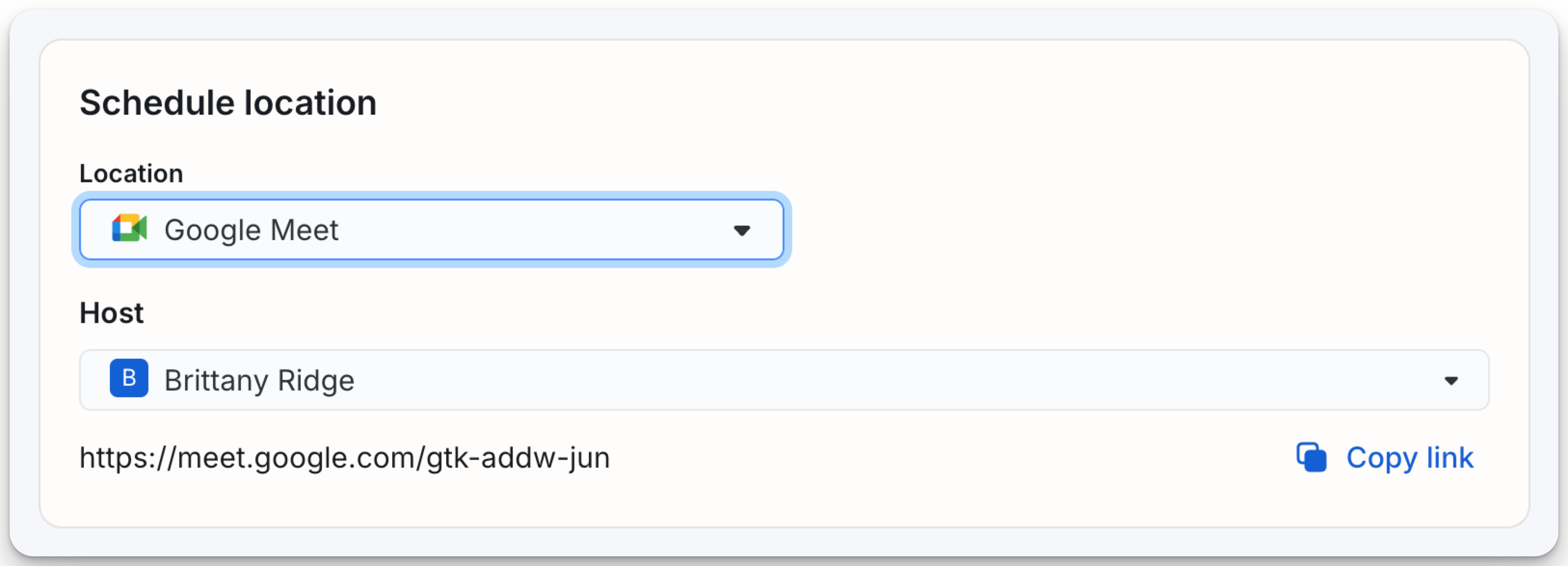
In the Schedule location field, select Google Meet.
Add Google Meet Video Links to Your Job Setup
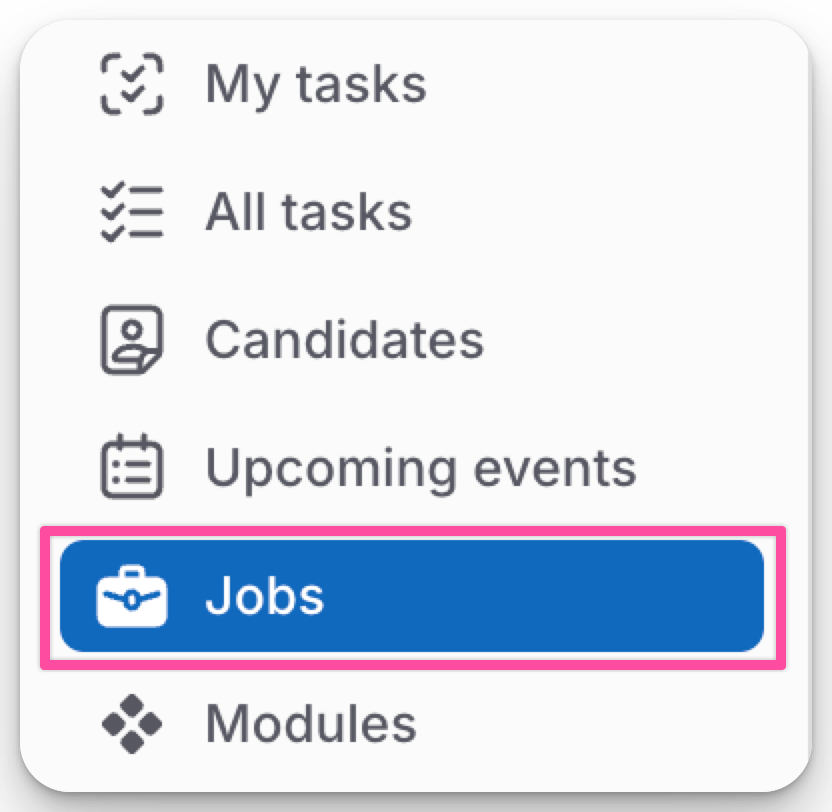
Navigate to the Jobs tab.
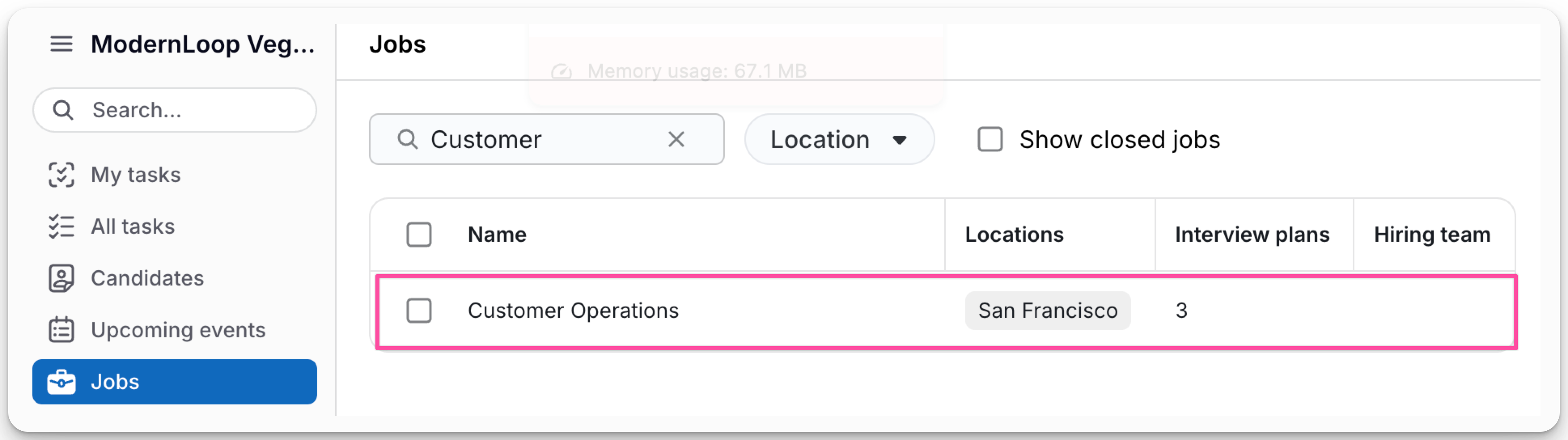
Select the job.
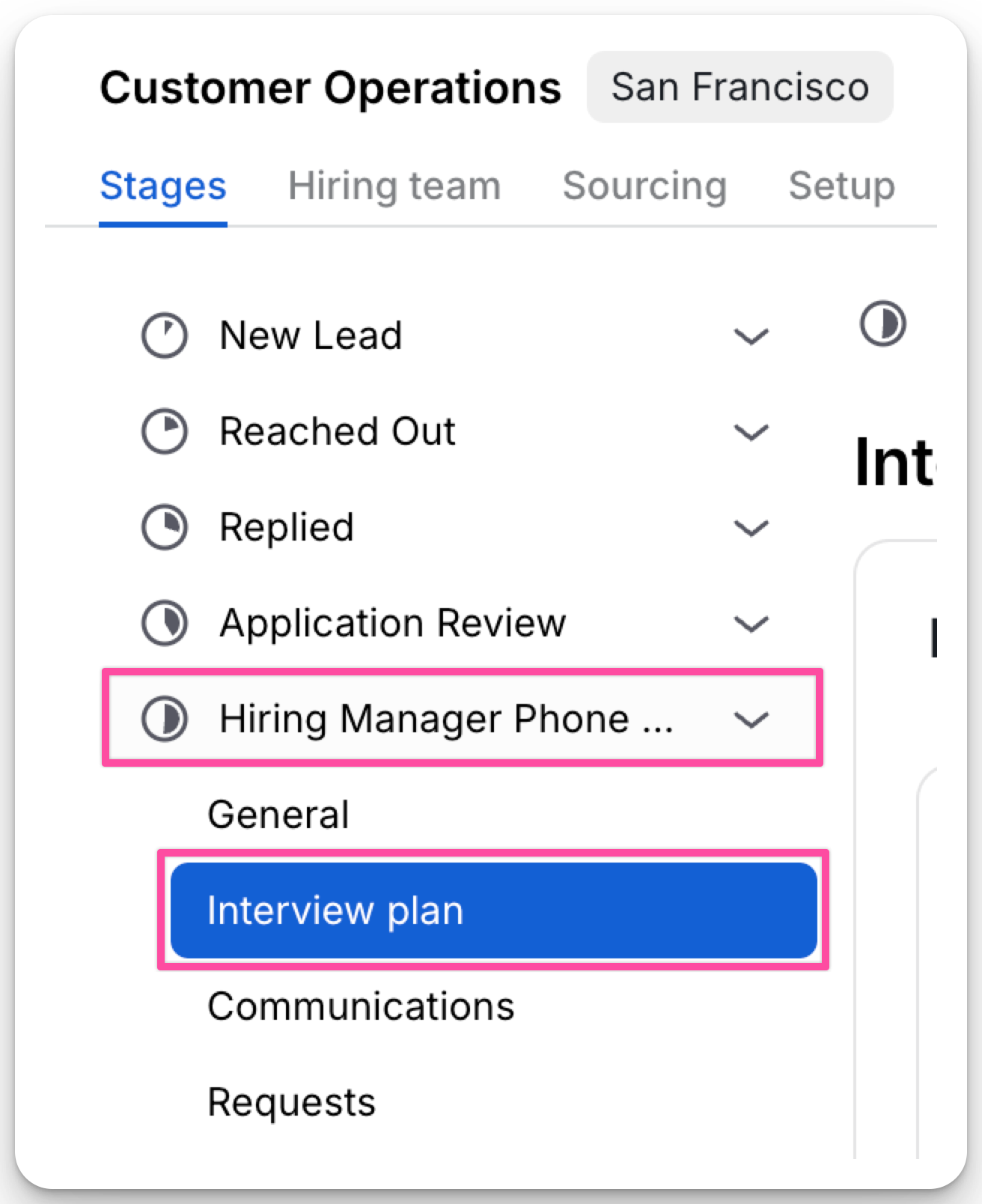
Select the job stage and Interview plan.
Select Location under Schedule location.
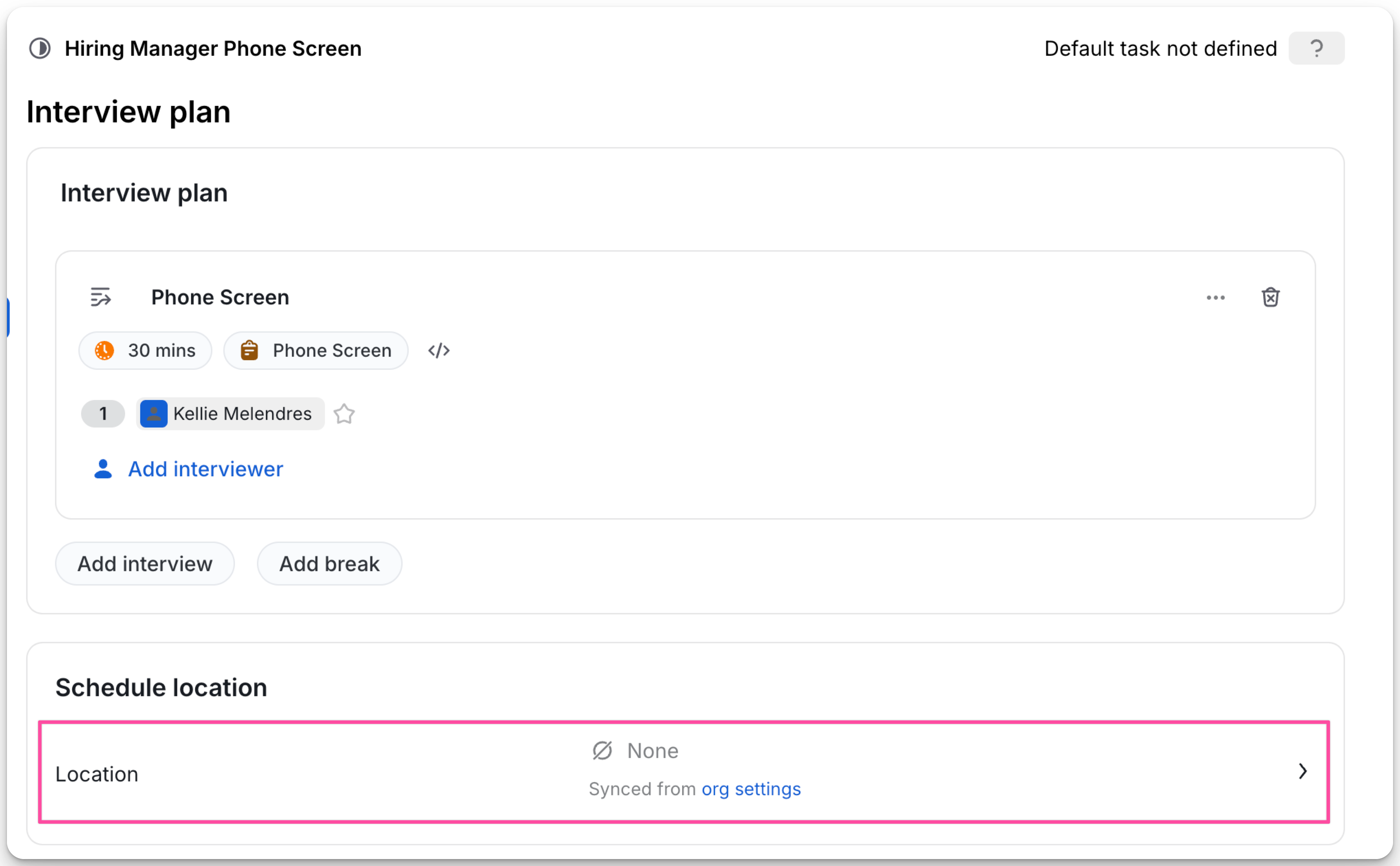
In the Video Meeting Link modal, select Google Meet as your video meeting provider.
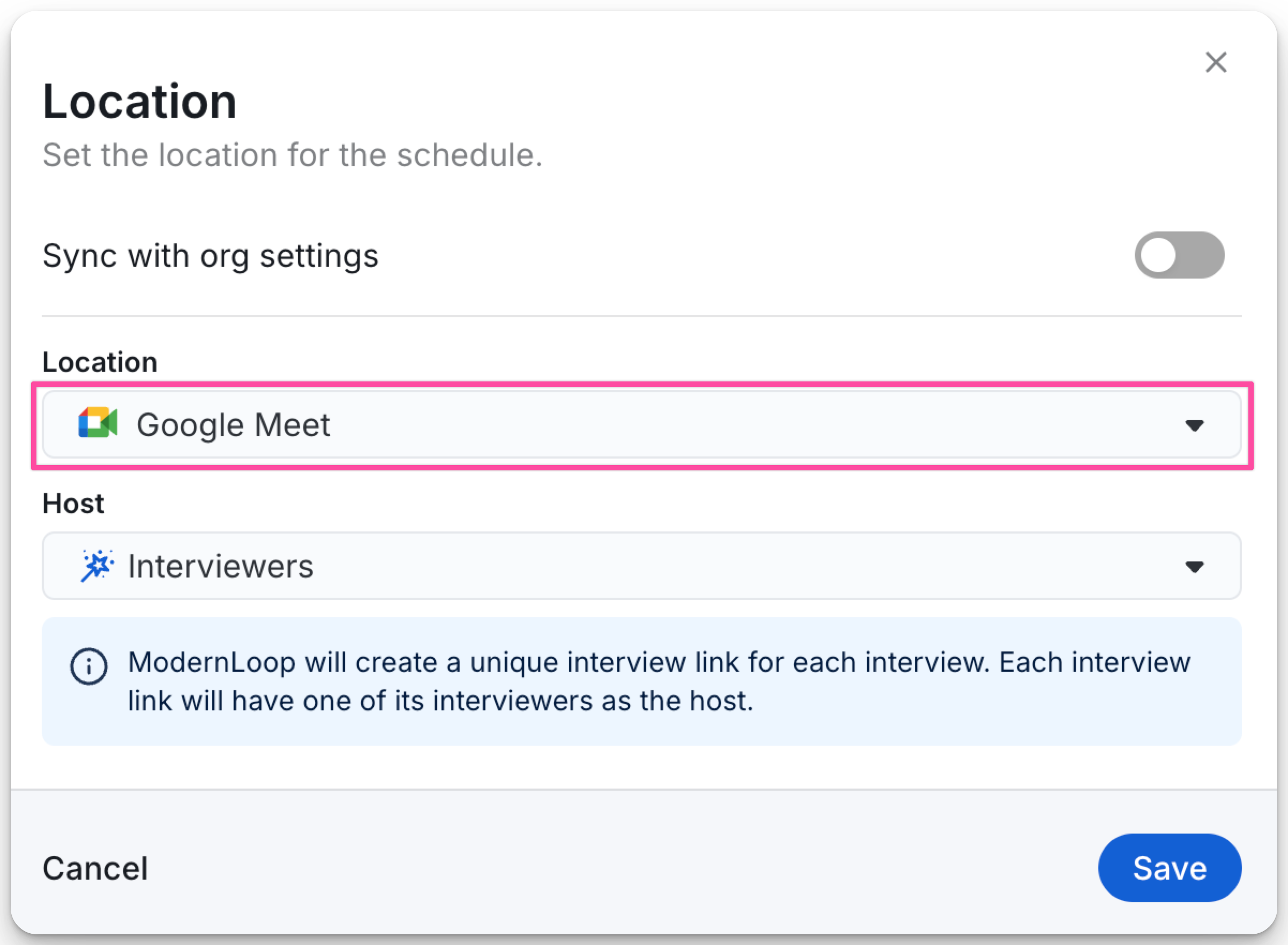
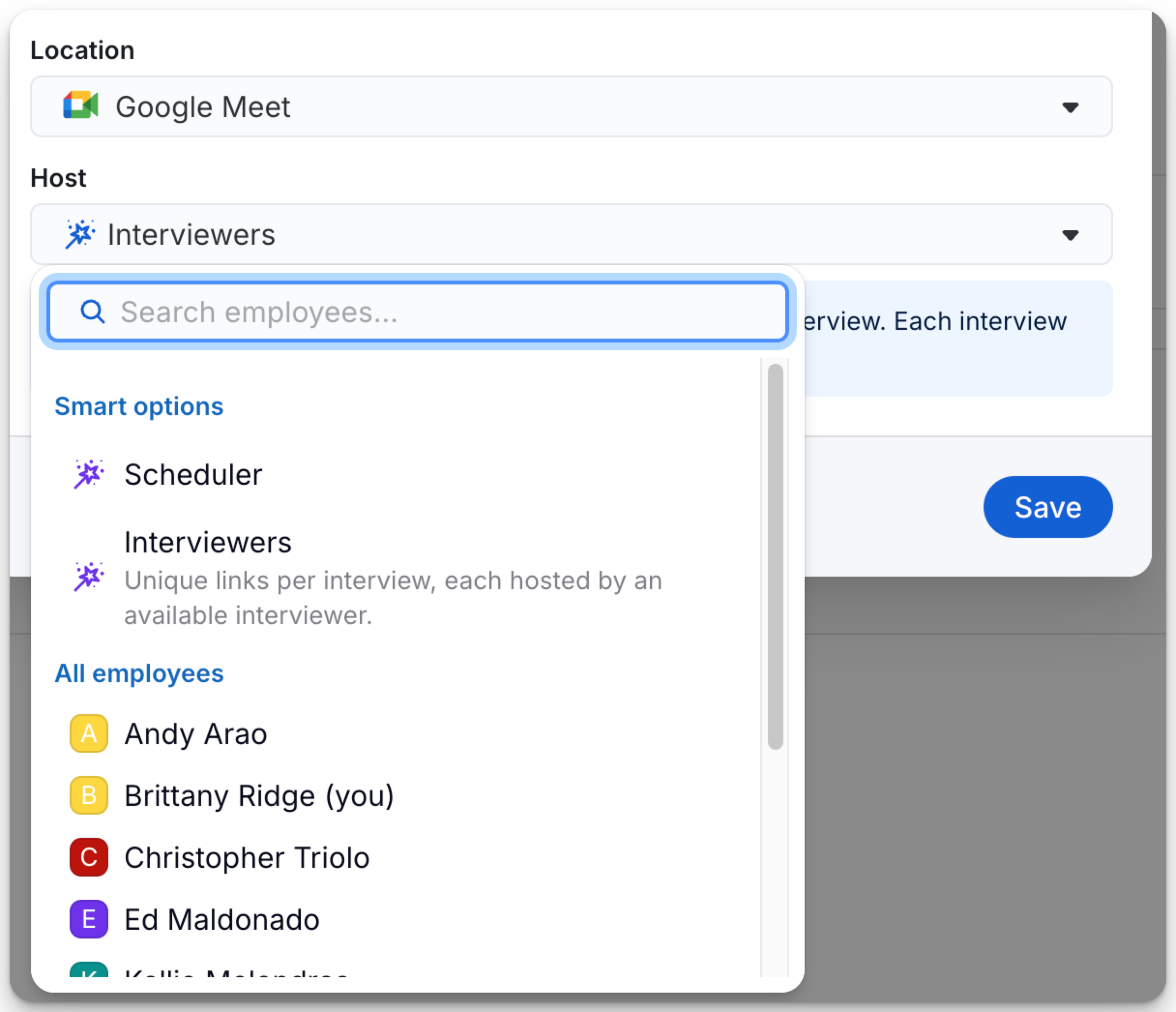
Select a Host:
A dropdown menu will appear to choose a Host.
The host's calendar will be used to generate the Google Meet link.
Add Google Meet Links to Your Emails
Once a host is selected, ModernLoop will automatically populate the video link using the
{{VIDEO_MEETING_LINK}}token.
Google Meet links will also appear in the
{{INTERVIEW_SCHEDULE}}token, which provides the full interview details.
Customizing Email Templates with Google Meet Links
You can customize your interview invitation templates to include Google Meet links:
Navigate to Organization Settings → Templates.
Locate the email template you want to modify.
Add the
{{VIDEO_MEETING_LINK}}token where you want the Google Meet link to appear.Example:
Here is the link to join the interview: {{VIDEO_MEETING_LINK}}
Save your changes.