Microsoft Teams
Last updated: February 5, 2026
The Microsoft Teams integration allows ModernLoop to automatically populate Microsoft Teams links in email and calendar invitations for interviews. To use this feature, users must have a Microsoft Teams license assigned to their Microsoft account.
This guide will walk you through the steps to verify and assign Microsoft Teams licenses to users.
Prerequisites
To allocate Microsoft Teams licenses or verify their assignment:
You need to be a Microsoft 365 Admin with access to the Microsoft 365 Admin Center.
Instructions
Step 1: Log in to Microsoft 365 Admin Center
Navigate to Microsoft 365 Admin Center.
Use your admin credentials to log in.
Step 2: Navigate to Active Users
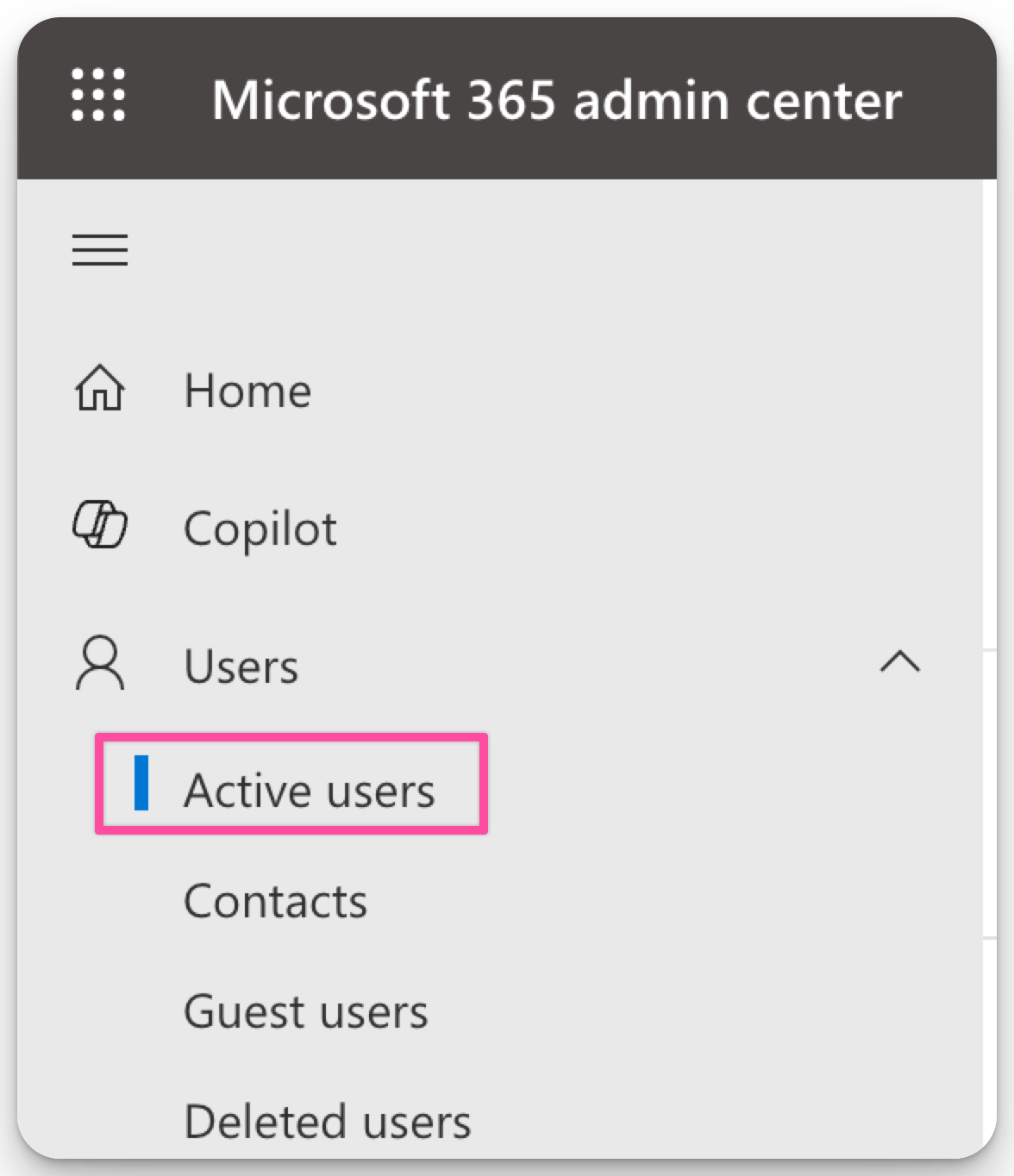
In the left navigation menu, select Users → Active Users.
From the list of active users, select the name of the user for whom you want to verify or assign a Microsoft Teams license.
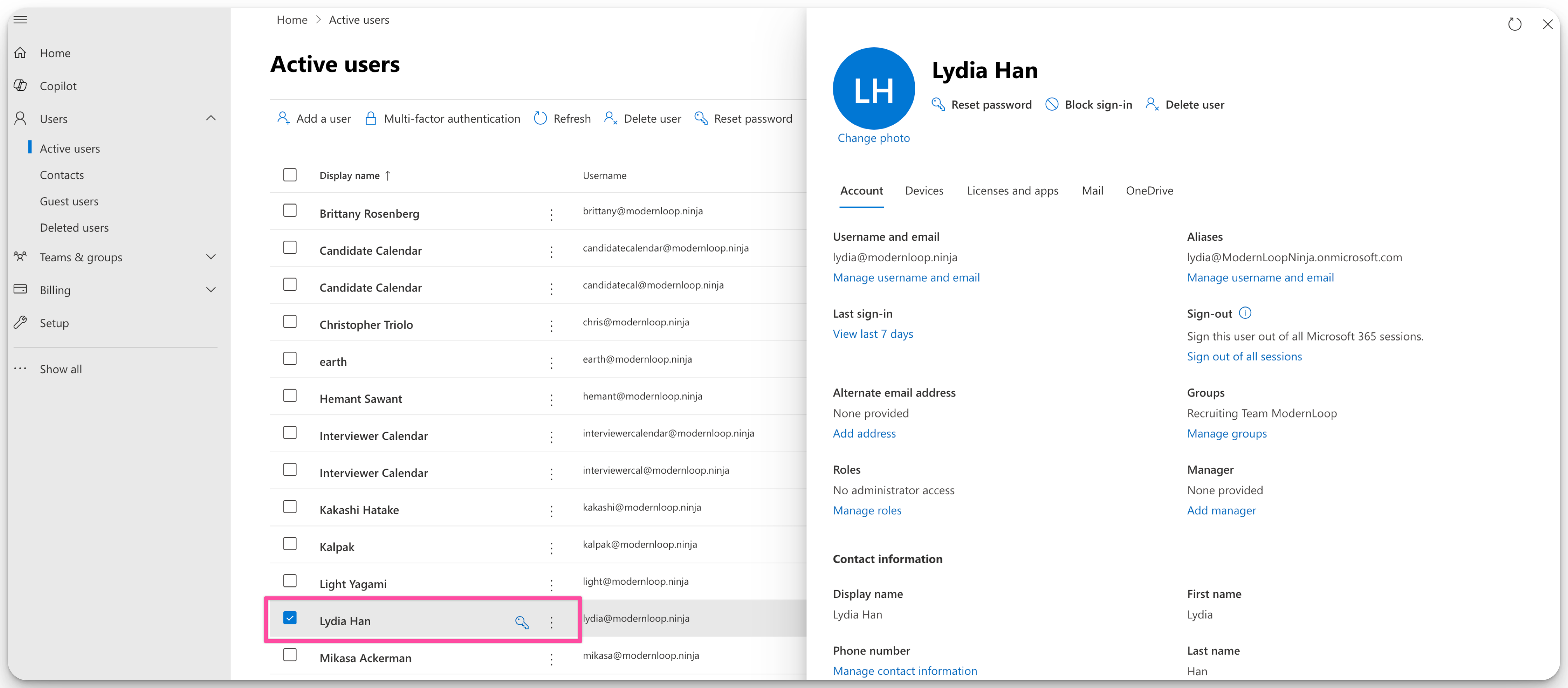
Step 3: Assign or Verify Microsoft Teams License
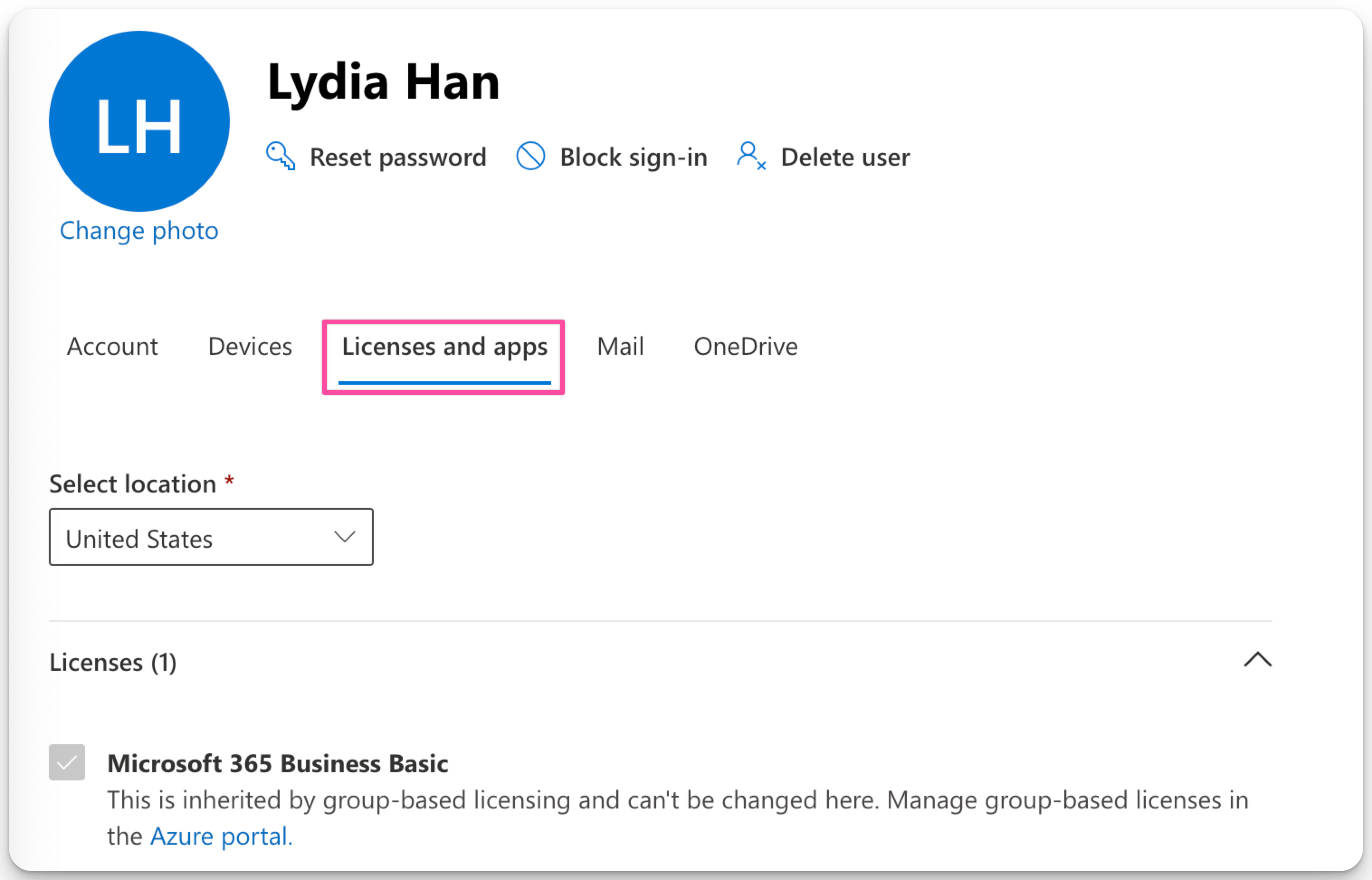
On the user’s details page (right pane), navigate to Licenses and apps.
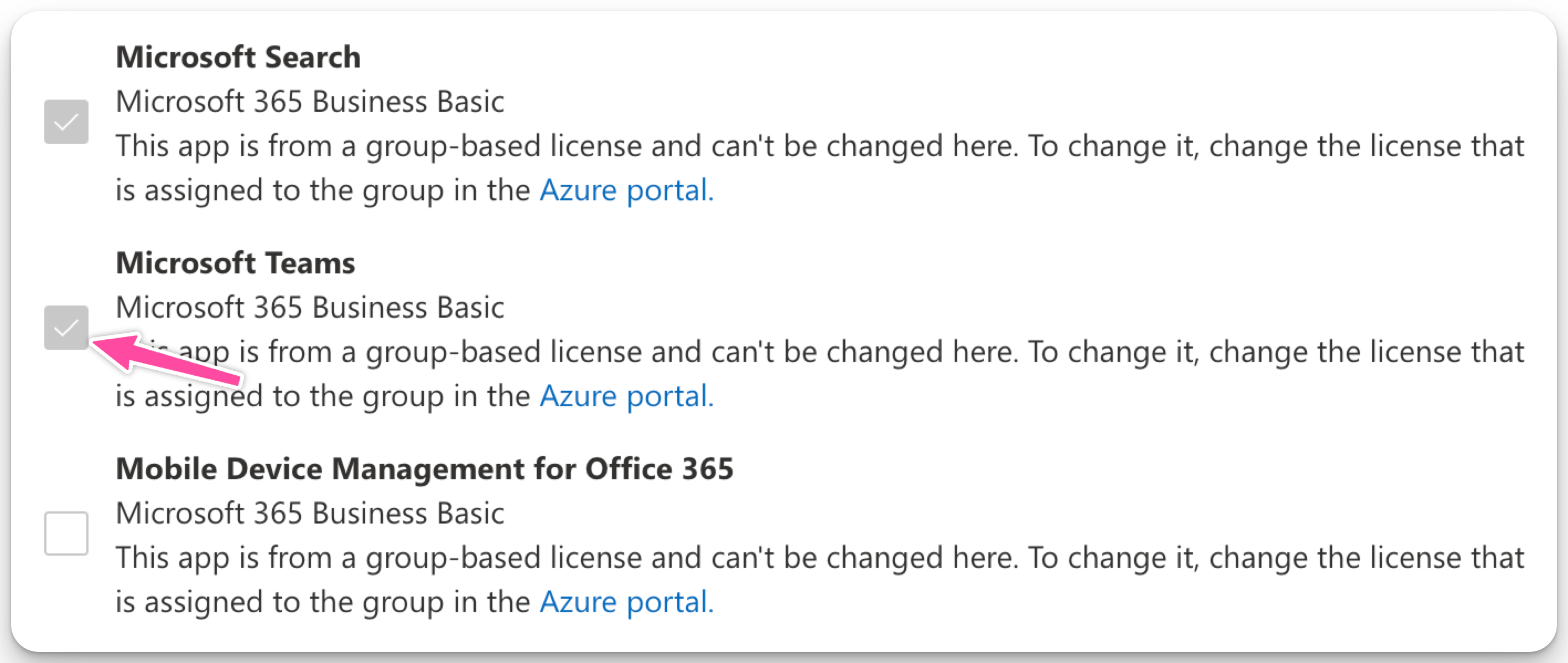
Scroll down and expand the Apps section.

Check the box next to Microsoft Teams to assign the license.
Click Save changes to confirm the update.
Important Notes
Users must have an active Microsoft Teams license for ModernLoop to generate Microsoft Teams links in calendar invitations.
If creating dedicated user accounts for calendar invites, ensure each account has a Microsoft Teams license assigned.