Zoom
Last updated: February 9, 2026
The Zoom integration allows ModernLoop to automatically populate Zoom links in email and calendar invitations for interviews. This guide provides a detailed overview of setting up, using, and managing the Zoom integration in ModernLoop.
Prerequisites
To set up the Zoom integration:
Zoom Admin Permissions: The person connecting Zoom to ModernLoop must have admin access to the company Zoom account.
Access to ModernLoop: Ensure you have access to the ModernLoop platform. If not, request access from your recruiting team.
If the Zoom account used for integration is deprecated, the connection will stop working. Best practice is to use an account that will never be deprecated (e.g., a system user account or a dedicated Zoom admin account).
Permissions
ModernLoop requires the following permissions to connect with Zoom:
user:read:adminEnables ModernLoop to view all Zoom users, allowing you to assign hosts for meetings.
meeting:write:adminAllows ModernLoop to create, modify, and delete Zoom meetings while assigning specific hosts.
Instructions: How to Connect Zoom
Log in to ModernLoop
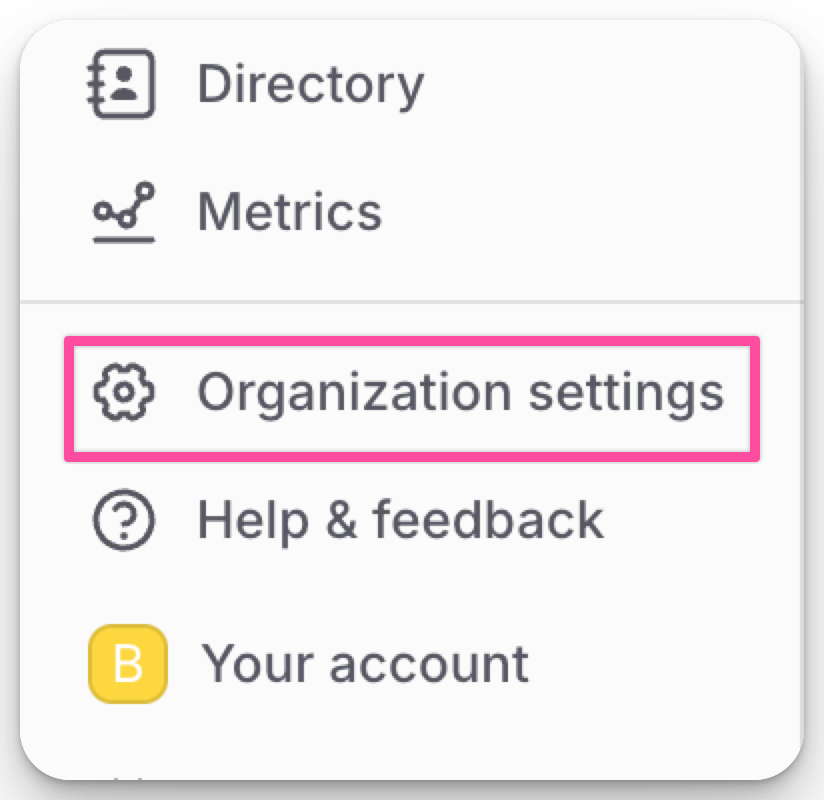
Navigate to the Organization Settings in the left navigation menu.
Access Integrations
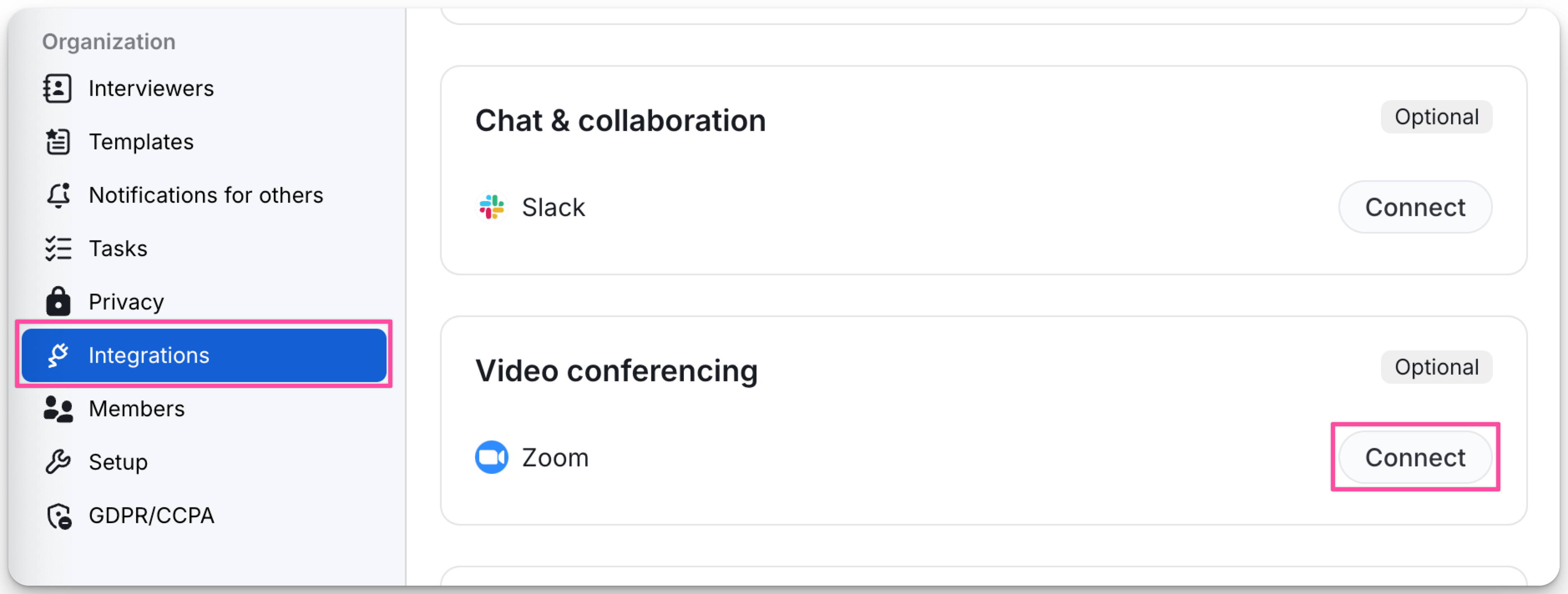
In the Integrations tab, locate Zoom and click Connect.
Enable for All Users
Toggle Approve for all users to ON.
Authorize Zoom
Click Authorize to complete the integration.
How to Use the Zoom Integration
Scheduling Interviews
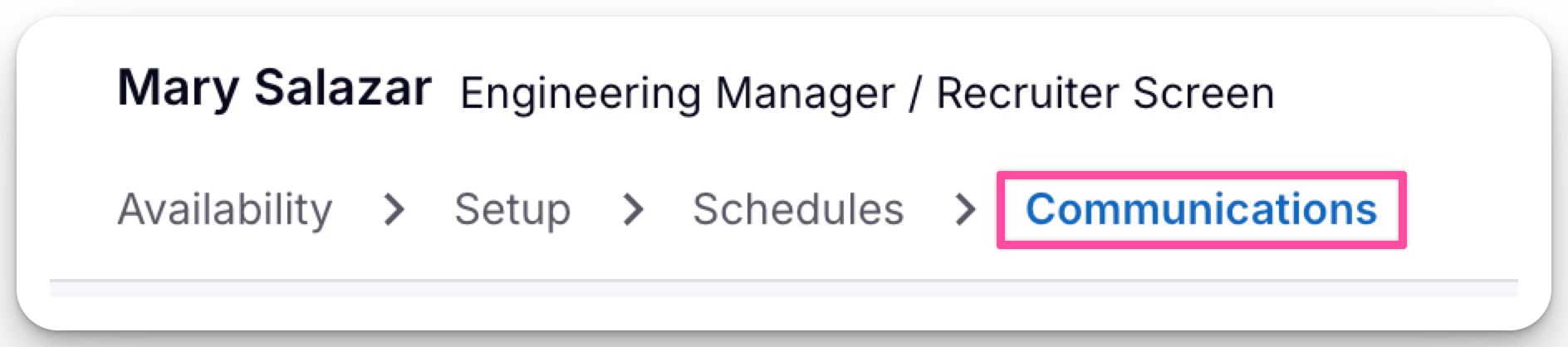
In the Schedule Flow, progress to the Communications tab in the final step.
Select Zoom as the Schedule location
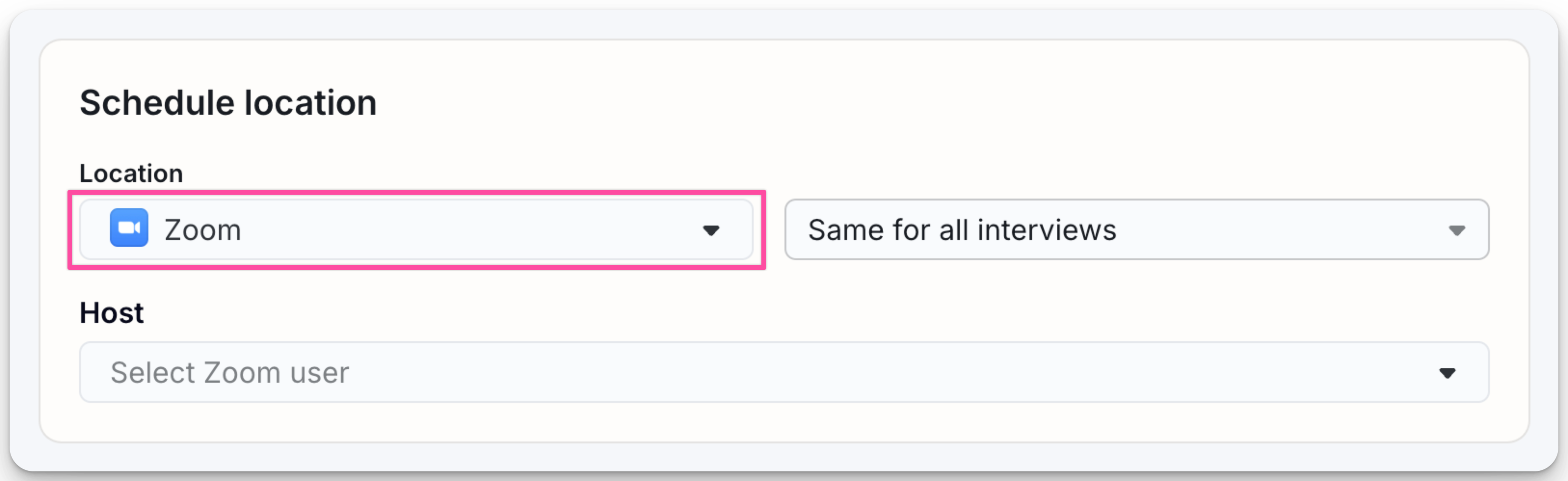
From the Location drop-down, select Zoom. Choose to have the location set as Same for all interviews or Unique for each interview.
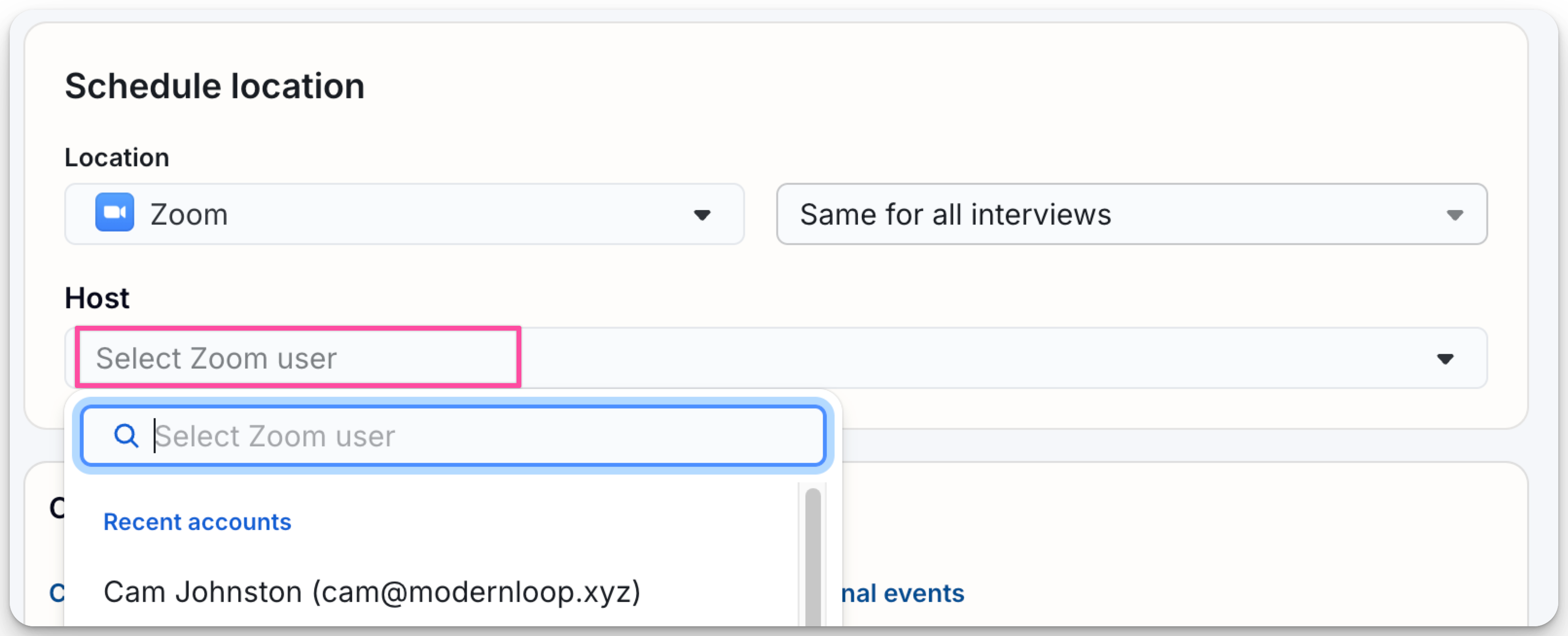
Add a Host
Choose a Host from the dropdown menu.
How to Uninstall the Zoom Integration
From the Zoom App
Log in to Zoom
Access your Zoom account and open the Zoom App Marketplace.
Manage Installed Apps
Click Manage → Installed Apps, or search for ModernLoop.
Uninstall ModernLoop
Select the ModernLoop app and click Uninstall.
From ModernLoop
Go to Integrations in ModernLoop
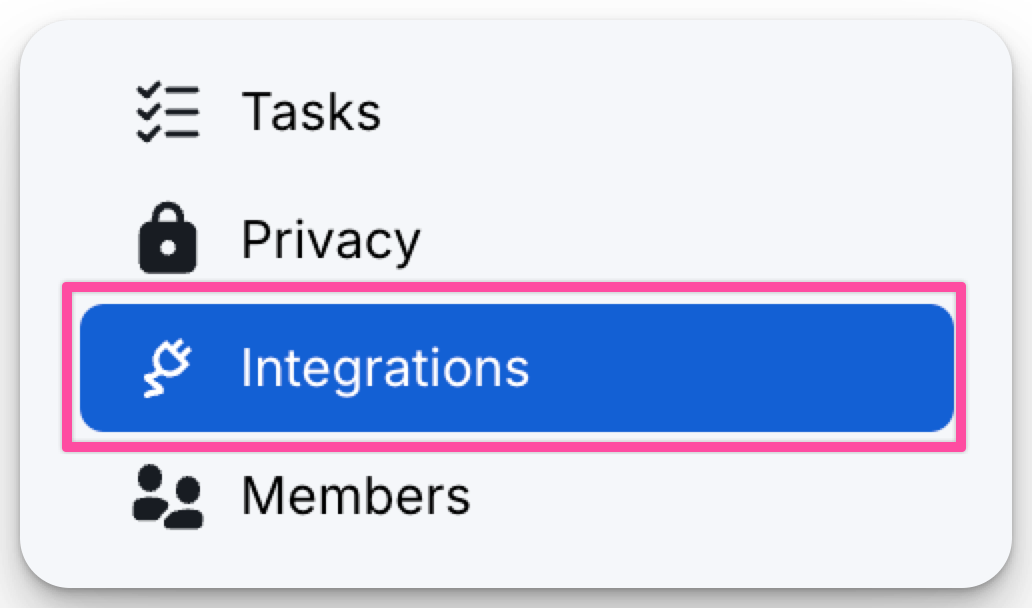
Navigate to Organization Settings → Integrations.
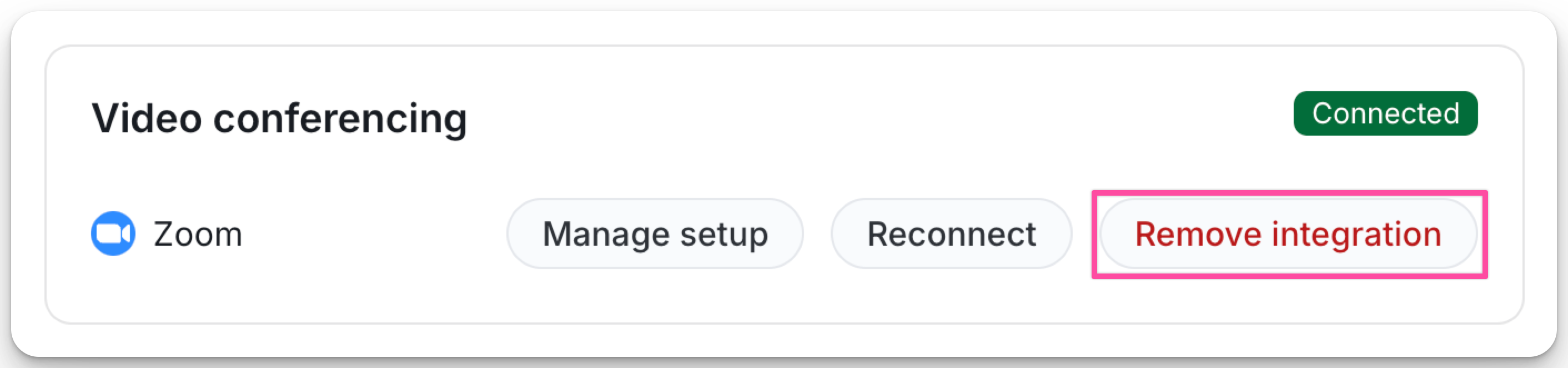
Uninstall Zoom
Locate Zoom in the Integrations tab and click Remove integration.
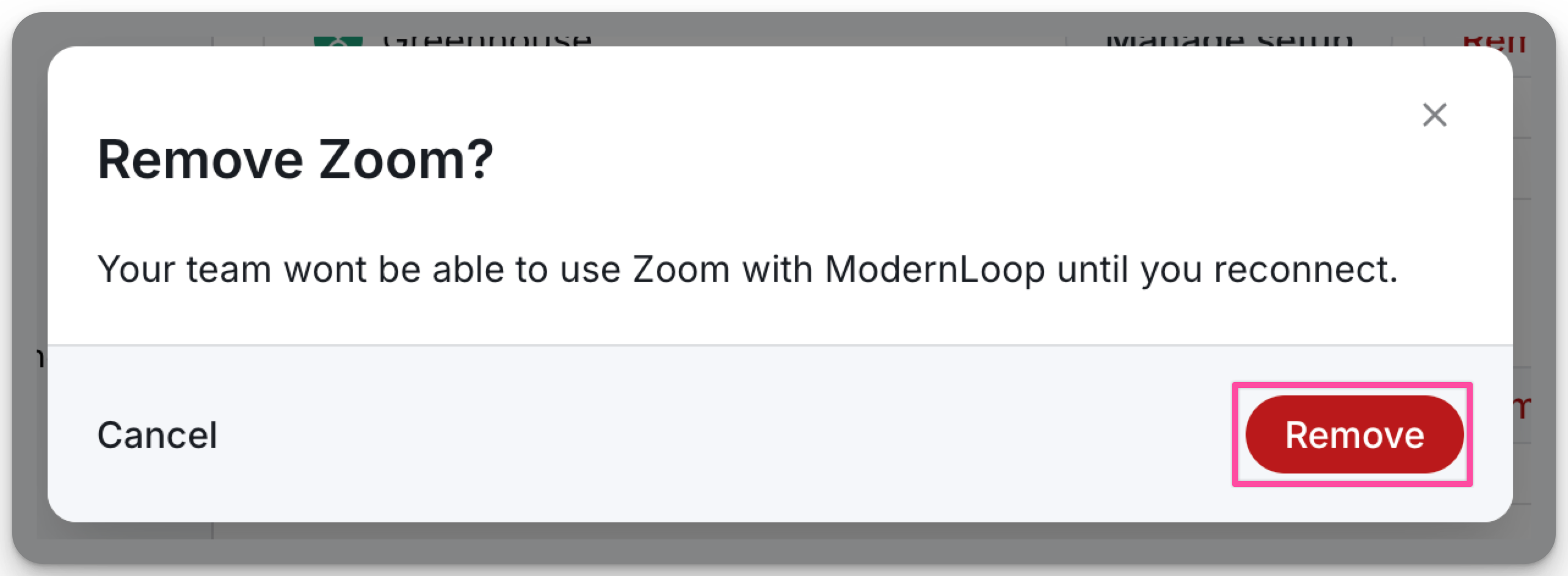
Remove Zoom
Click Remove to confirm the removal.
How to Reconnect Your Zoom Integration
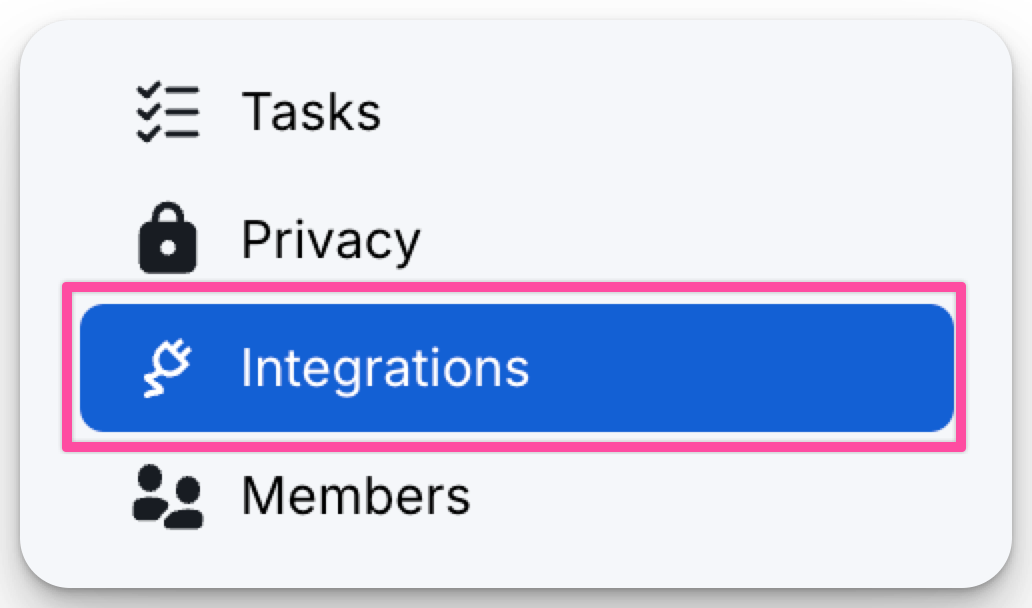
Go to Integrations in ModernLoop
Navigate to Organization Settings → Integrations.
Reconnect Zoom
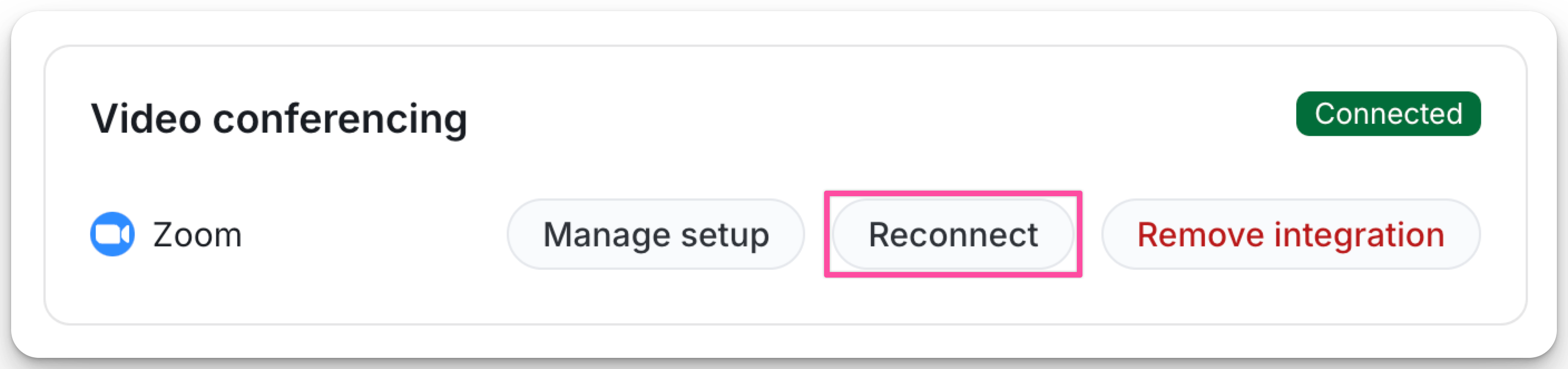
Locate Zoom in the Integrations tab and click Reconnect.
Authorize Zoom
Click Authorize to re-establish the connection.