CoderPad
Last updated: February 5, 2026
Integrating CoderPad with ModernLoop allows teams to create CoderPad interview sessions seamlessly for candidates. Follow this guide to set up the integration and use it effectively.
CoderPad API key access is only available on Enterprise plans and above.
Prerequisites
Before setting up the integration, ensure the following:
The CoderPad user configuring the integration must have admin access to CoderPad.
Your organization must have a CoderPad Enterprise-level account or above, as API access is required.
The user must also have admin access to ModernLoop.
If the CoderPad account used to generate the API key is deprecated, the integration will stop working. Best practice is to use a non-deprecated admin account or create a new CoderPad admin account specifically for this integration.
Instructions
Step 1: Retrieve the CoderPad API Key
Log in to your CoderPad account at coderpad.io/pads.
Click My Settings from the top-right drop-down menu.
On the displayed settings page, locate and copy the API Key.
Step 2: Connect CoderPad to ModernLoop
Log in to ModernLoop at app.modernloop.io.
Navigate to Organization Settings in the left navigation menu.
Go to the Integrations tab.
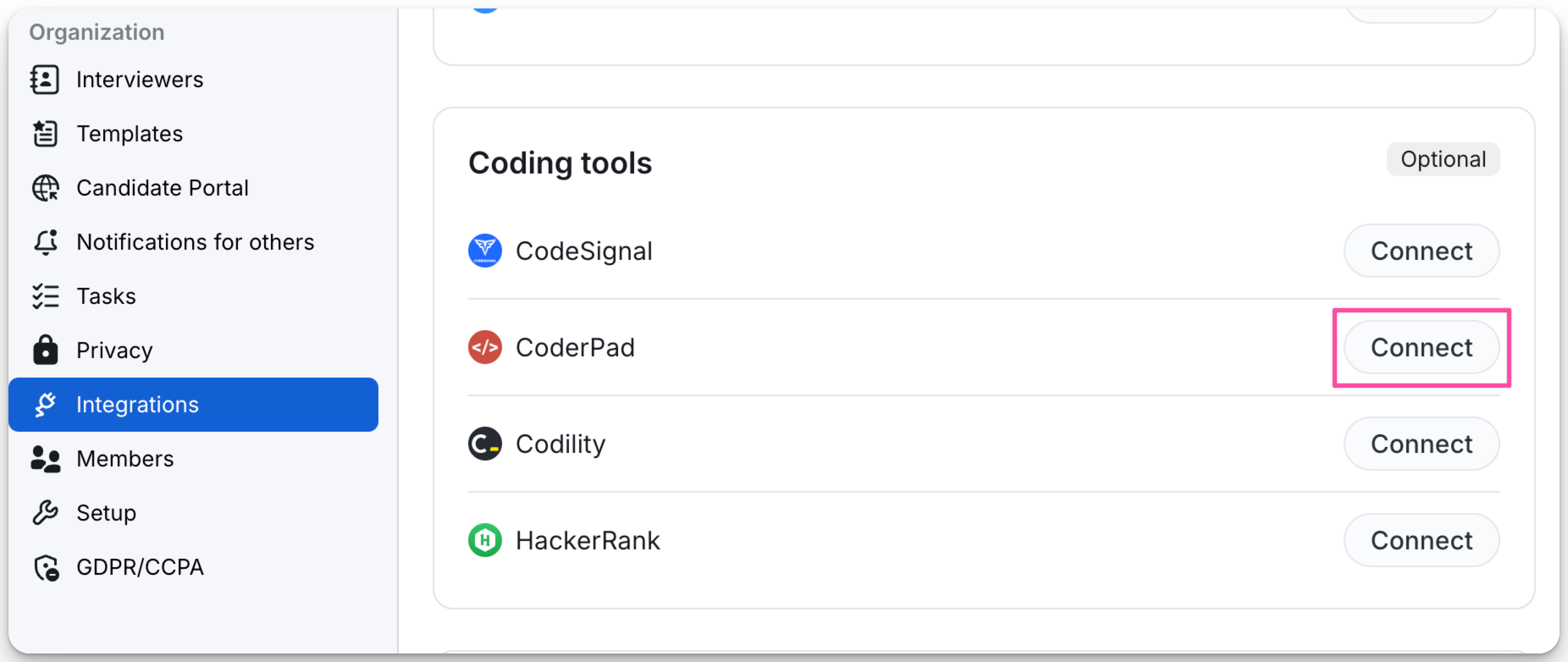
Scroll to CoderPad under the Coding Tools section and click Connect.
Paste the API Key from CoderPad into the provided field.
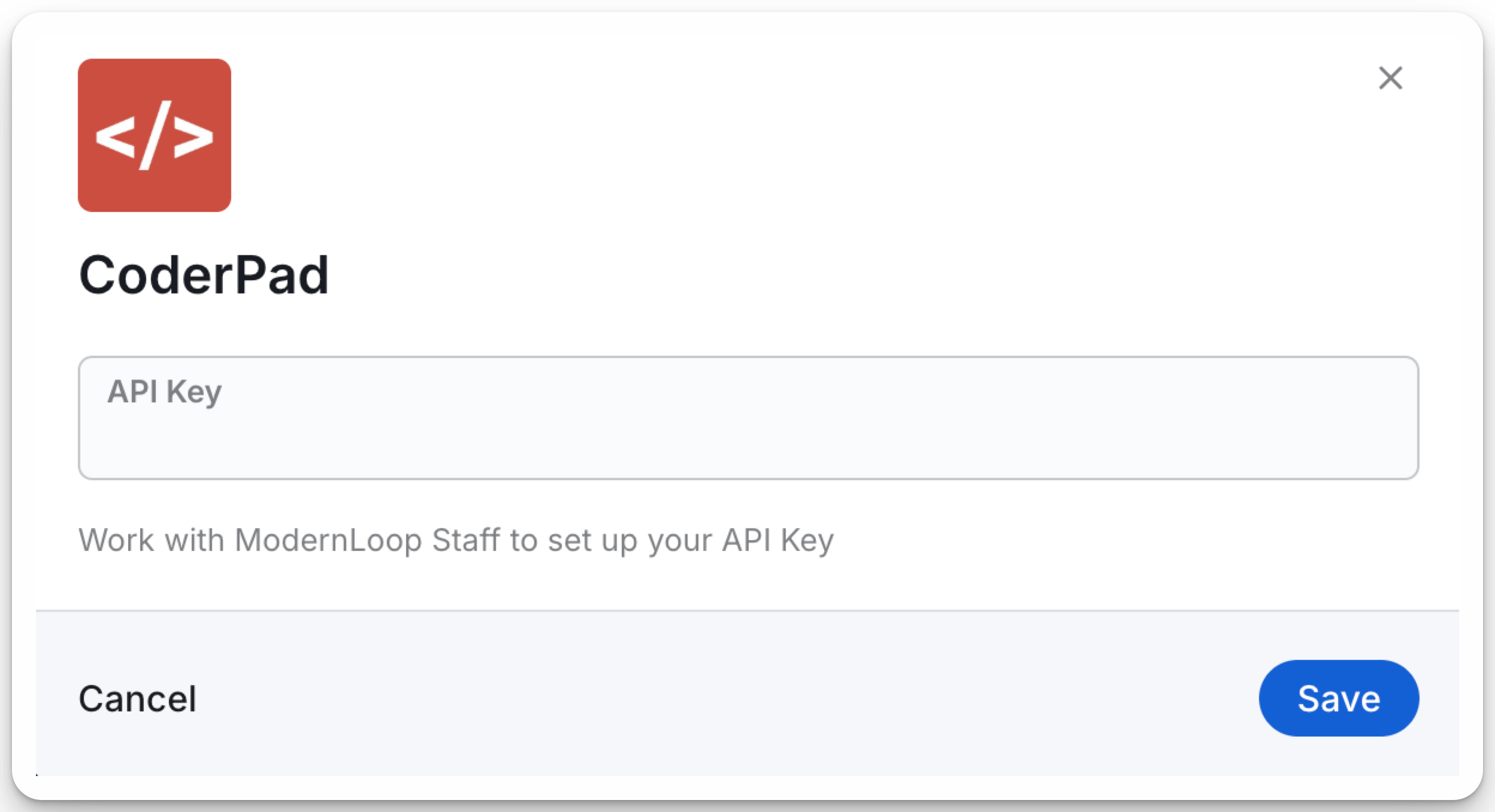
Click Save.
The CoderPad integration is now ready to use!
Using Your CoderPad Integration
1. Generating CoderPad Links During Scheduling
When scheduling an interview in ModernLoop, you can add coding links to the interview plan on the Setup tab or on the Communications tab:
From the Setup tab:
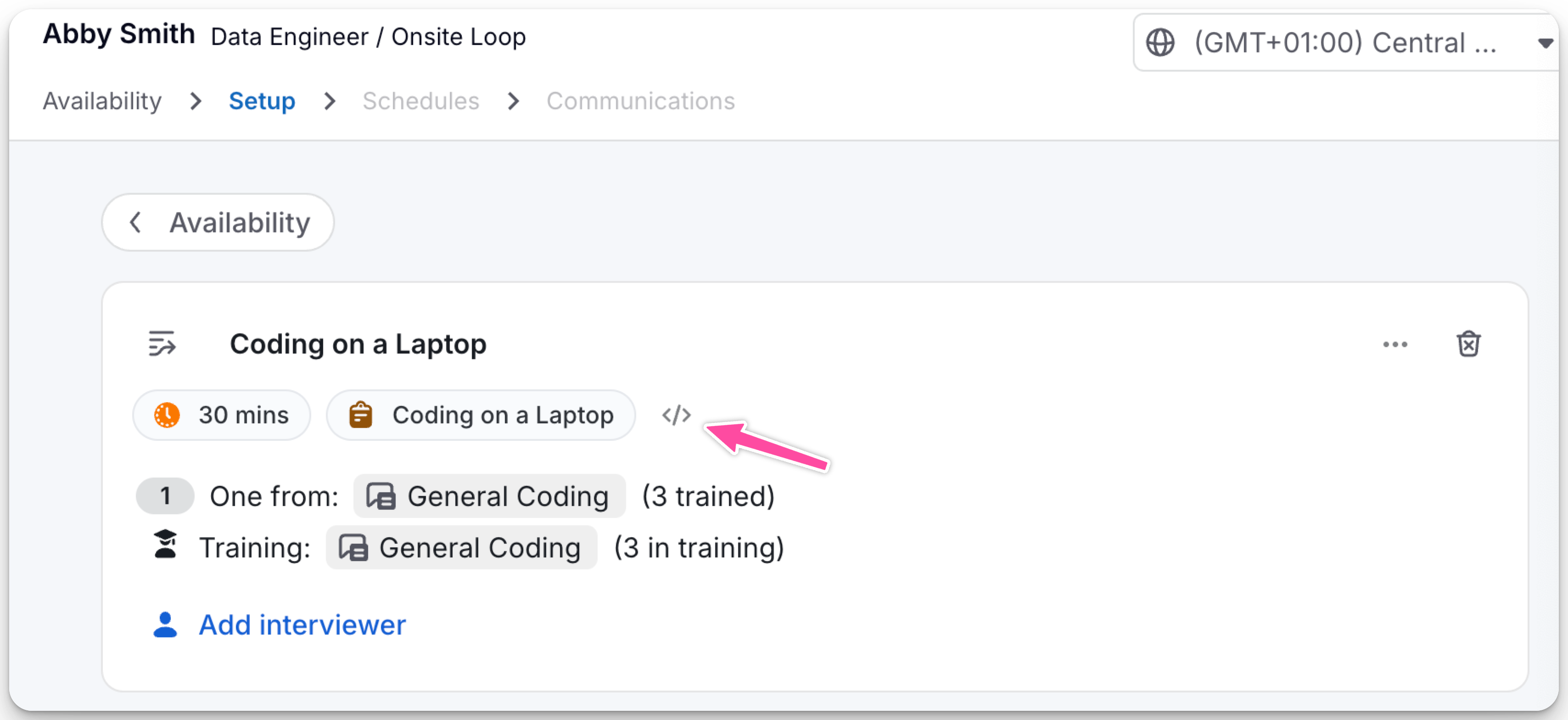
Select the “</>” icon for the interview you wish to add a coding link to.
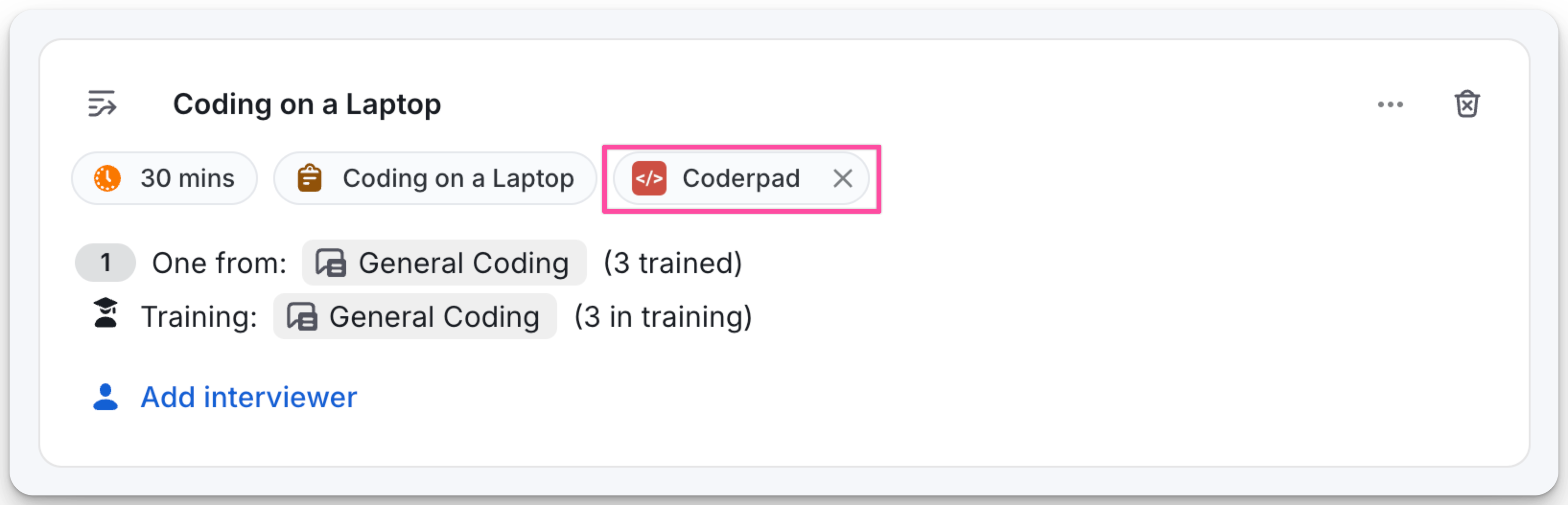
The CoderPad button will appear. Progress through the schedule flow.
On the Communications tab, the link will appear in the CoderPad box as well as the candidate’s interview schedule.
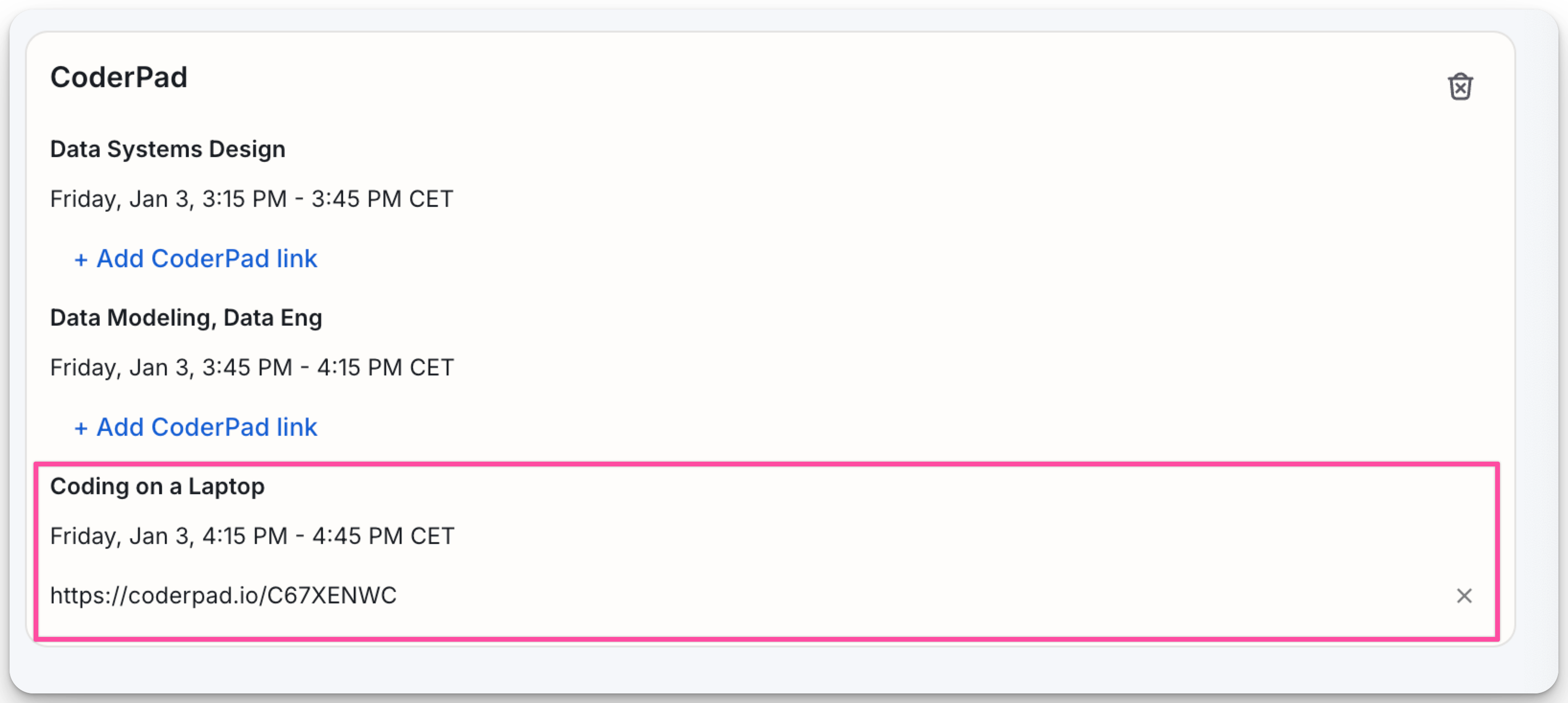
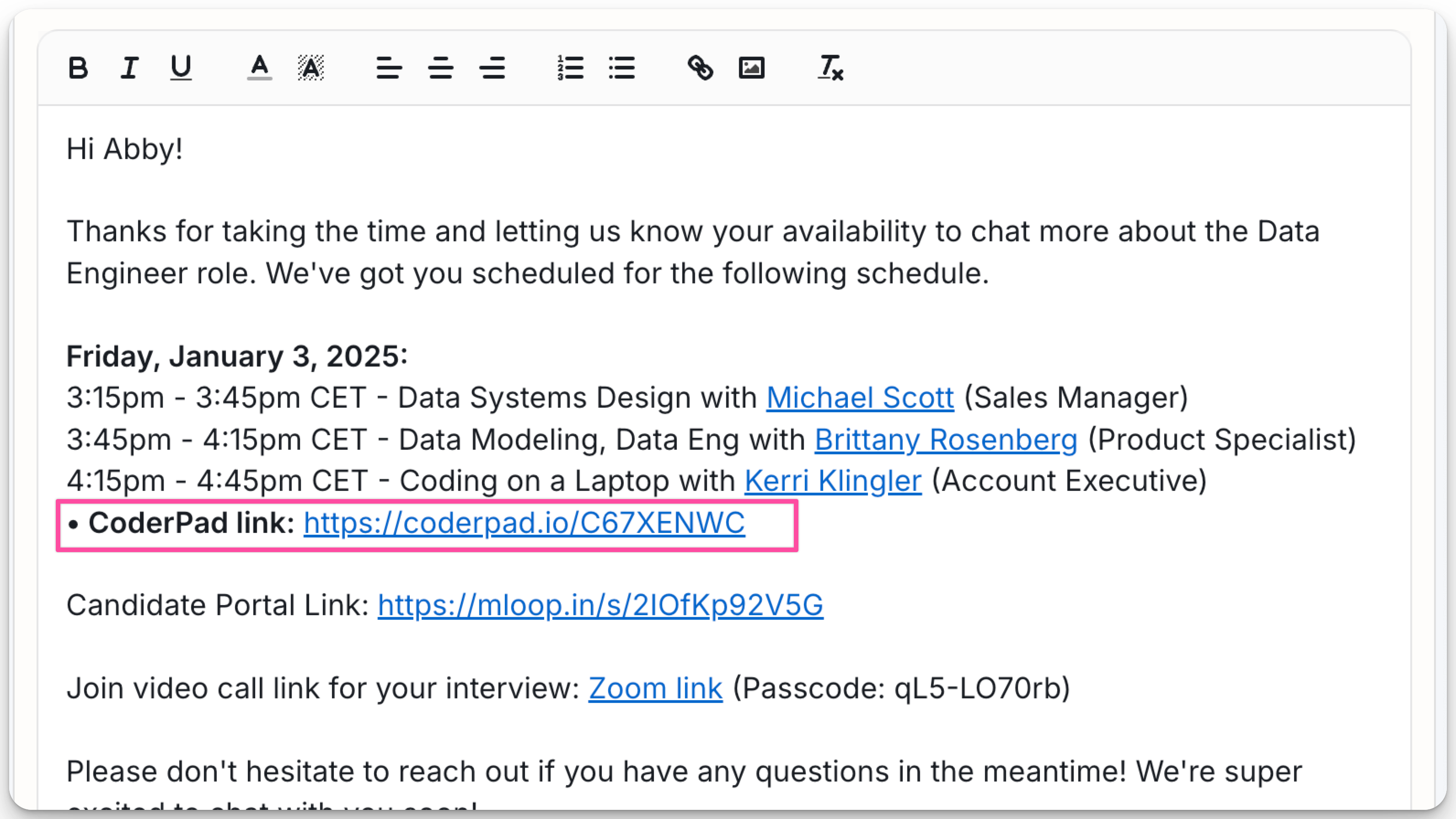
From the Communications tab:
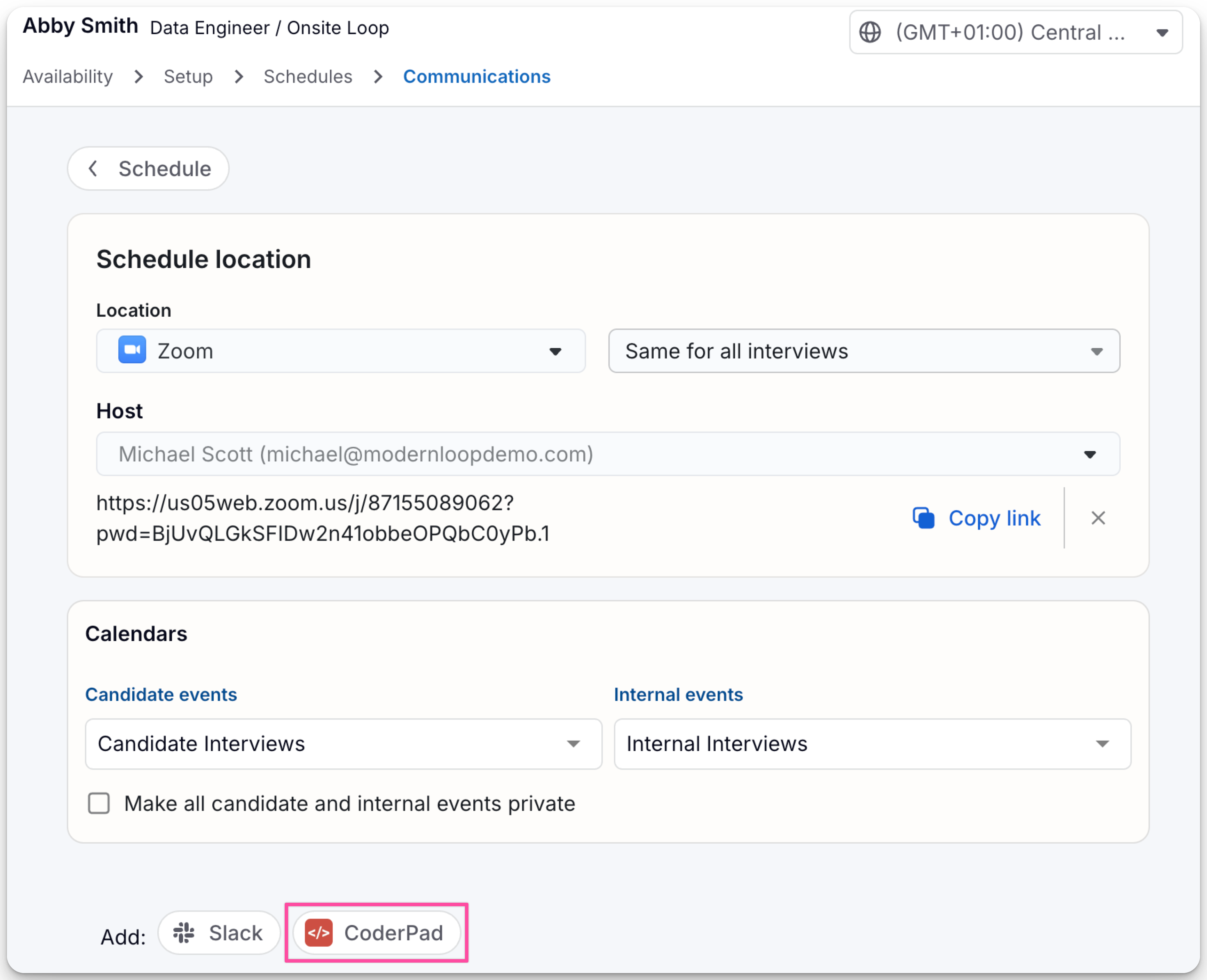
Select the CoderPad button to open a modal.
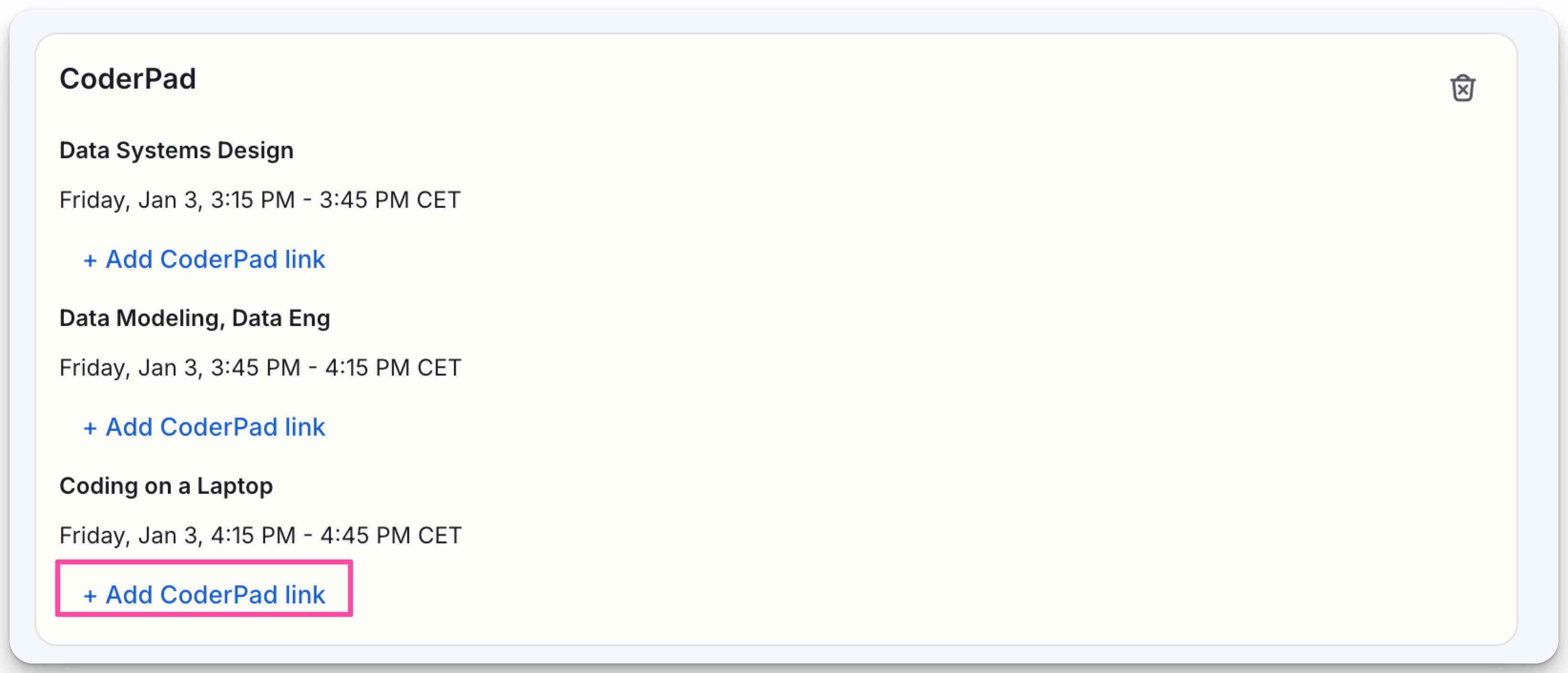
Click + Add CoderPad link to auto-generate a link for the interview.
The link will appear in the CoderPad box as well as the candidate’s interview schedule.
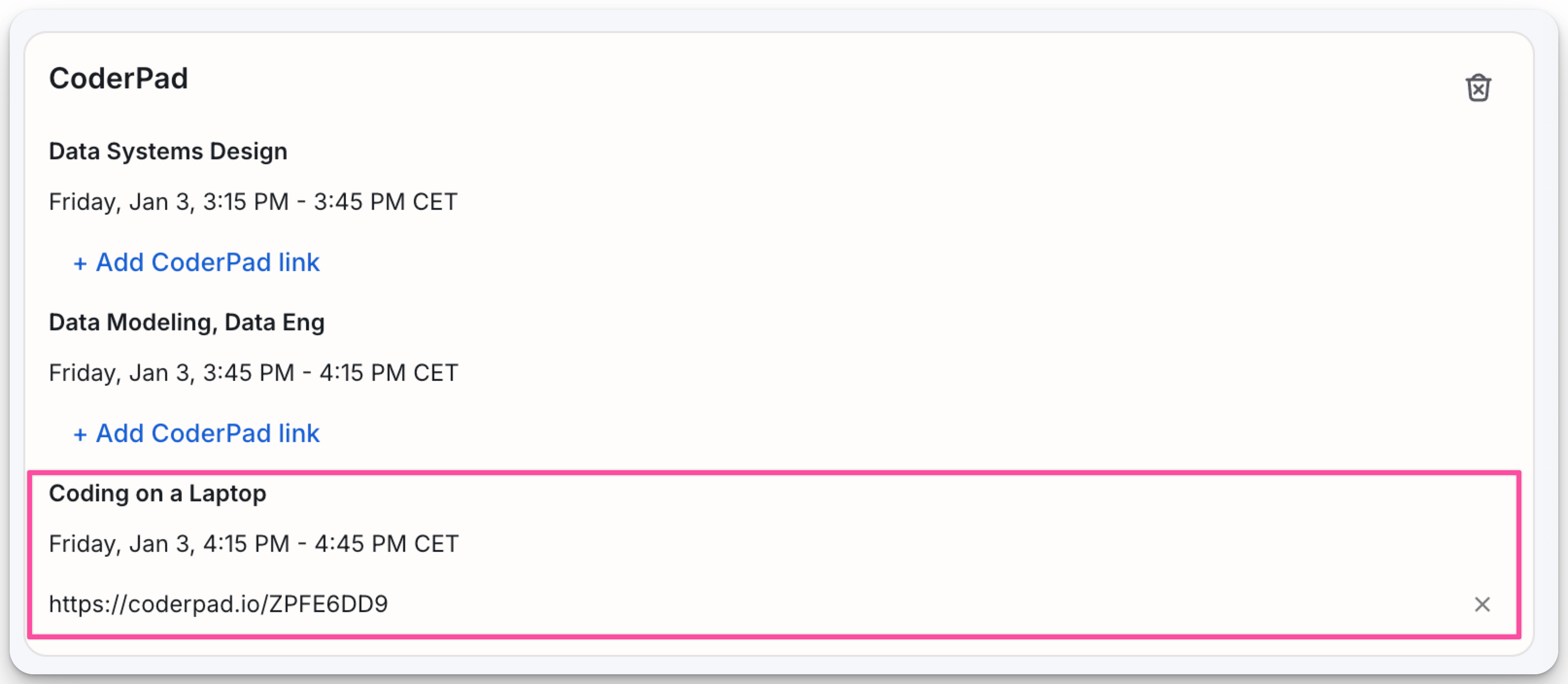
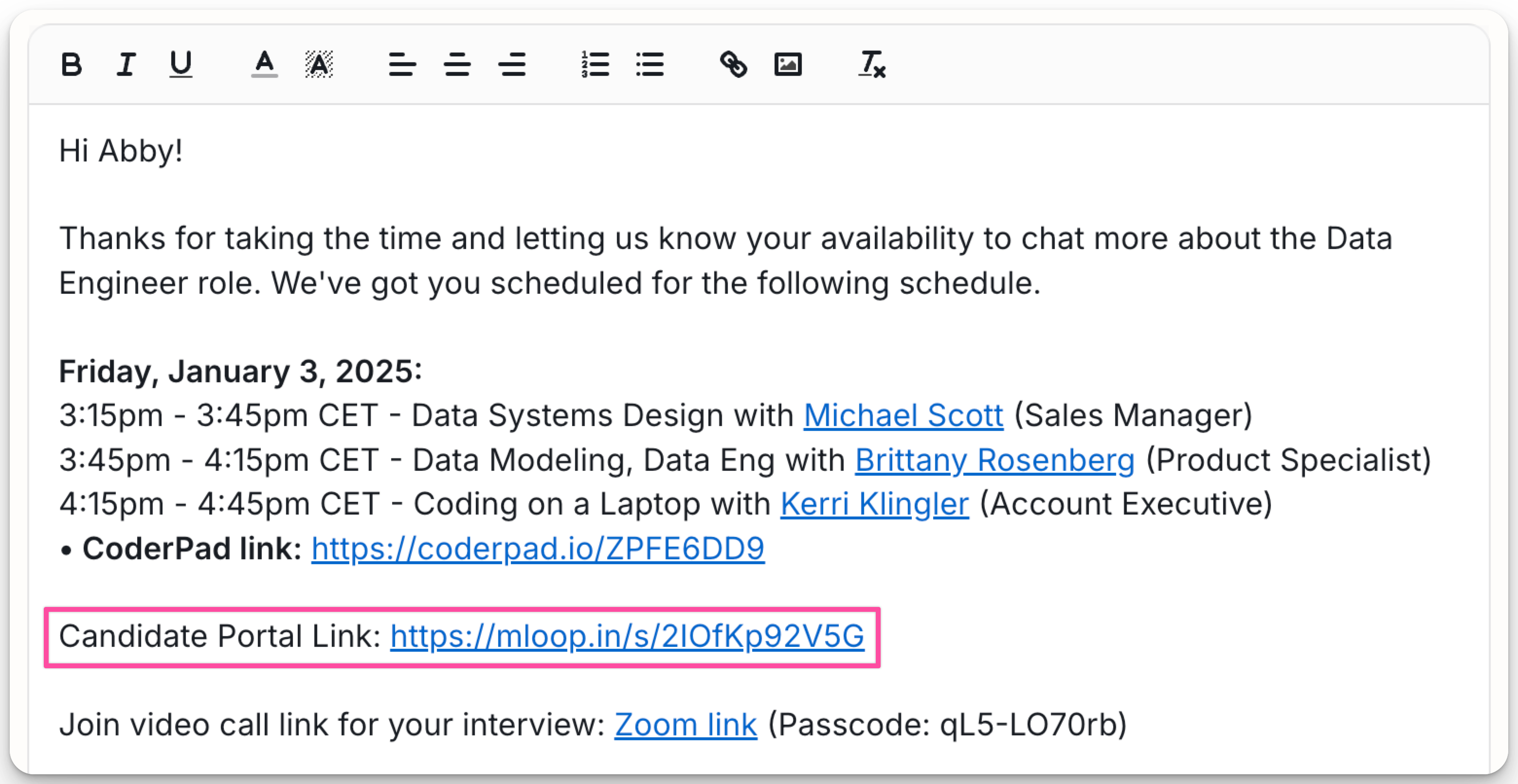
2. Adding CoderPad Links to Interview Plans
To automate link generation for specific job stages:
Navigate to the Jobs tab in ModernLoop.
Select the desired job.
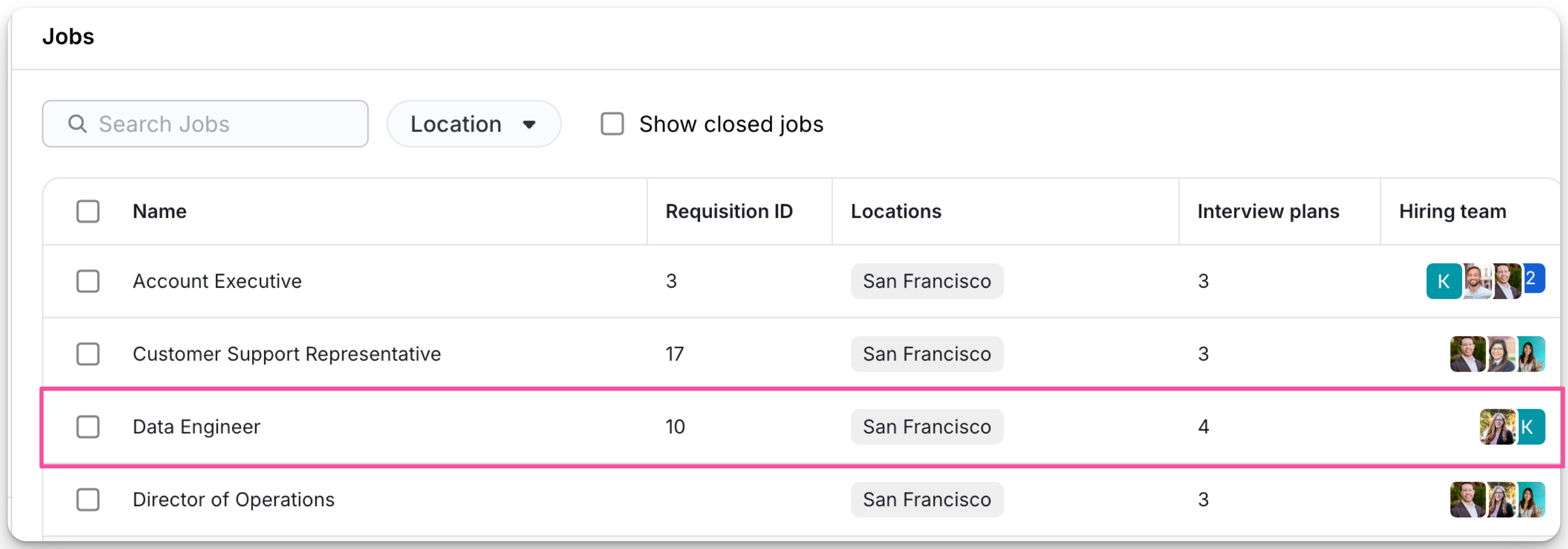
Choose the relevant job stage and Interview plan.
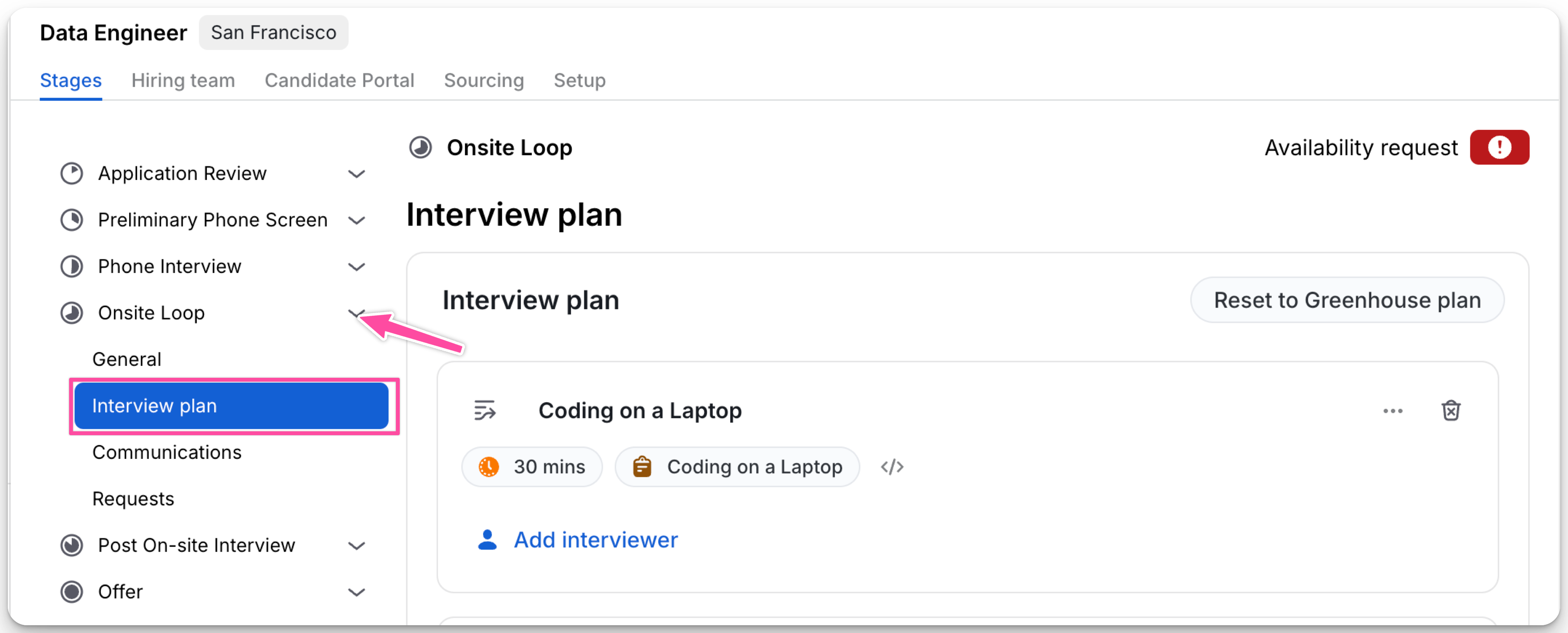
Locate the interview where you want to add a default coding assessment link.
Click the "</>" icon to configure the link.
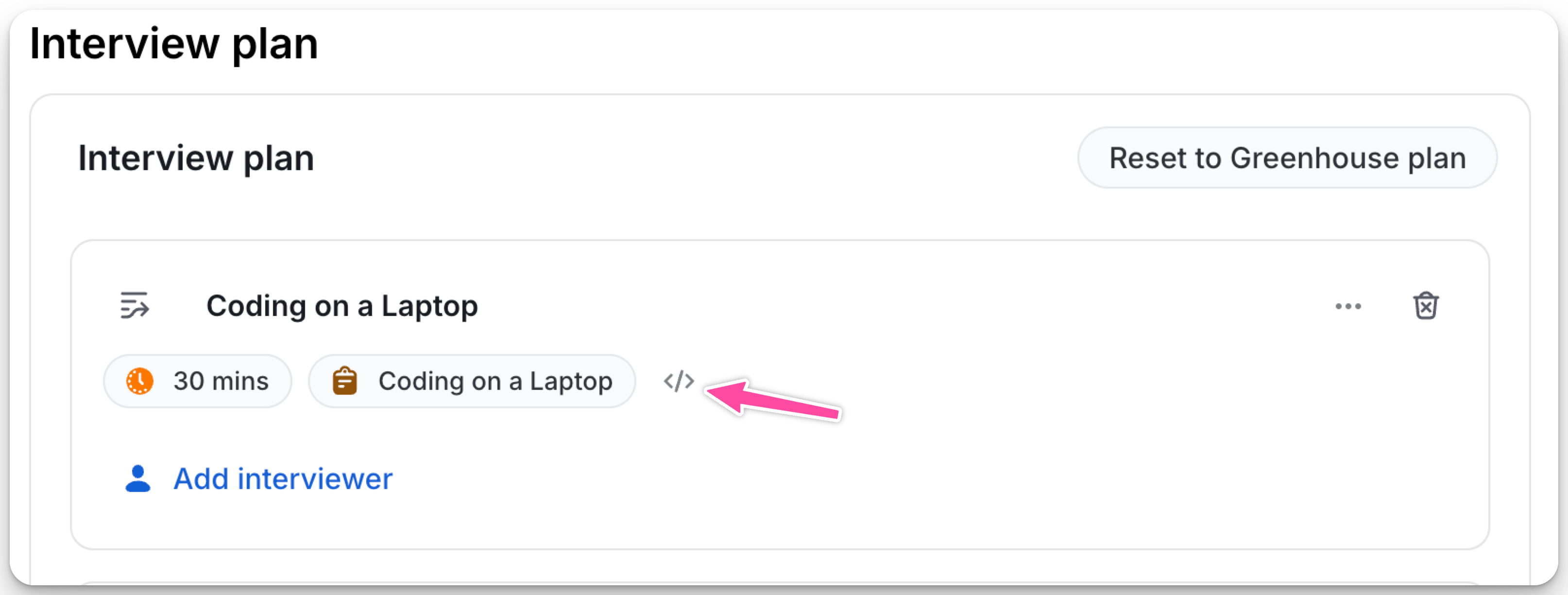
Once configured, CoderPad links will be automatically generated whenever an interview schedule is created for that stage.