Google Workspace - Workspace App Install
Last updated: February 6, 2026
ModernLoop's new Google Workspace Application-Level Installation simplifies the process of integrating ModernLoop with your company's Google Workspace. By opting into this method, your team can:
Assign interviewers from your workspace users.
Access and manage calendar resources (e.g., rooms).
Automatically sync interviewer availability.
Streamline interview scheduling and coordination.
If you’re an existing ModernLoop customer planning to transition from Google Workspace to Microsoft, please notify your CSM or email support@modernloop.io at least 1 month prior to your target transition date.
Grant ModernLoop Workspace-Wide Access
ModernLoop requires calendar access for all employees who participate in interviews. Workspace-wide access is the recommended approach for most companies, as it minimizes the maintenance of interviewer lists.
Installation Steps
Step 1 - Set Up a Service User Admin
Create a Custom Role:
In the Google Workspace Admin Console, create a custom role called
ModernLoop Adminwith the permission:Admin API Privilege > Users: Read.
Create a Service User:
Create a Google account to serve as the ModernLoop service user.
Assign the
ModernLoop Adminrole to this user.
Note: While a Super Admin can be used for this step, creating a service user with minimal permissions is highly recommended.
Use a dedicated service account to avoid disruption if a personal account is deactivated.
Step 2 - Install the ModernLoop Google Workspace App
Have a Super Admin of your Google Workspace install the ModernLoop Google Workspace Application. The administrator will need to:
Open the ModernLoop Google Workspace Application.
Click Admin Install.
Select Everyone at your organization.
Agree to the Terms of Service and Privacy Policy.
Click Finish.
Step 3 - Complete Installation in ModernLoop
Complete the installation by providing ModernLoop the Service User Admin email address so that the connection can be verified and the scoped directory sync can be initiated. This can be completed by any ModernLoop user, and does not need to be the super admin or the service user itself.
Log in to ModernLoop.
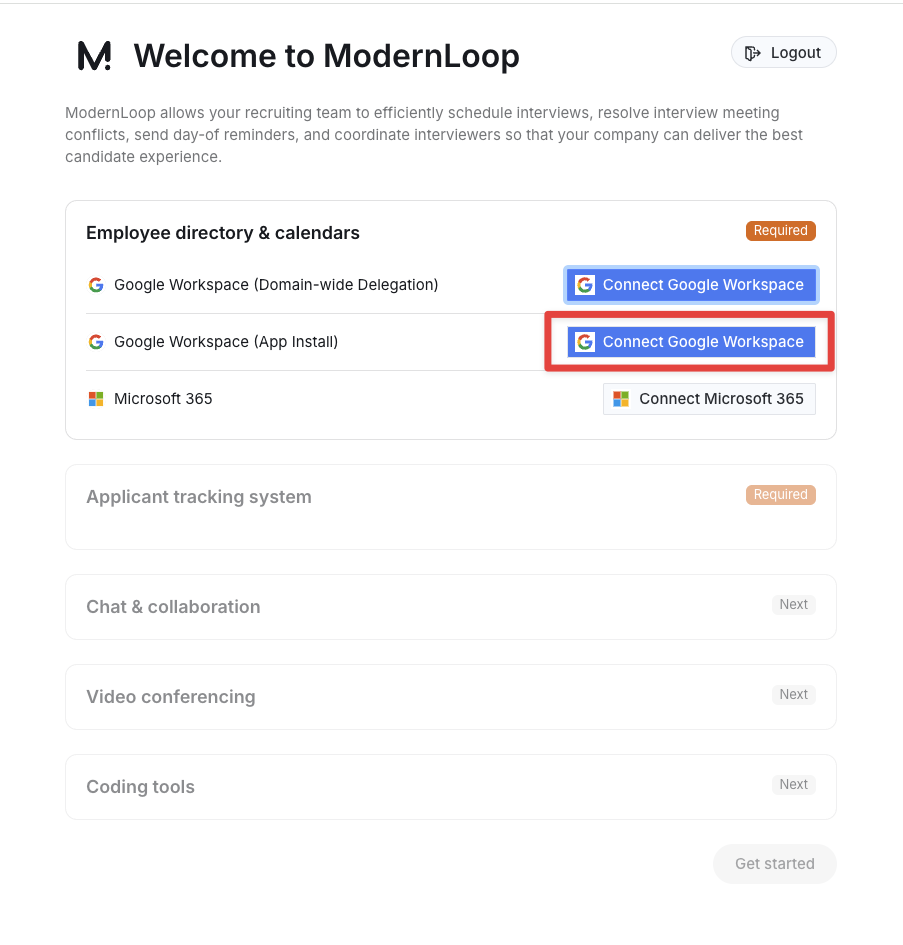
Next to Google Workspace, click Connect Google Workspace.
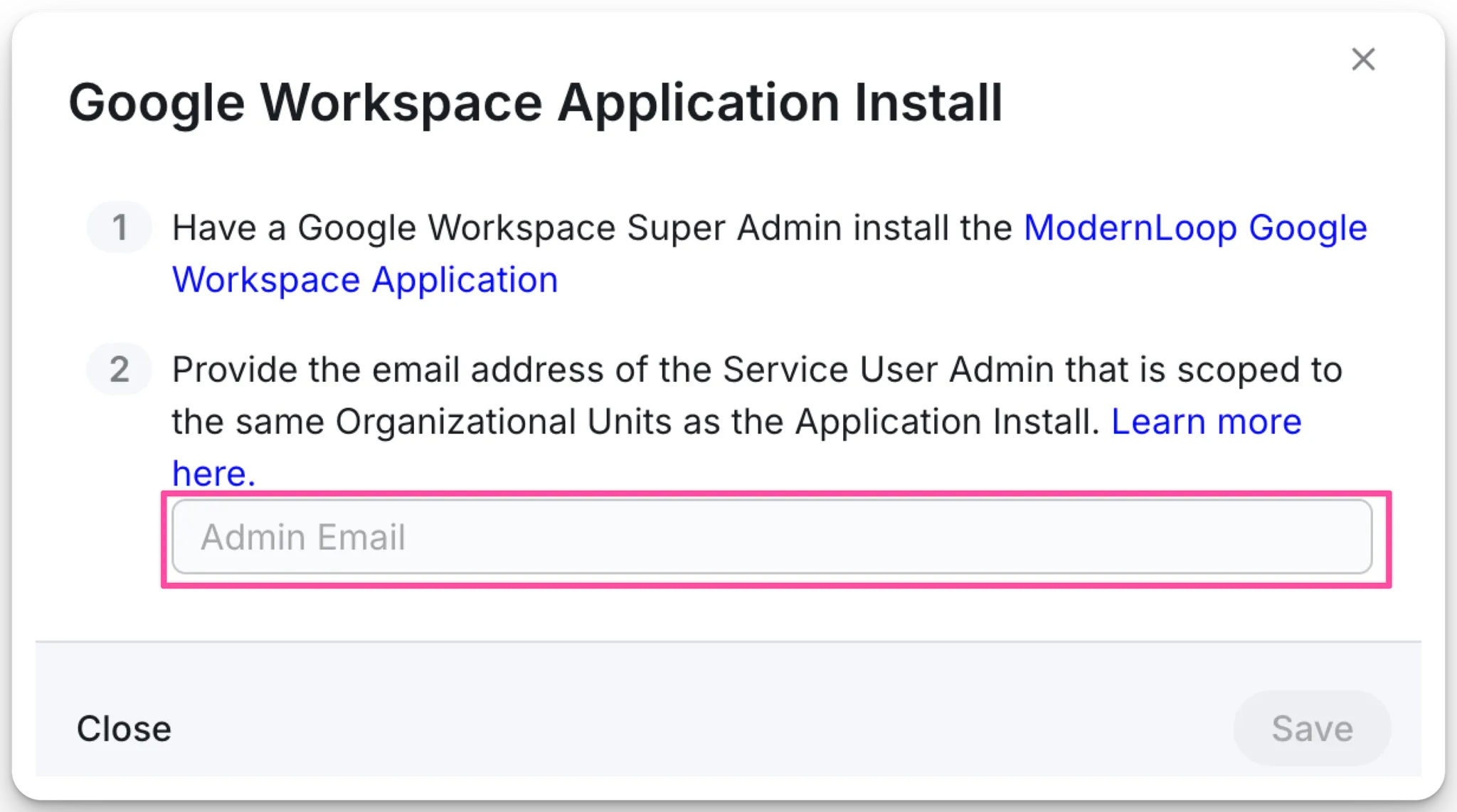
Enter the Service User Admin email address and click Save.
ModernLoop will verify the setup and initiate directory synchronization. Congratulations! Your Google Workspace is now connected to ModernLoop.
Grant ModernLoop Restricted Access by Organizational Unit
It is possible to restrict ModernLoop's access to a subset of users and resources within your organization. This is configured using Google’s Organizational Units. If you do not have Organizational Units set up within your Google Workspace, please set up the Organization Units that you wish to grant ModernLoop access to.
Reminder: ModernLoop needs calendar access for anyone who is interviewing at your company. Usually this means every user that is also contained in your Application Tracking System (ATS) should also be scoped to the ModernLoop application.
Note: While Google Workspace allows Applications to be restricted to Groups instead of Organizational Units, ModernLoop does not currently support Group restricted access. This is because ModernLoop needs to read a limited directory from the corresponding Service User Admin (created in Step 1) to understand which users are in scope for the application.
Step 1 - Set Up a Service User Admin with Restricted Access
Create a Custom Role:
In the Google Workspace Admin Console, create a custom role called
ModernLoop Adminwith the permission:Admin API Privilege > Users: Read.
Create a Service User:
Create a Google account to serve as the ModernLoop service user.
Assign the
ModernLoop Adminrole to this user.
Restrict Scope to OUs:
Restrict its "Scope of Role" to the Organizational Units you plan for ModernLoop to have access to.
Move this user to one of those Organizational Units so that ModernLoop will also gain access to this user.
Important: A Super Admin cannot be used here, as we need to restrict directory access to specific OUs.
Step 2 - Install the ModernLoop Google Workspace App
Have a Super Admin of your Google Workspace install the ModernLoop Google Workspace Application. The administrator will need to:
Open the ModernLoop Google Workspace Application.
Click Admin Install.
Click Continue.
Select Certain groups or organizational units.
Agree to the Terms of Service and Privacy Policy.
Click Next.
Select the OUs to grant ModernLoop access.
Click Finish.
Step 3 - Complete Installation in ModernLoop
Complete the installation by providing ModernLoop the Service User Admin email address so that the connection can be verified and the scoped directory sync can be initiated. This can be completed by any ModernLoop user, and does not need to be the super admin or the service user itself.
Log in to ModernLoop.
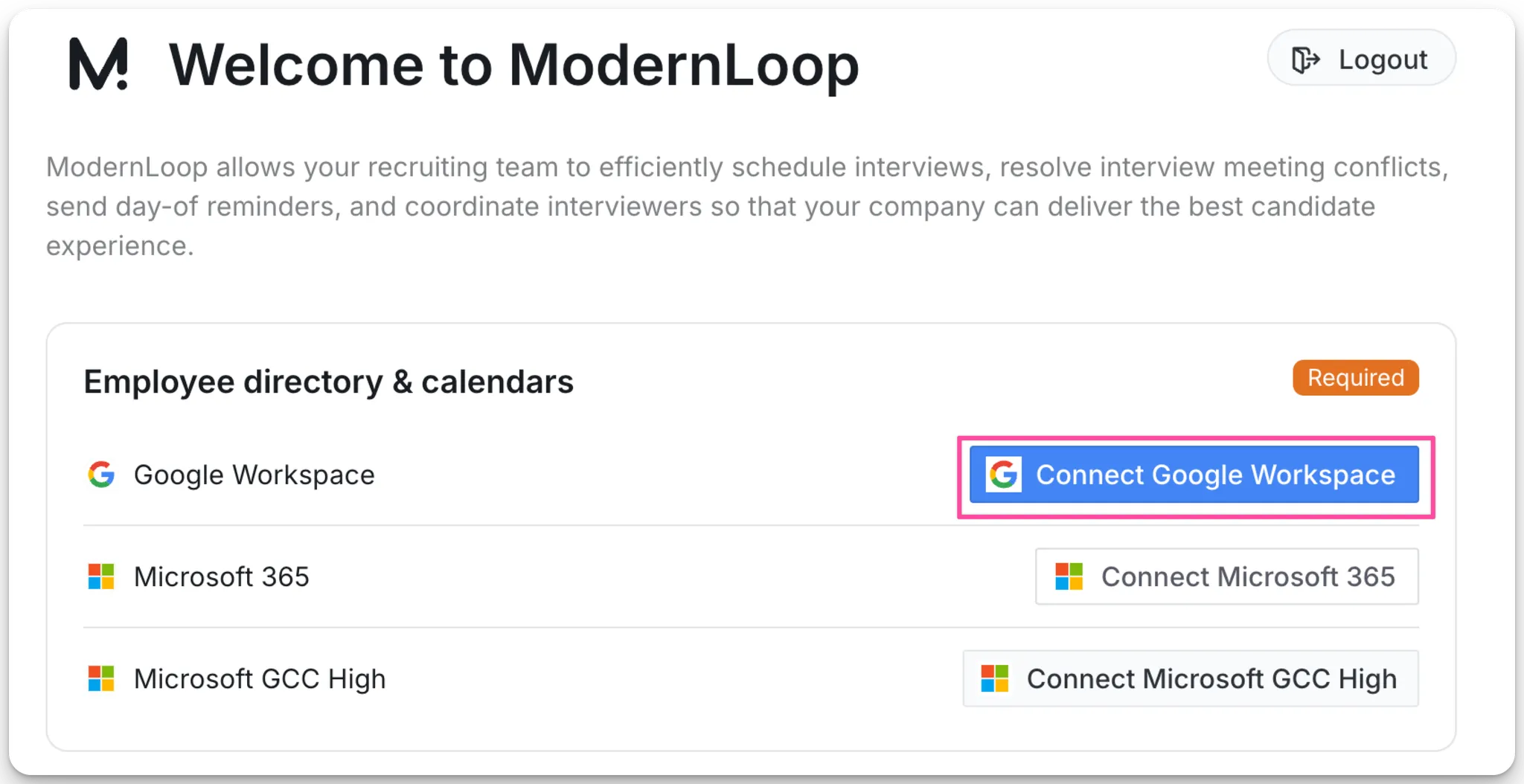
Next to Google Workspace, click Connect Google Workspace.
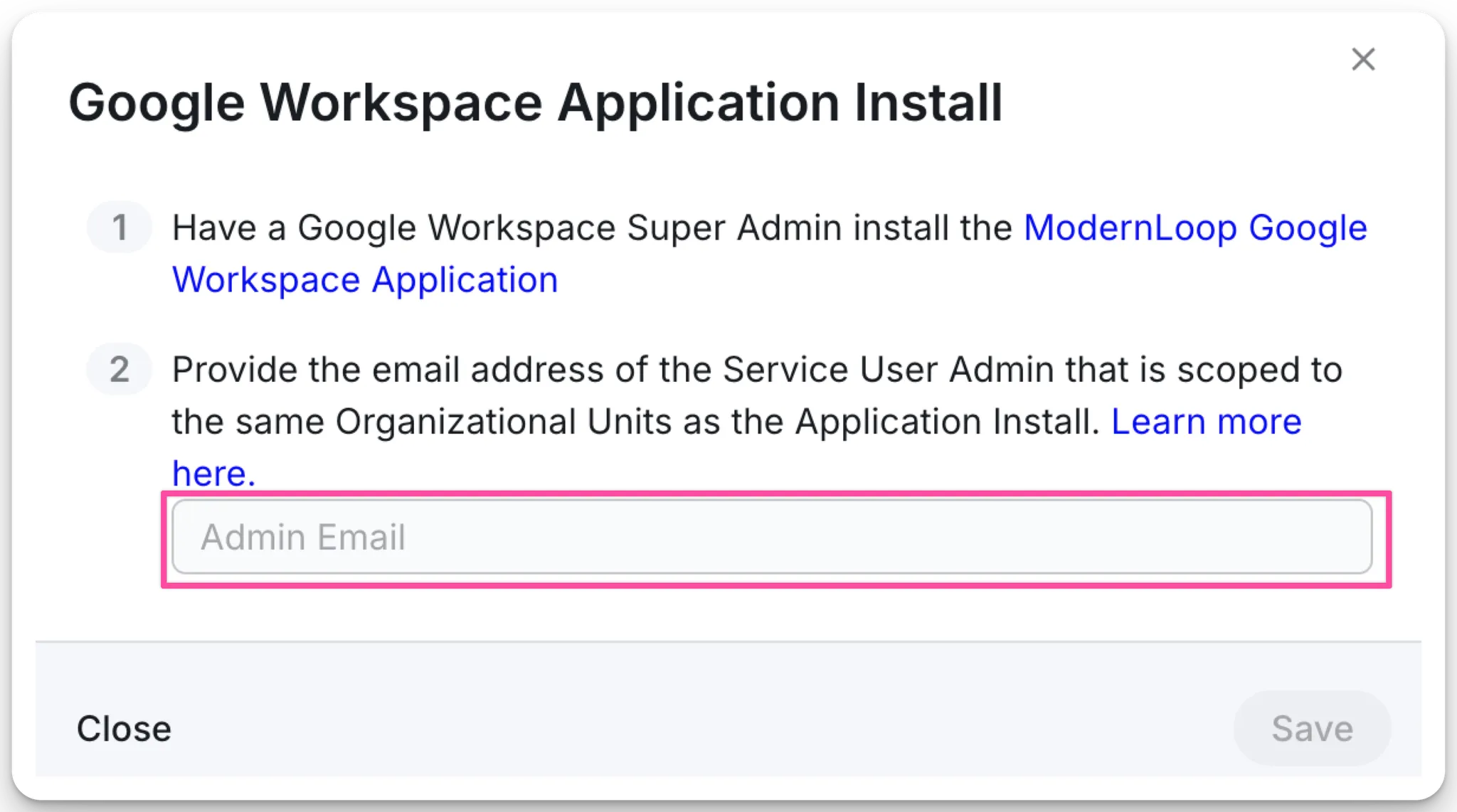
Enter the Service User Admin email address and click Save.
ModernLoop will verify the setup and initiate directory synchronization. You’ve successfully restricted ModernLoop access to specific OUs!
Scopes Requested by ModernLoop
ModernLoop requires the following Google Workspace API scopes to function:
Scope | Purpose |
| Allows ModernLoop to read a list of in-scope users for the application. |
| Allows ModernLoop to access and read meeting room availability for booking interviews. |
| Enables ModernLoop to read calendars, check availability, and manage interview events. |